













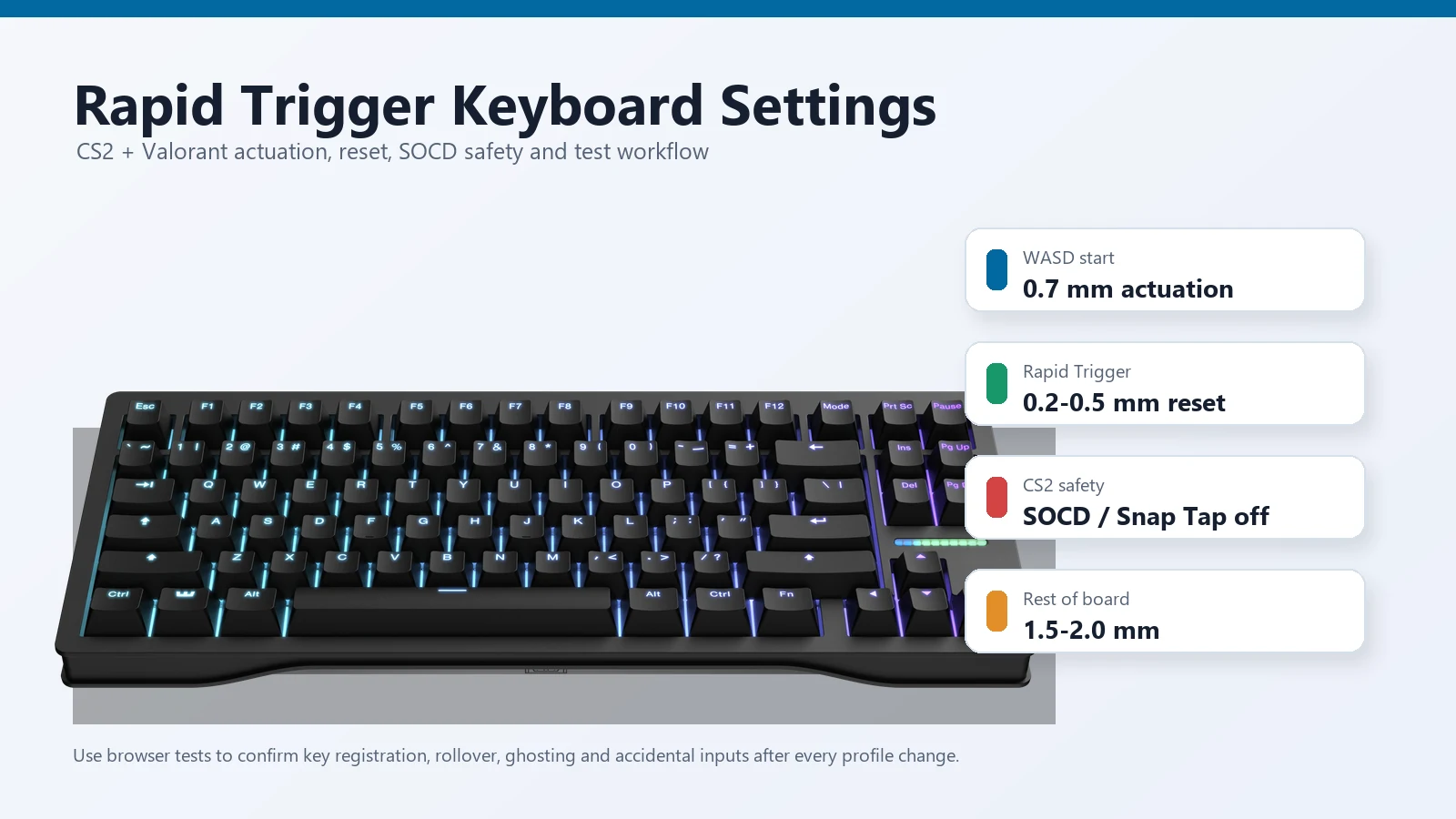


Fast answer: do not start by setting every key to 0.1 mm. For CS2 and Valorant, a safer first Rapid Trigger profile is WASD at 0.7 to 1.0 mm actuation, Rapid Trigger reset around 0.2 to 0.5 mm, and 1.5 to 2.0 mm on the rest of the keyboard. For CS2, keep SOCD, Snap Tap, Snappy Tappy, Rappy Snappy, null binds, and other input-automation features off before joining Valve official servers.
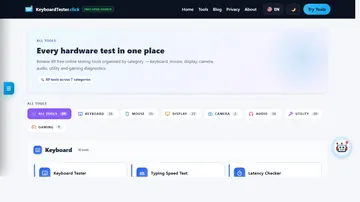
Verify before you queue: no browser can measure switch travel in millimetres — but it can catch exactly what a too-aggressive profile causes. Open the free keyboard tester and hold your movement keys: if A or D releases on its own, repeats, or drops out during a WASD-plus-ability combo, your actuation or reset is too low regardless of what the number says. Then compare input delay before and after each change on the keyboard latency test.
If you are setting up a Hall Effect or analog optical keyboard for CS2 or Valorant, the hard part is not finding the lowest number in the software. The hard part is finding a setting that feels faster without making movement unpredictable. The common mistake is copying a 0.1 mm profile, then wondering why the character stutter-steps, stops walking, cancels defuse, or sends tiny movement inputs you never meant to send.
Start with settings that are fast but still predictable, then change one movement setting at a time. If a profile makes strafing feel sharper but also causes accidental A/D taps, early crouches, missed stops, or unwanted ability inputs, it is not ready for ranked yet.
Before You Change the Numbers
Rapid Trigger tuning is not about making every key as sensitive as possible. The better goal is to make movement keys release quickly while keeping hold keys reliable. Treat the keyboard like a set of per-key controls, not one global speed slider.
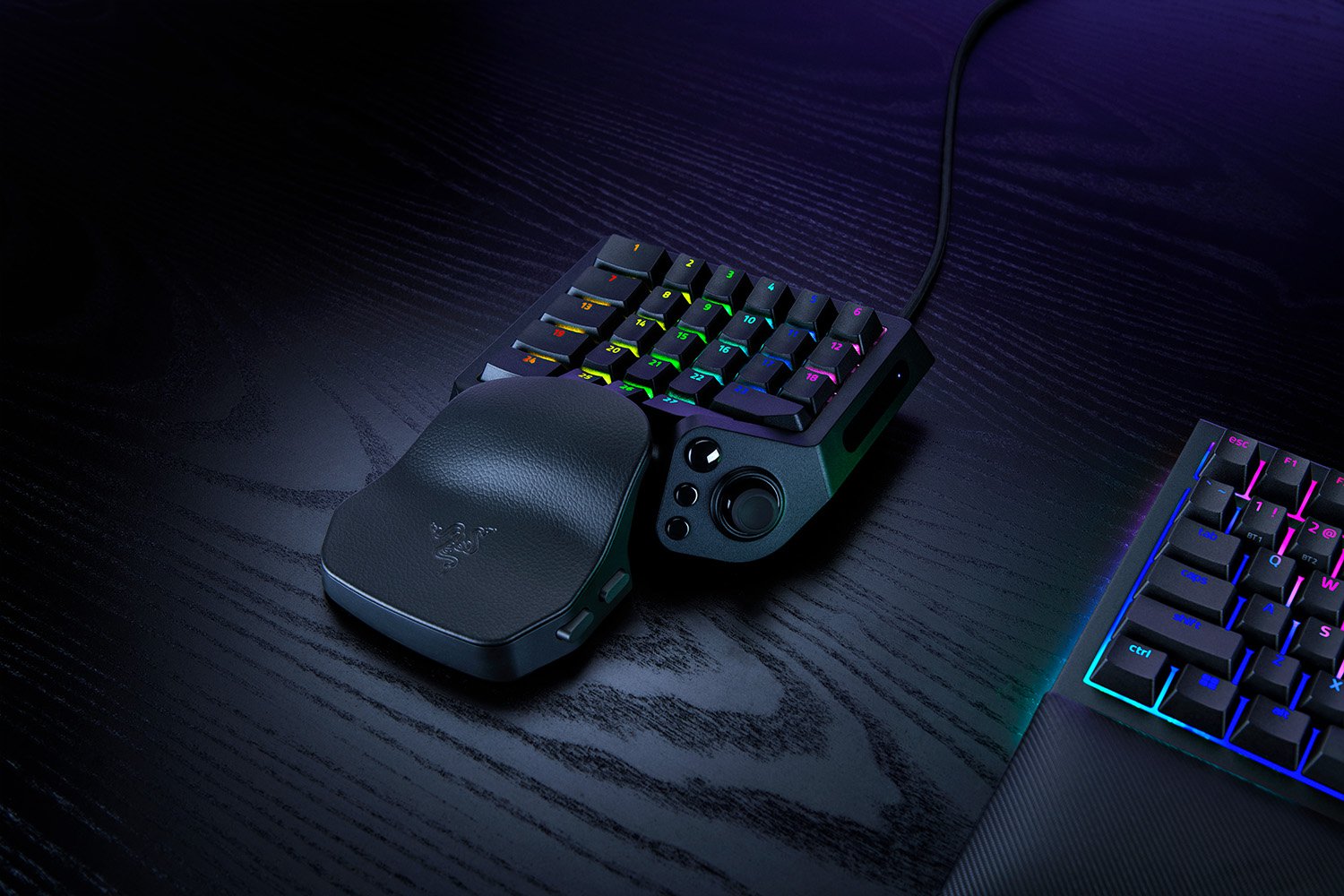
If reaching movement and ability binds comfortably matters more than switch travel, compare one-handed gaming keyboards with joysticks before making the whole board more sensitive.
If a new profile feels fast but creates accidental movement, missed holds, or unpredictable stops, raise the sensitivity back up. A slightly slower setting that behaves every time is better than an aggressive setting you cannot control.
Rapid Trigger, Actuation, Continuous RT and SOCD Are Different
Before changing a profile, separate the terms. If you do not separate them, you can accidentally copy a risky setting while thinking you are only making the keys faster.
| Term | What it changes | Practical risk |
|---|---|---|
| Actuation point | How far a key travels before the keyboard reports "pressed." | Too shallow can cause accidental presses from resting fingers. |
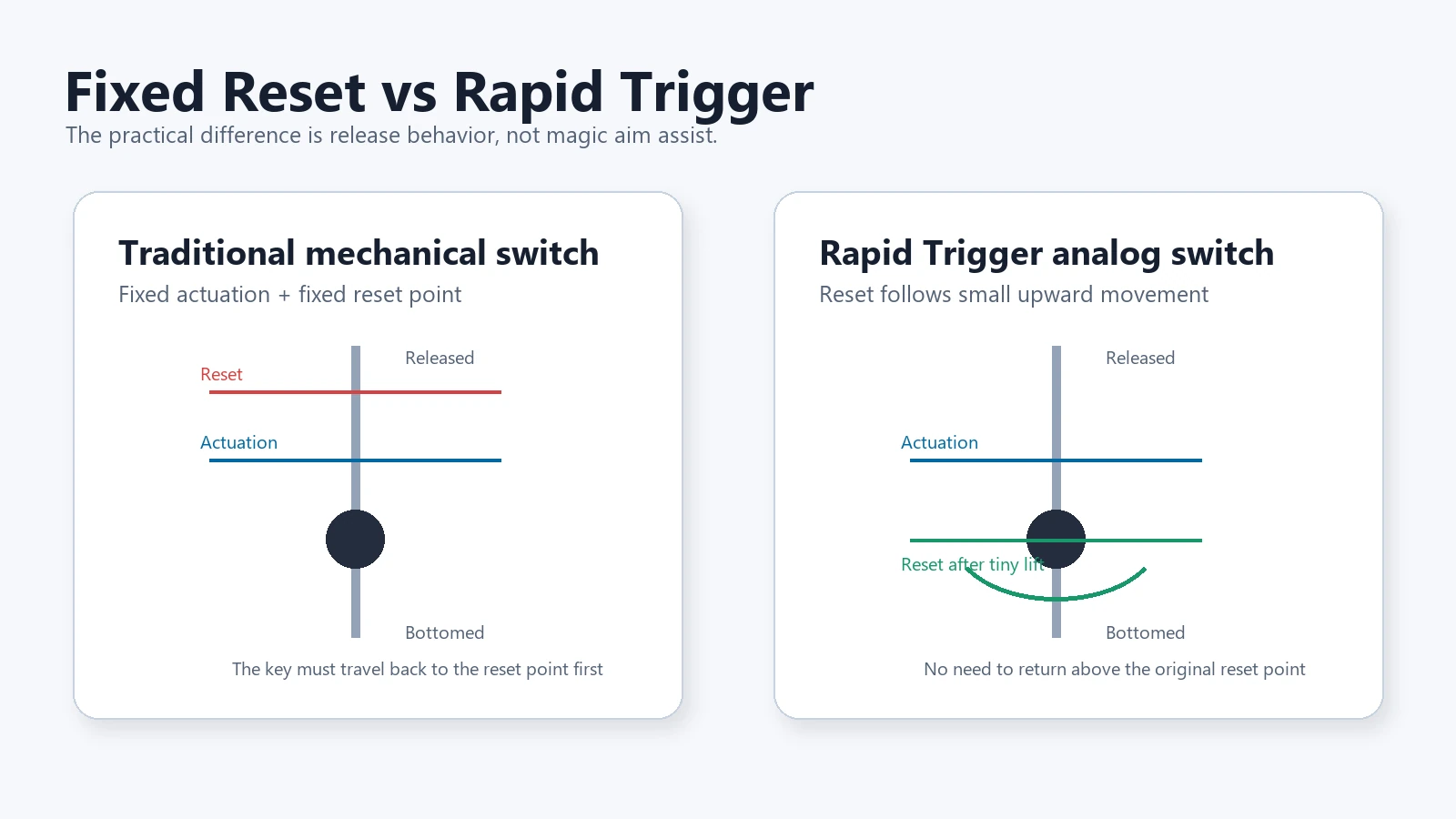
| Rapid Trigger sensitivity | How much upward movement resets the key after it is active. | Too sensitive can briefly release movement when your finger pressure changes. |
| Continuous Rapid Trigger | Lets Rapid Trigger behavior continue without returning above the original actuation point. | Can feel excellent for trained players, but it makes sloppy finger pressure more visible. |
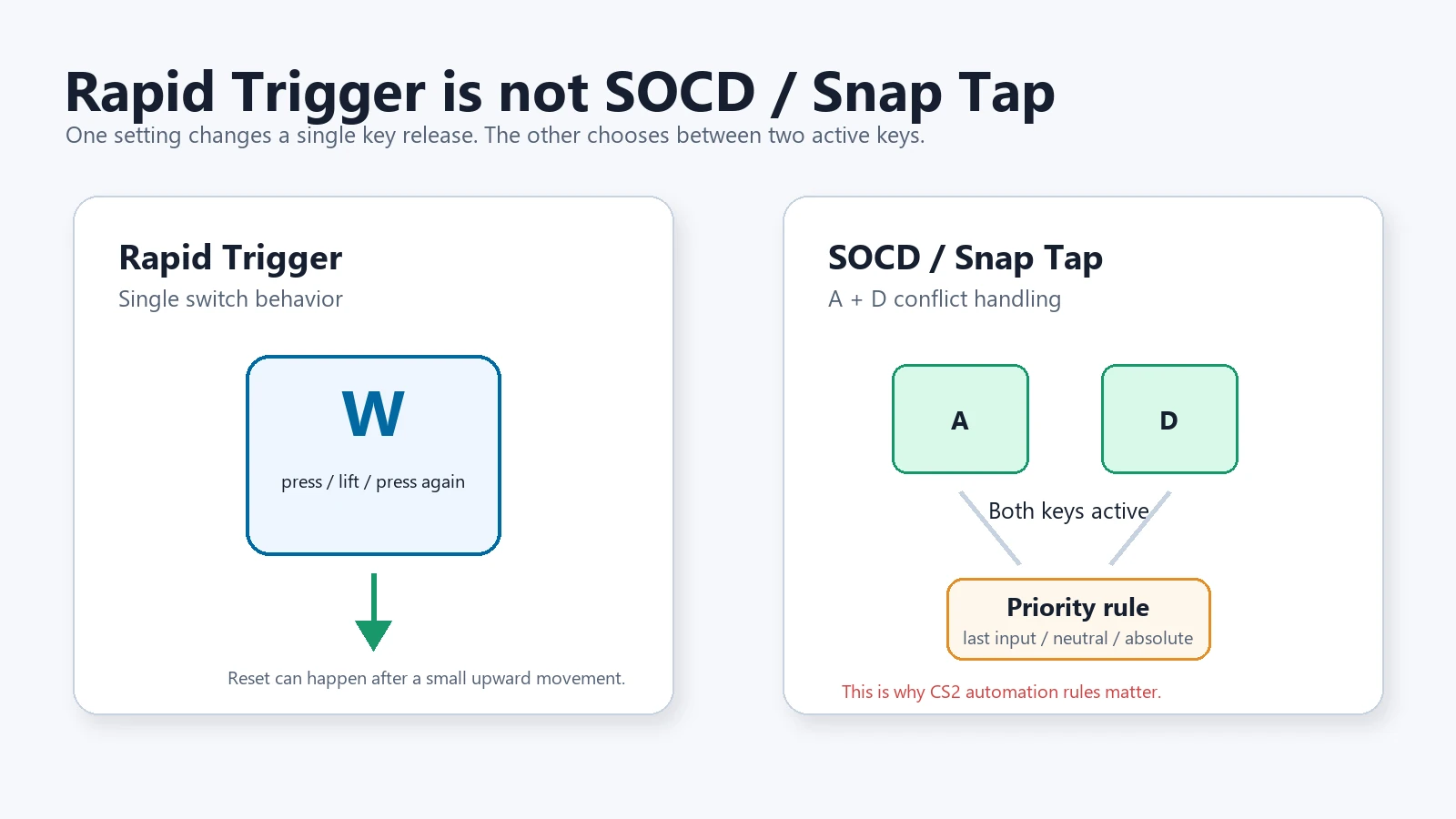
| SOCD / Snap Tap | Decides what happens when opposite keys such as A and D are both active. | Can cross into input automation rules, especially in CS2 on Valve official servers. |
| Polling rate | How often the keyboard reports input to the PC. | Higher Hz is not useful if it causes instability or if the game/system path cannot benefit. |
Safe Starting Settings for CS2 and Valorant
There is no universal "best" number because finger pressure, switch wobble, keycap height, desk angle, wrist position, and game habits all change the result. A useful profile is the one that improves release timing without adding unintended input. The safest method is to start conservative, then lower settings only after a repeatable test.
| Profile | WASD actuation | Rapid Trigger reset | Other keys | Use when |
|---|---|---|---|---|
| Baseline FPS | 0.7 to 1.0 mm | 0.3 to 0.5 mm | 1.5 to 2.0 mm | You are new to Hall Effect, optical analog, or Rapid Trigger boards. |
| CS2 conservative | 0.6 to 0.8 mm | 0.2 to 0.5 mm | E, Shift, Ctrl, Space at 1.2 to 2.0 mm | You want cleaner counter-strafing without accidental defuse, walk, or crouch releases. |
| Valorant conservative | 0.7 to 1.0 mm | 0.2 to 0.4 mm | Abilities, walk, crouch, push-to-talk at 1.5 to 2.0 mm | You want sharp movement but still need reliable ability and walk-key control. |
| Aggressive trained FPS | 0.3 to 0.6 mm | 0.1 to 0.2 mm | Per-key tuning only | You have already tested for accidental releases and can hold keys steadily. |
| Avoid as default | 0.1 mm on every key | 0.1 mm on every key | Everything ultra-light | Looks fast in screenshots, but often creates accidental input for real players. |
Practical rule: set WASD first, then decide whether W and S really need the same Rapid Trigger behavior as A and D. Some players only enable Rapid Trigger on A and D because side-to-side strafing matters most, while W, Shift, Ctrl, and E must often be held cleanly.
CS2 Profile Notes
CS2 is where the keyboard setting feels most obvious because movement accuracy and stopping behavior are tightly connected. Wooting's official CS2 guide recommends new analog keyboard users start around 0.7 mm WASD actuation, 1.5 mm for the rest of the keyboard, 0.5 mm Rapid Trigger sensitivity, Continuous Rapid Trigger off, and Tachyon Mode on for supported Wooting boards. That is a sensible baseline because it favors consistency before the lowest possible number.
If you play CS2, be careful with the E key. Very sensitive Rapid Trigger on the defuse/use key can interrupt a hold if your finger lifts slightly. The same applies to walk, crouch, jump, push-to-talk, and grenade binds. A faster movement key is useful; a canceled defuse is not.
Valorant Profile Notes
Valorant still benefits from clean press and release timing, but do not treat it as a CS2 clone. Movement, weapon accuracy recovery, counter-strafing habits, and ability use are different enough that a CS2 profile may feel too twitchy. Start with the baseline FPS profile, then lower only A and D first. If you get unwanted jiggle movement or stop walking while holding W, raise the reset sensitivity slightly or disable Rapid Trigger on the key you must hold.
CS2, Valorant, SOCD and Rule Safety
The safest wording is this: Rapid Trigger is not the same feature as SOCD / Snap Tap. Rapid Trigger changes when a single key turns on and off. SOCD / Snap Tap changes how the keyboard resolves two active directions.
CS2 warning: Valve's August 2024 update says certain movement or shooting input automation, including hardware-assisted counter-strafing, can be detected on Valve official servers and result in a match kick. Valve also specifically warned users to disable keyboard input-automation features such as Snap Tap before joining a match.
For CS2, my default recommendation is simple: keep adjustable actuation and Rapid Trigger if your keyboard supports them, but turn off SOCD, Snap Tap, Snappy Tappy, Rappy Snappy, null binds, and any setting that turns multiple movement actions into a single automated result. Rules can also differ between Valve matchmaking, FACEIT, ESEA, LAN events, and school or local tournaments, so do not copy a "safe" claim from a forum without checking your actual platform.
For Valorant, Riot's public support wording is broader: unauthorized hardware or software that gives an unfair advantage can lead to permanent bans. Treat that as the floor. Avoid macros and automation, check current tournament rules, and do not assume a feature is legal in every event just because it appears in keyboard software.
The Testing Workflow Before You Queue
A browser cannot measure the physical travel depth of your switch. It cannot prove that your keyboard is truly set to 0.4 mm or 0.1 mm. What it can do is catch the things that actually ruin a match: missed keys, unexpected releases, ghosted combinations, rollover limits, and unstable timing after a firmware or profile change.
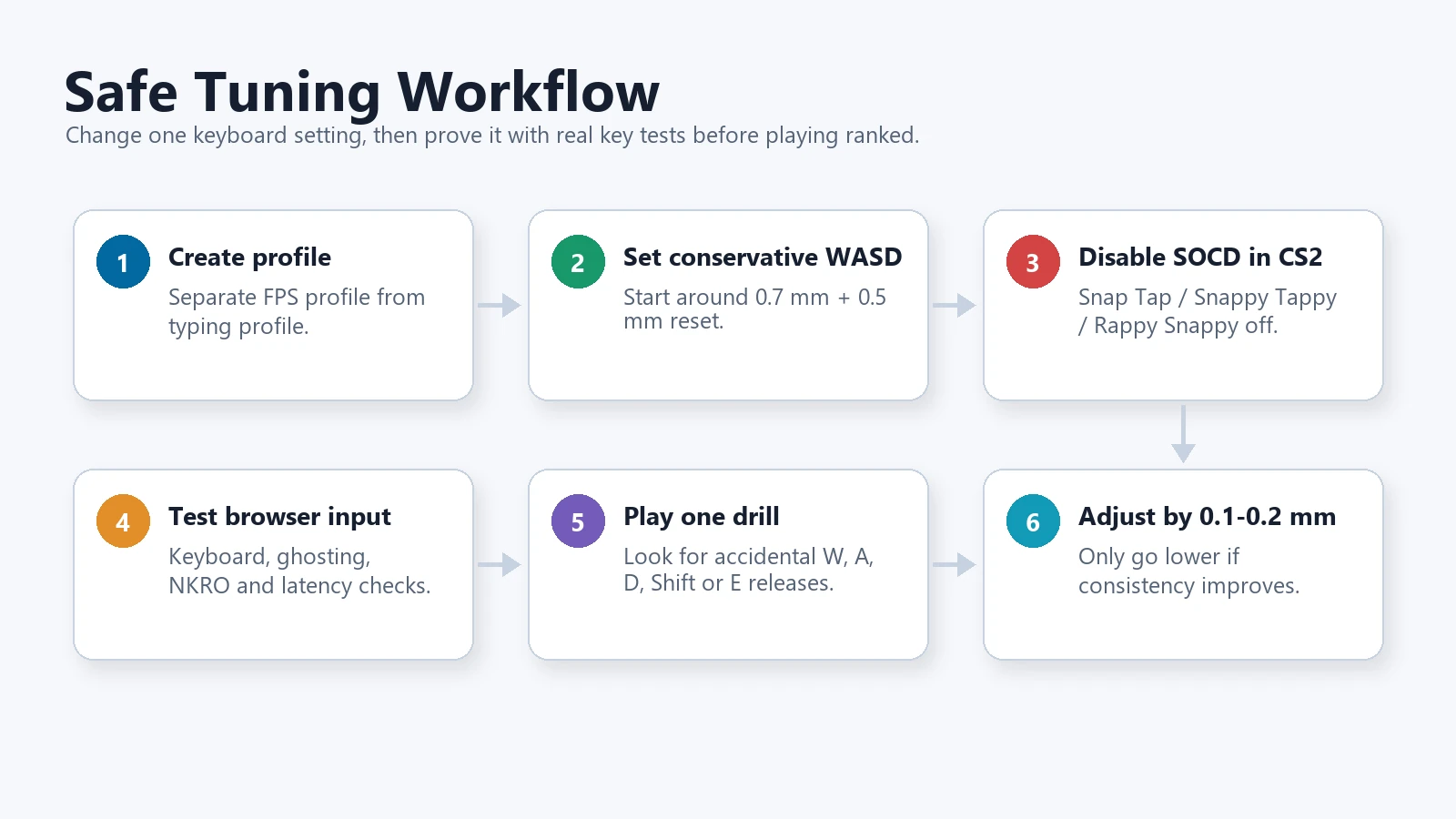
- Create a separate FPS profile. Keep your normal typing profile deeper and less sensitive.
- Start conservative. Use 0.7 to 1.0 mm WASD and 0.3 to 0.5 mm reset before going lower.
- Disable SOCD-style automation for CS2. Do this before launching or queuing, not after a warning.
- Run the Keyboard Tester. Press W, A, S, D, Shift, Ctrl, Space, E, R, number keys, and every game bind once.
- Run the Keyboard Ghosting Test. Hold real game combinations: W + A + Shift, A + D, W + Space, Shift + Ctrl, and your ability keys.
- Run the N-Key Rollover Test. Confirm simultaneous input behavior after enabling any high-performance mode.
- Run the Input Latency Checker. Compare the same board before and after polling or Tachyon-style changes.
- Queue on a pad some evenings? Give it the same pre-match check with a controller tester — stick drift and worn buttons throw aim off just as fast as a bad Rapid Trigger profile.
- Play a repeatable drill. Use an offline CS2 map, deathmatch warm-up, Valorant range, or a movement routine. Watch for accidental releases more than raw speed.
Troubleshooting: What Your Bad Setting Feels Like
Rapid Trigger problems usually feel like "the keyboard is too sensitive," but the fix depends on which key is misbehaving. Match the fix to the symptom instead of changing every setting at once.
| Symptom | Likely cause | Fix |
|---|---|---|
| Character stops moving forward while holding W | Rapid Trigger reset is too sensitive on W, or finger pressure is unstable. | Raise W reset to 0.3 to 0.5 mm, increase W actuation, or enable Rapid Trigger only on A/D. |
| Accidental side steps or jiggles | A/D actuation is too shallow for your resting finger weight. | Move from 0.1 to 0.4 mm or from 0.4 to 0.7 mm. Retest before lowering again. |
| Defuse, interact, walk, or crouch cancels | Hold keys are set like movement tap keys. | Disable Rapid Trigger on those keys or set them to 1.5 to 2.0 mm actuation. |
| CS2 kick or automation warning | SOCD, Snap Tap, null bind, or hardware-assisted counter-strafe feature may be active. | Disable input automation in keyboard software and game config before queuing again. |
| Typing becomes error-prone | Gaming profile is too shallow for normal typing. | Use separate typing and gaming profiles. Do not make the entire keyboard ultra-light. |
| Combos fail only when several keys are held | Rollover or ghosting limitation, not Rapid Trigger itself. | Use the ghosting and NKRO tests, then check the keyboard firmware or input mode. |
Brand Names You Will See in Software
The original Razer Tartarus Pro already has advertised Rapid Trigger support, so that feature alone is not a reason to replace it. Our Tartarus V2 Pro upgrade and binding checklist separates the wider actuation range from the changed thumb controls and the combinations to verify in your game.
If you are deciding whether to replace an original Wooting 80HE, our 80HE+ hardware comparison and upgrade-cost guide separates the buying decision from profile tuning. Both generations support Rapid Trigger; a new model name alone does not establish a noticeable performance gain.
The names differ, but the categories are similar. Wooting uses terms such as Rapid Trigger, Continuous Rapid Trigger, Snappy Tappy, Rappy Snappy, and Tachyon Mode. Razer uses Rapid Trigger Mode and Snap Tap. Other Hall Effect boards may say RT, dynamic reset, FlashTap, Speed Tap, last input priority, neutral SOCD, or key priority. Do not tune by brand name alone. Ask what the feature actually does.
For one current hardware example, see our source-based Razer Huntsman V3 HE Magnetic analysis. It separates adjustable-actuation and Rapid Trigger features from input-priority controls and explains what a browser can and cannot verify after delivery.
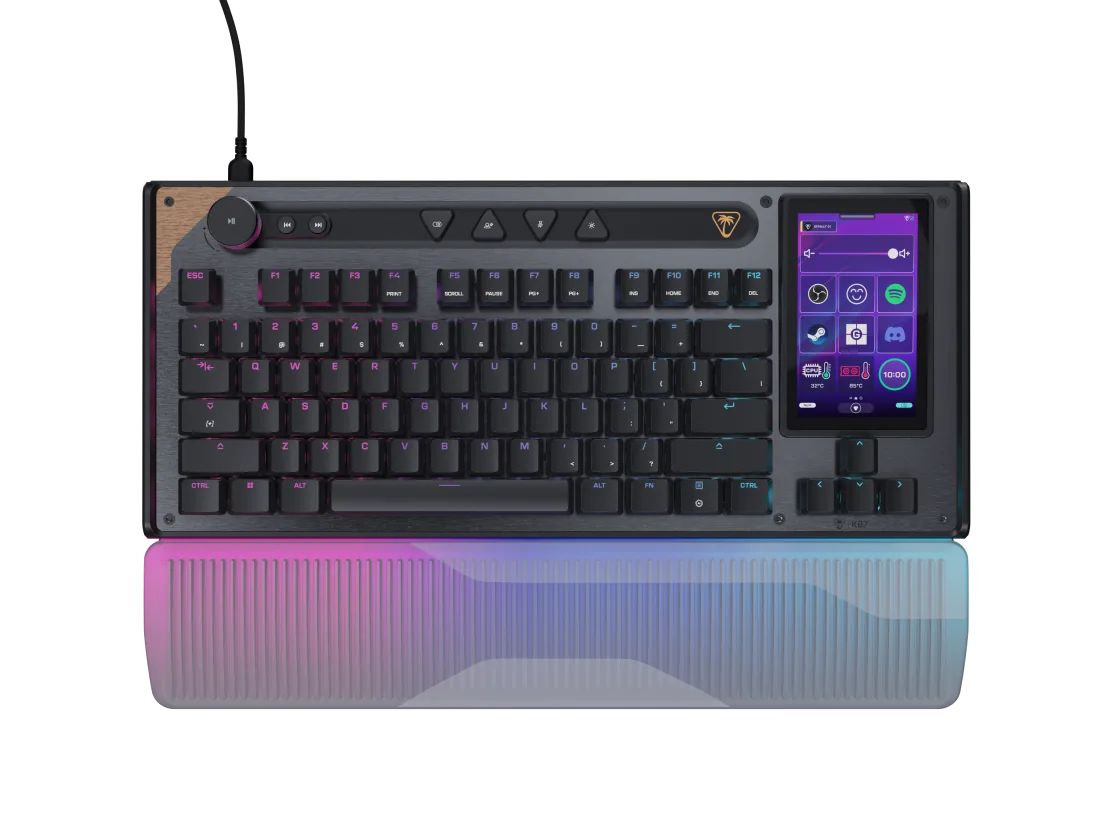
The controls themselves are also moving off the desktop: Wallhack's upcoming K-001 puts actuation and Rapid Trigger adjustment on a physical dial instead of a software slider. If that $360 preorder is on your radar, our Wallhack K-001 preorder decision guide covers the confirmed specs, the price context, and what to verify on delivery day.
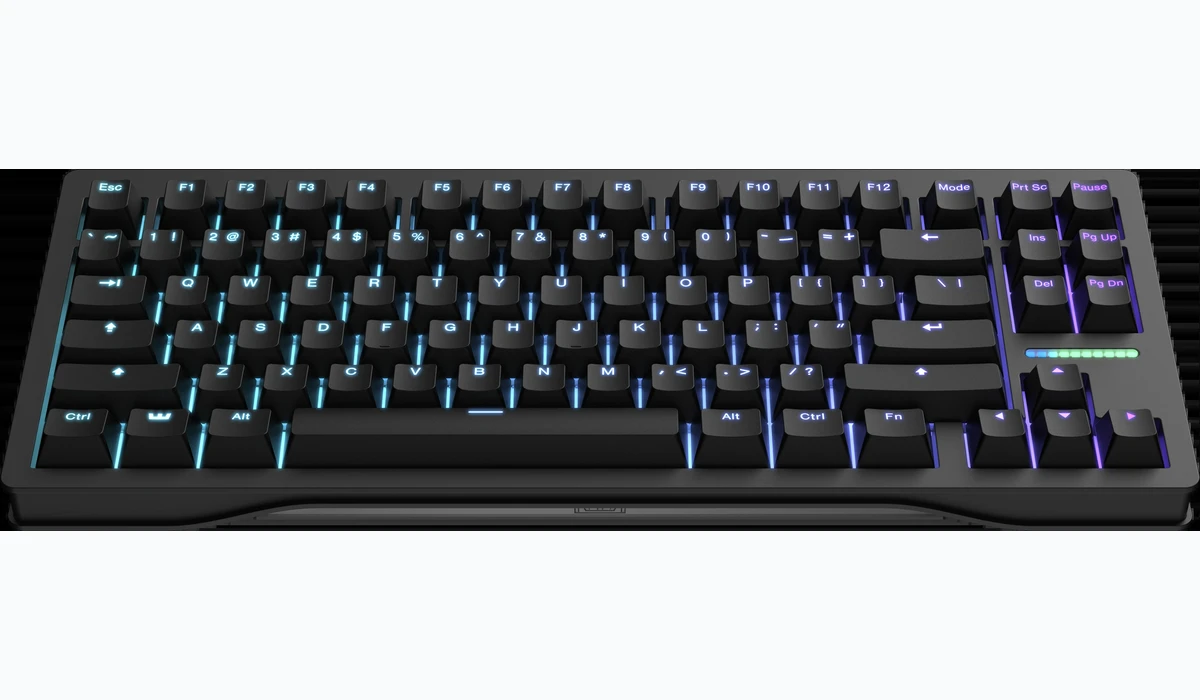
RTINGS describes the core Hall Effect trade-off clearly: supported keyboards can define where the key actuates in its travel, but very low actuation can make accidental input more likely.
Official Rapid Trigger Video Explainer
This Wooting video is a short official visual explainer for the basic Rapid Trigger idea. Use it for the mechanical concept, then come back to the settings table above for the CS2 and Valorant workflow.
Watch: Rapid Trigger Explained

References for Settings and Rules
- Wooting CS2 guide for official CS2 Rapid Trigger baseline settings and feature definitions.
- Wooting Rapid Trigger setup guide for actuation, sensitivity, per-key Rapid Trigger, and Continuous Rapid Trigger behavior.
- Valve Counter-Strike 2 input automation update for the CS2 automation and Snap Tap warning.
- RTINGS Hall Effect keyboard explainer for adjustable actuation and accidental-press trade-offs.
- RTINGS Rapid Trigger measurements for release-latency context and measurement caution.
- Razer Snap Tap page for how last-input priority works on supported Razer keyboards.
- Riot VALORANT anti-cheat support page for Riot's general hardware/software cheating policy language.
Related Keyboard Tests
Related Guides
- Best Mechanical Keyboard 2026: 7 Gaming Picks Tested
- Keyboard Switch Types Guide for Gaming
- Keyboard Polling Rate Test: Check Keyboard Hz Online
- Input Latency Checker: Keyboard and Mouse Delay Guide
FAQ
What Rapid Trigger settings should I start with for CS2?
Start with WASD around 0.7 mm actuation, Rapid Trigger sensitivity around 0.5 mm, Continuous Rapid Trigger off, and the rest of the keyboard around 1.5 mm. Then lower WASD and reset in 0.1 to 0.2 mm steps only if accidental movement does not appear.
What Rapid Trigger settings should I use for Valorant?
For Valorant, start with the same conservative FPS profile: WASD around 0.7 to 1.0 mm, Rapid Trigger around 0.2 to 0.5 mm, and deeper actuation for ability, walk, crouch, and push-to-talk keys. Valorant movement benefits from clean release timing, but accidental inputs are more costly than a slightly slower setting.
Is Rapid Trigger banned in CS2?
Valve has prohibited hardware or script automation that turns multiple actions into one input on official CS2 servers, including Snap Tap-style input automation. Rapid Trigger and adjustable actuation are different because they change the press and release threshold of a single physical key, but you should keep SOCD, Snap Tap, Snappy Tappy, Rappy Snappy, and null-bind-style automation disabled before queuing.
Is Rapid Trigger the same as SOCD or Snap Tap?
No. Rapid Trigger changes when one key resets as you lift it. SOCD or Snap Tap decides what happens when two opposing keys, usually A and D, are active at the same time. That difference matters for game rules and for troubleshooting movement problems.
Can an online keyboard tester measure 0.1 mm actuation depth?
No browser page can directly measure physical switch travel depth. An online keyboard tester can confirm whether the key event arrives, whether combinations ghost, whether rollover works, and whether your profile causes accidental releases or repeats.
Is 0.1 mm actuation always best?
No. Very low actuation can feel fast, but it also makes resting fingers, key wobble, and small pressure changes register as inputs. Many players are more consistent at 0.4 to 1.0 mm than at the absolute minimum.
Should I turn Rapid Trigger on for every key?
Usually no. Start with WASD or only A and D, then add other movement keys only if you can hold them reliably. Avoid very sensitive Rapid Trigger on defuse, walk, crouch, push-to-talk, and ability keys until you prove those keys do not release accidentally.
Final test before ranked: open the Keyboard Tester, hold your real movement combos, and watch for missed or accidental key events. A profile that tests cleanly is worth more than a screenshot with the lowest possible numbers.




Reader discussion
Comments
Share what worked, what did not, or what you would test next. Every comment is reviewed before it appears.
Loading approved comments…
Leave a comment
No account or sign-in is required. Links and HTML are not accepted.