













Fast answer: Use this guide as a practical checklist for how to measure your typing speed: wpm test guide. Start with the main browser tool, confirm the result with one focused follow-up test, then change only one device, browser, or setting at a time so you know what actually fixed the issue.
Whether you are applying for a data entry job, preparing for a typing certification, or simply curious about how fast you type, measuring your typing speed in words per minute (WPM) is the standard benchmark. The good news? You can test it in under 60 seconds with a free online tool.
One result is not always a reliable baseline. If your WPM changes between otherwise comparable tests, use this guide to find out why typing speed fluctuates, then compare three controlled runs by their median and range instead of keeping only the fastest score.

What Is a Good Typing Speed?
Typing speed varies by profession and experience level:
- Average typist: 40 WPM
- Office professional: 50-60 WPM
- Fast typist: 70-80 WPM
- Professional typist: 90-120 WPM
- Speed typing champion: 150+ WPM
If you are below 40 WPM, dedicated practice can help you improve significantly within a few weeks.
How to Take a Typing Speed Test
- Open the free typing speed test
- Read the passage displayed on screen
- Start typing the text exactly as shown
- The timer begins automatically when you start typing
- Your WPM and accuracy are calculated in real time
The test measures both your raw speed (total words typed) and net speed (adjusted for errors), giving you an accurate picture of your actual typing ability.
Tips to Improve Your Typing Speed
1. Learn Proper Finger Placement
Place your fingers on the home row (ASDF for the left hand, JKL; for the right). Each finger is responsible for specific keys. This foundation is critical for building speed.
2. Do Not Look at the Keyboard
Touch typing means typing without looking at the keys. It feels slow at first, but once muscle memory develops, your speed will jump dramatically.
3. Practice Daily
Even 10-15 minutes of daily practice makes a difference. Use the typing test tool to track your progress over time.
4. Focus on Accuracy First
Speed without accuracy is useless. Aim for 95%+ accuracy before pushing for higher WPM. Correcting errors slows you down more than typing carefully in the first place.
5. Test Your Keyboard Hardware
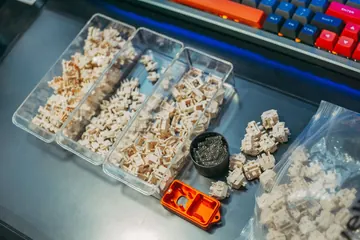
Sometimes slow or missed keystrokes are not your fault. Use the keyboard tester to verify every key on your keyboard registers properly. A faulty key switch can silently hurt your typing performance.
Typing Speed by Keyboard Type
Your keyboard type affects your typing speed:
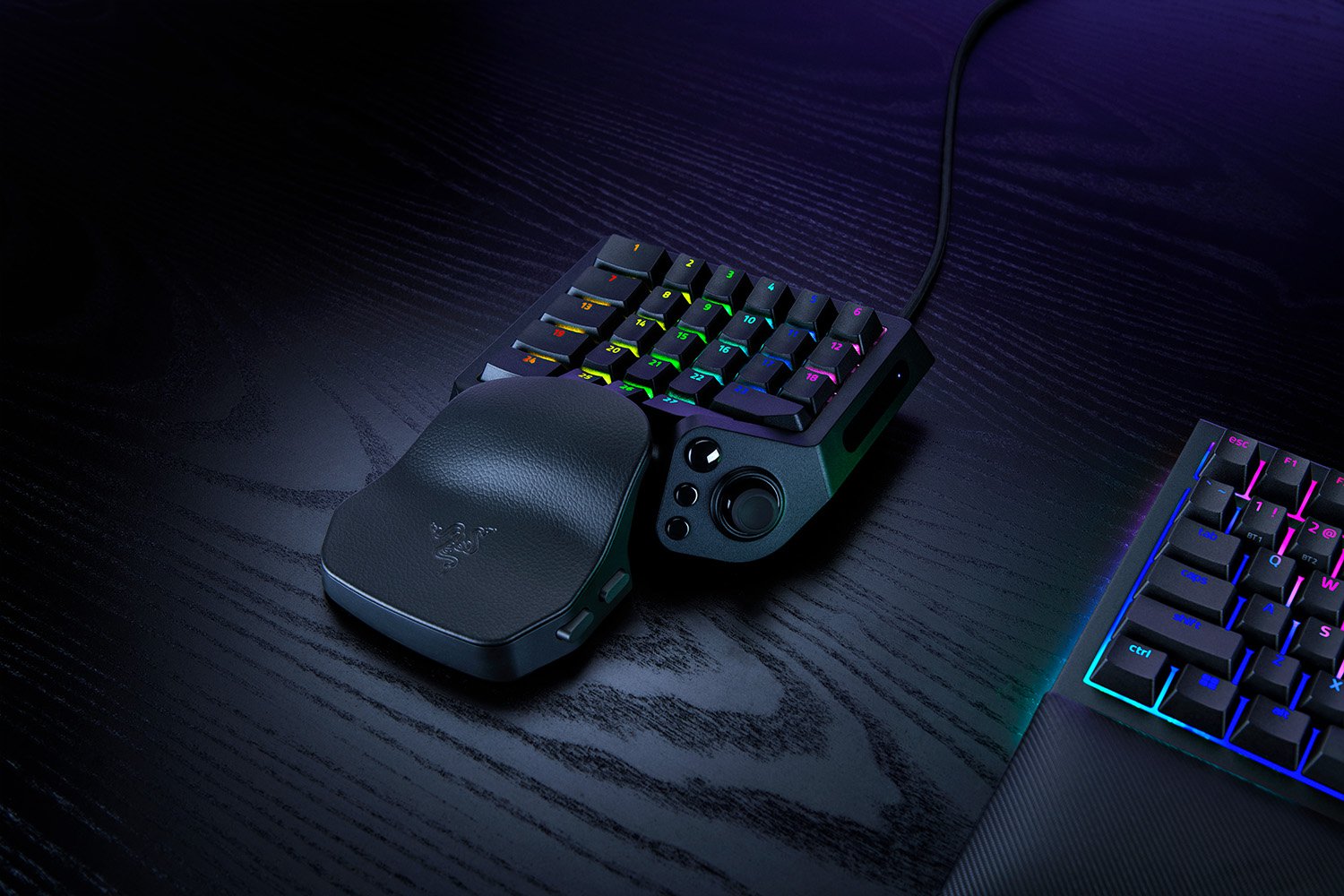
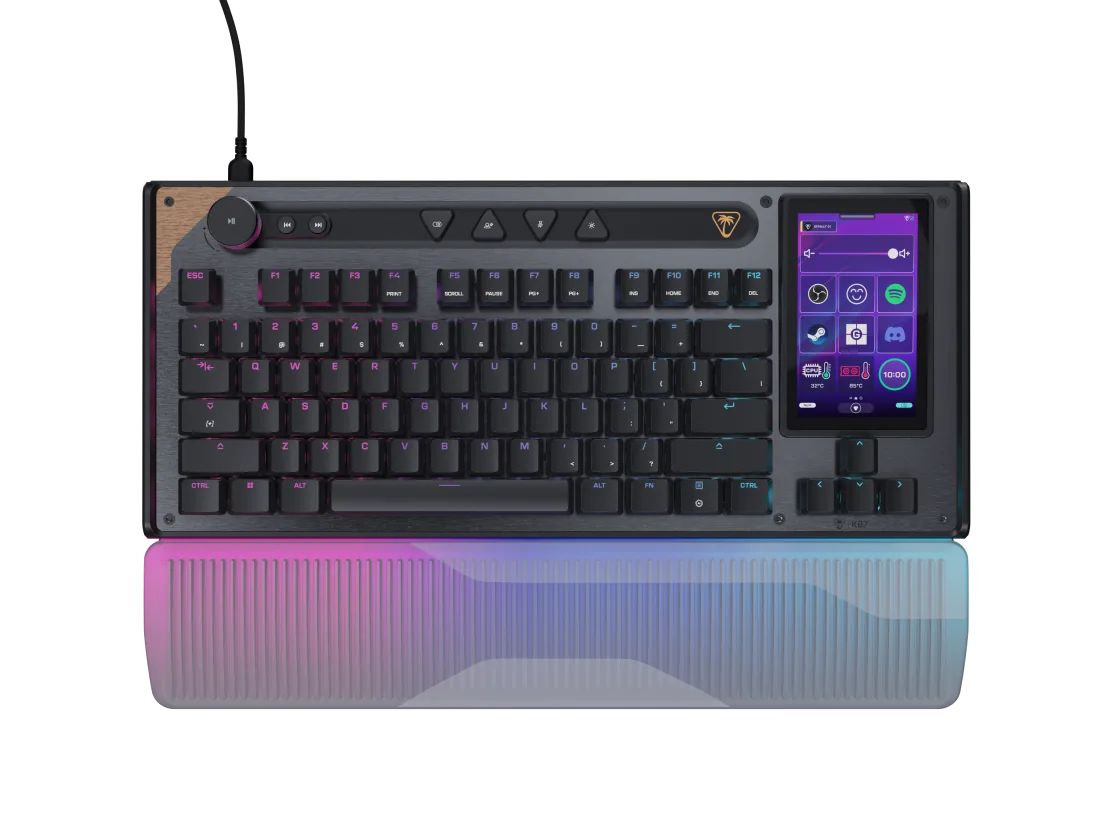
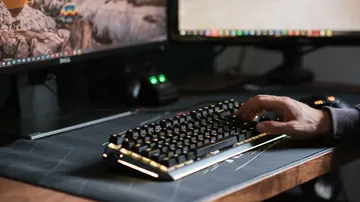
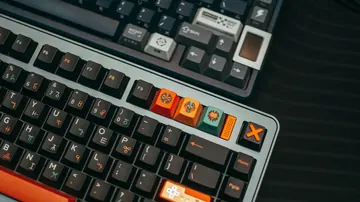
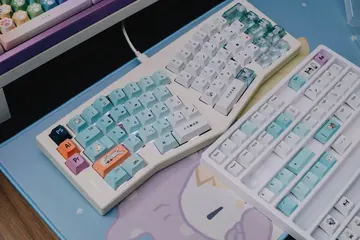
- Mechanical keyboards: Preferred by fast typists for their tactile feedback and consistent actuation points
- Membrane keyboards: Quieter but often require more force, which can slow you down over long sessions
- Laptop keyboards: Compact layouts can reduce speed due to smaller key spacing
- Ergonomic keyboards: Split designs may slow you initially but reduce fatigue for all-day typing
Related Tools
- Keyboard Tester — Verify all your keys work before testing speed
- Keyboard CPS Test — Measure deliberate tap speed when you need keys per second rather than words per minute
- Latency Checker — Measure input delay that could affect typing tests
- Stuck Key Test — Check for keys that repeat unexpectedly
- Keyboard Shortcut Identifier — Identify any shortcut and speed up everyday typing
- Auditory Reaction Time Test — related cognitive-speed test
Frequently Asked Questions
How is WPM calculated?
WPM is calculated by dividing the total number of characters typed by 5 (the average word length), then dividing by the time in minutes. Errors may be subtracted depending on whether you are measuring gross or net WPM.
What is a good accuracy percentage?
Professional typists maintain 97-99% accuracy. For general use, aim for at least 95%. Below 90% suggests you should slow down and focus on precision.
Does keyboard type affect typing speed?
Yes. Mechanical keyboards with linear or tactile switches are generally preferred for speed typing. The consistent actuation point helps build reliable muscle memory.
Ready to find out your WPM? Take the free typing speed test now.
Quick Action Checklist
- Test once in a clean browser tab.
- Retest after changing ports, wireless mode, or device settings.
- Use the focused tool that matches the symptom, not only the general tester.
- Keep screenshots or notes when comparing hardware.





Reader discussion
Comments
Share what worked, what did not, or what you would test next. Every comment is reviewed before it appears.
Loading approved comments…
Leave a comment
No account or sign-in is required. Links and HTML are not accepted.