Microphone Picking Up Desktop Audio on Windows 11? Diagnose the Real Cause Before You Reinstall Drivers
Fast answer: if your microphone is picking up desktop audio on Windows 11, do not start by reinstalling every audio driver. First prove whether the leak is software routing, app device selection, analog headset crosstalk, or real room echo. The fastest test is to mute or unplug the physical mic, play a steady sound, and watch whether the microphone meter still moves.
This problem is frustrating because it sounds like one symptom but has several different causes. In Discord it may look like your friends can hear YouTube. In OBS it may look like desktop audio is duplicated into the mic track. In Teams or Zoom it may show up as echo, feedback, or music bleeding through while you are muted.
The fix depends on the path the audio is taking. This guide walks through the path like a signal chain: Windows input device, loopback sources, Realtek jack routing, headset wiring, app-level device selection, and then cleanup settings such as noise suppression. Use the KeyboardTester.click microphone test while you make changes so you can hear and see whether each step actually helped.
Start With a 60-Second Proof Test
Most bad advice for this issue skips the most important question: is the microphone really hearing the desktop audio through the air, or is Windows sending playback audio into an input channel? Run this quick test before changing anything else.
- Open the microphone tester in a browser tab and allow microphone access.
- Choose the microphone you normally use in Windows and in your browser if prompted.
- Play a steady audio source such as a low-volume video or tone in another tab.
- Physically mute the headset mic, or unplug the mic if your setup allows it.
- Watch the mic meter. If it still moves with the physical mic muted, the signal is probably loopback, driver routing, a virtual device, or analog bleed. If it stops, your mic was hearing speaker output or headphone leakage acoustically.
Practical rule: if the microphone meter moves while the microphone is unplugged or muted, changing noise suppression will not solve the root cause. Find the recording source or cable path that is carrying desktop audio.
What Is Actually Happening Under the Hood
Windows does not have one single audio path. Your PC has playback devices, recording devices, app-specific selections, communication defaults, driver extras, and sometimes virtual cables or capture devices. Desktop audio can leak into the mic path at several layers.
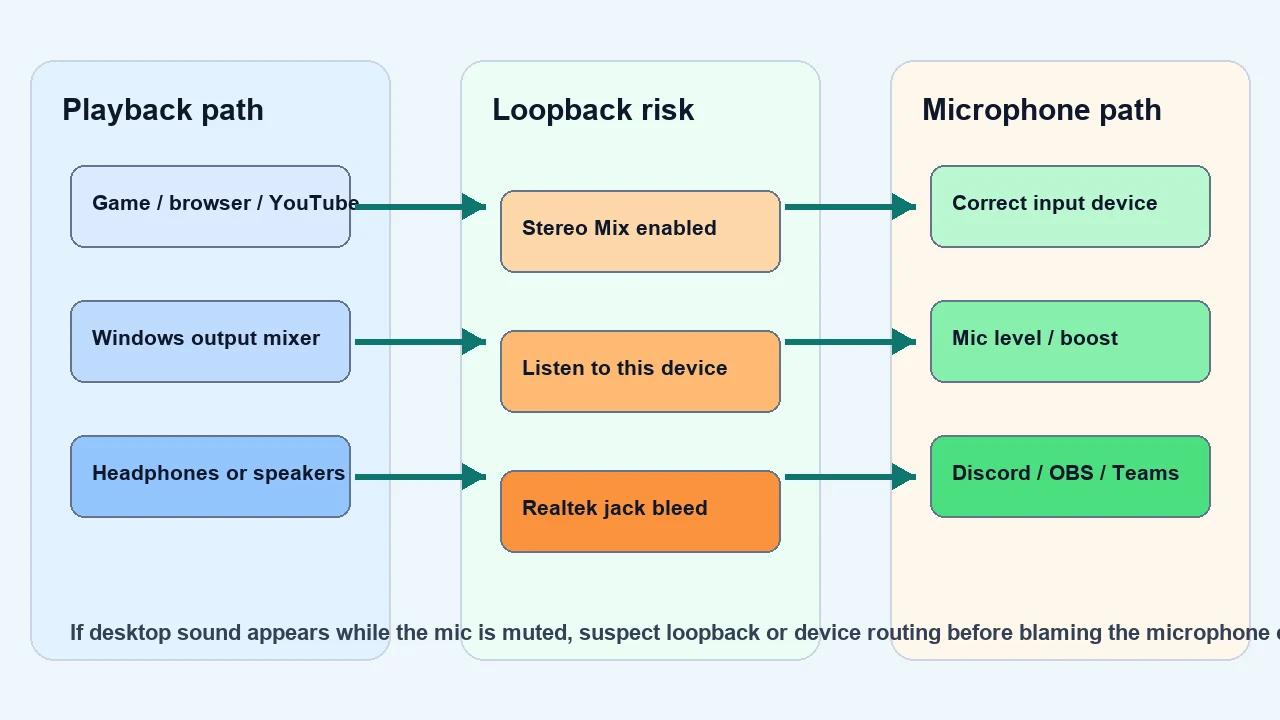
Windows or the app records a playback source such as Stereo Mix, monitor output, a virtual audio cable, or OBS monitor device instead of the real microphone.
Realtek or headset software may route input back to output, or output back to input, through sidetone, mic monitoring, or jack-retasking features.
A 3.5 mm headset, Y-splitter, front-panel case jack, or damaged cable can electrically leak headphone audio into the mic wire.
Speakers are loud enough that the microphone hears them in the room. Echo cancellation can help, but headphones or lower speaker volume are the cleaner fix.
Windows 11 Settings to Check First
Start in Windows because every app inherits or competes with these choices. Microsoft recommends checking microphone permission, input volume, and driver status when Windows 11 does not detect or use a microphone correctly. For this specific desktop-audio-bleed issue, also check the legacy Recording panel because many loopback and Realtek options still live there.
1. Select the real microphone, not a loopback source
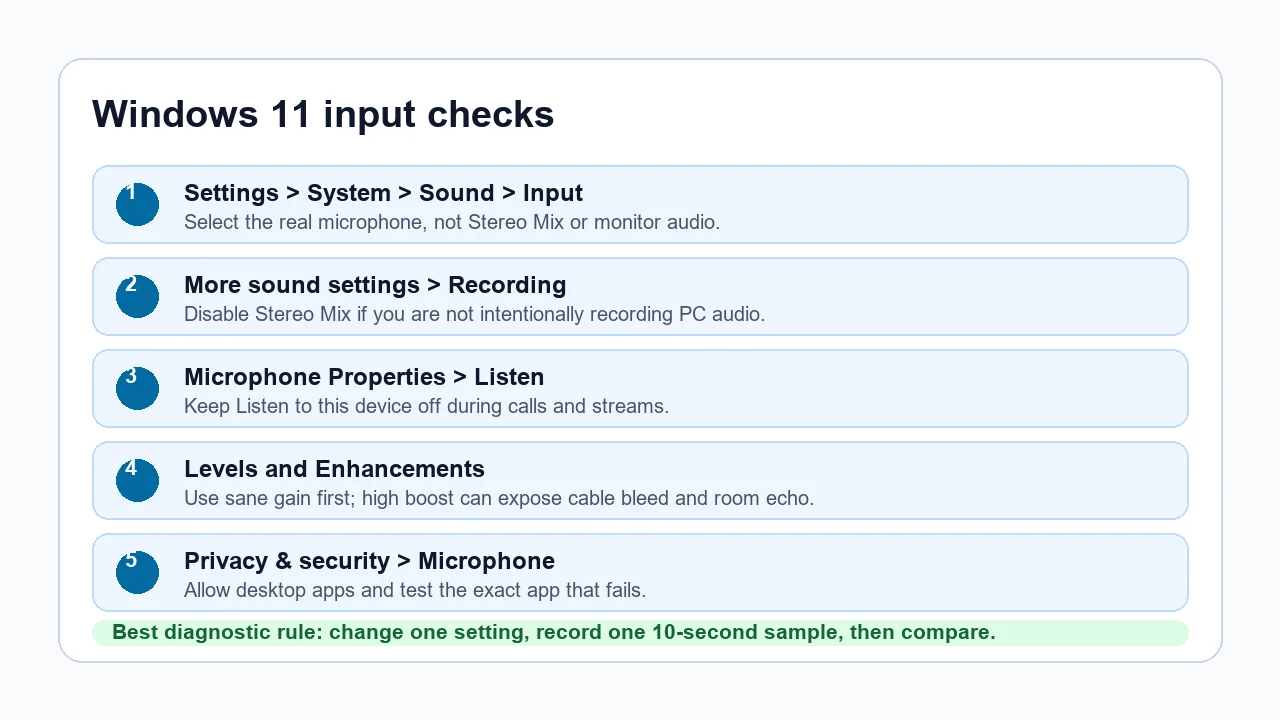
Go to Settings > System > Sound > Input. Select the actual microphone or headset input. Avoid names such as Stereo Mix, What U Hear, Monitor, Cable Output, VoiceMeeter Output, OBS Virtual, or anything that sounds like a playback capture source unless you intentionally want to record desktop audio.
2. Disable Stereo Mix if you are not recording system audio
Open More sound settings > Recording. If Stereo Mix is enabled and you do not need it, right-click and disable it. Some Realtek systems expose Stereo Mix as a recording device that captures PC playback. That is useful for screen-recording workflows but destructive for normal calls.
3. Turn off Listen to this device
In the same Recording panel, open your microphone properties and check the Listen tab. Keep Listen to this device off unless you are deliberately monitoring your mic. It can create a confusing feedback path where input is played back through output and then picked up again.
4. Use sane gain before using boost
Microphone boost is tempting, but high boost can reveal weak shielding, bad splitters, and room echo. Set the microphone level around 80 to 100 first, keep boost modest, and test with normal speaking distance. If desktop audio appears only when boost is high, the root issue may be analog bleed or speakers too loud.
5. Check Windows microphone permissions
Go to Settings > Privacy & security > Microphone. Turn on microphone access and allow desktop apps if you use browsers, Discord, OBS, game launchers, Teams, or Zoom. Permission problems usually cause silence, but they can also push users into selecting the wrong fallback input.
| Symptom | Most likely path | Best next test |
|---|---|---|
| Desktop audio appears while the physical mic is muted | Loopback source, virtual cable, Stereo Mix, or analog crosstalk | Disable Stereo Mix, remove virtual devices from the app, then test a USB mic or rear audio jack |
| Only Discord hears the game audio | Discord input device or sensitivity path | Set the exact input device, turn off automatic sensitivity briefly, then test push-to-talk |
| Only OBS duplicates desktop audio into the mic track | OBS monitoring/capture source setup | Check Audio Mixer sources, Advanced Audio Properties, and monitoring device |
| People hear room echo when speakers are on | Acoustic echo | Use headphones, lower speaker volume, and keep echo cancellation on |
Realtek, Front-Panel Jacks, and Headset Crosstalk
If Windows settings look correct but your friends still hear game or browser audio, inspect the physical audio path. This is common with analog 3.5 mm headsets because the headphone and microphone wires are packed close together, and the PC case front-panel audio cable may run near other components.
Try the rear motherboard audio jack
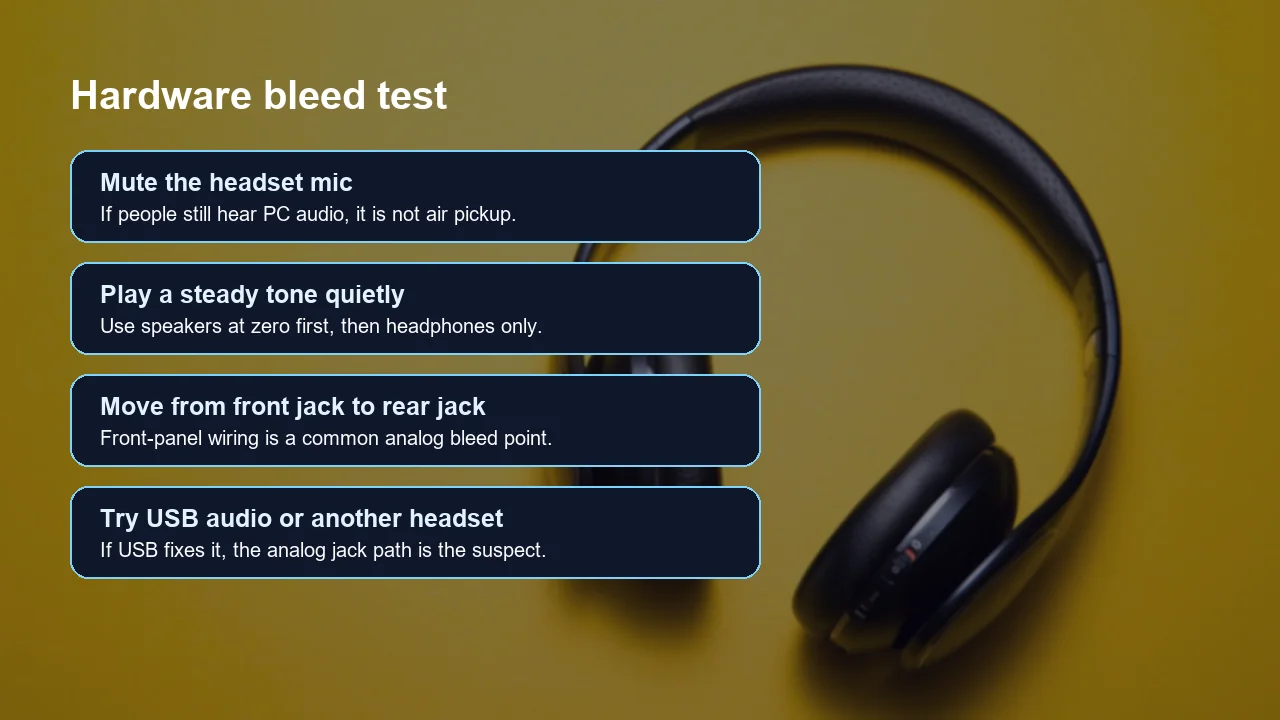
Desktop front-panel audio can be noisier than the rear motherboard jacks. Move the headset splitter to the rear green and pink jacks, then retest. If the leak improves, the front-panel cable, case jack, or splitter may be the weak point.
Check the splitter type
Many headsets use a single TRRS plug, while desktop PCs often expect separate headphone and microphone plugs. A poor Y-splitter can bridge channels badly enough that headphone playback bleeds into the mic channel. Test another splitter before buying a new headset.
Compare analog with USB
A cheap USB audio adapter is a useful diagnostic tool because it bypasses the motherboard analog jack path. If the same headset stops leaking when connected through USB audio, the headset capsule may be fine and the analog path is suspect.
Do not confuse sidetone with leak
Sidetone or mic monitoring lets you hear your own voice in the headset. That is not the same as desktop audio being transmitted to other people. Turn sidetone off while diagnosing so you are not chasing two separate paths.
App-Level Fixes for Discord, OBS, Teams, and Zoom
Windows can be correct while one app is wrong. Modern communication apps often keep their own input and output device choices, plus their own noise suppression, echo cancellation, automatic gain, and monitoring behavior.
Discord
In User Settings > Voice & Video, select the exact input device instead of Default if Default keeps moving. Temporarily disable automatic input sensitivity and set the threshold manually. If the desktop audio is quiet but still opening the mic gate, push-to-talk is a useful proof test. Discord also documents noise suppression and automatic gain control in its voice troubleshooting material, but treat those as cleanup settings after the routing is correct.
OBS Studio
OBS often duplicates audio because the scene has both a desktop audio source and a mic source, or because monitoring sends a track back into a capture path. In the Audio Mixer, confirm that your mic source is the physical microphone. Then open Advanced Audio Properties and inspect Audio Monitoring. For normal recording, the mic usually should not monitor back into a device that is being captured as desktop audio.
Microsoft Teams
Teams has its own device settings for speaker and microphone. If Teams is set to a headset for speaker but Default Communications Device for mic, Windows can change the route when a headset connects. Pick the explicit microphone in Teams, then run a test call.
Zoom
Zoom's Audio settings let you test the speaker and microphone and manage processing modes. If Zoom keeps changing the input level, check whether automatic microphone volume is enabled. If you use Original Sound or musician modes, remember that those modes preserve more raw microphone signal, so they can reveal room echo or speaker bleed that standard processing would hide.
Advanced Diagnostic Workflow
When the issue survives the obvious settings, use a controlled workflow. The aim is to isolate one variable at a time, not to guess.
10-minute isolation plan:
- Record 10 seconds in the microphone test while desktop audio is playing.
- Mute or unplug the physical mic and repeat.
- Disable Stereo Mix and any virtual cable inputs, then repeat.
- Move from front jack to rear jack, then repeat.
- Try USB audio, another headset, or the laptop's built-in mic, then repeat.
- Test Discord, OBS, Teams, and Zoom one at a time with the same audio source.
If the problem disappears only in one app, focus on that app. If it disappears only when you leave the front audio jack, focus on cable path and splitter quality. If it disappears only when Stereo Mix is disabled, the fix is software routing. If it disappears only with headphones instead of speakers, the problem is acoustic echo.
Helpful Video Walkthrough
This video is not a substitute for the signal-path test above, but it is a useful visual companion for the Realtek and Discord side of the problem.
Sources and Technical References
The guidance above combines official settings documentation with real-world support threads because this issue is usually a combination of Windows routing, app selection, driver behavior, and hardware path.
- Microsoft Support: Fix microphone problems covers Windows 11 microphone permissions, input volume, and driver troubleshooting.
- Microsoft Support: Windows camera, microphone, and privacy explains app and desktop-app permission behavior for microphone access.
- Microsoft Q&A: Microphone picking up PC audio shows the exact Windows 11 complaint and why Stereo Mix is a common first check.
- OBS Forum: mic picks up desktop/browser audio is useful for distinguishing app-level monitoring from Windows input routing.
- Discord Voice and Video Troubleshooting Guide documents voice troubleshooting areas such as noise suppression and automatic gain control.
- Microsoft Teams device settings covers selecting microphone and speaker devices inside Teams.
- Zoom audio settings explains microphone testing, microphone volume, and audio processing options in Zoom.
Related Tools for Audio Diagnosis
Use these after each fix so you can prove whether the change actually helped.
Related Guides
- How to Test Your Microphone Online Before Meetings and Calls
- Headphone and Speaker Test: Check Left and Right Audio Channels
- Input Latency Checker: Keyboard and Mouse Delay Guide for Gamers
FAQ
-
Why is my microphone picking up desktop audio on Windows 11?
The usual causes are a loopback recording source such as Stereo Mix, the Listen to this device option, the wrong input selected in an app, analog headset crosstalk, or speaker sound physically reaching the microphone.
-
How do I know if it is Stereo Mix and not my real microphone?
Mute the physical microphone or unplug it, then play audio and watch the input meter. If the meter still moves, Windows or the app is likely using a loopback source, virtual cable, monitor audio, or driver-level mix rather than the microphone capsule.
-
Should Stereo Mix be disabled?
Disable Stereo Mix if you only want your voice in calls, games, and recordings. Leave it enabled only when you intentionally need to record computer playback, then make sure Discord, OBS, Teams, Zoom, and browser sites are not using it as the microphone.
-
Can a headset mic leak game audio even when Windows settings look correct?
Yes. With 3.5 mm analog headsets, bad splitters, front-panel case wiring, high microphone boost, or a damaged cable can leak headphone audio into the mic channel. Testing the rear jack, another splitter, or a USB audio adapter helps isolate that hardware path.
-
Why does Discord or OBS hear my game audio but Windows Sound Recorder sounds fine?
Apps can select their own input devices and processing paths. Discord, OBS, Teams, and Zoom may be set to a different microphone, a virtual audio device, monitor output, or a capture source that Windows Sound Recorder is not using.
-
Do noise suppression and echo cancellation fix desktop audio bleed?
They can hide mild speaker echo, but they do not fix a real loopback or analog bleed problem. First remove the routing issue, then use suppression, echo cancellation, or push-to-talk as a cleanup layer.
Final check: after each fix, run a fresh recording in the free microphone tester. If the meter stays quiet while desktop audio plays and your physical mic is muted, the leak is gone. Then test your real app, because Discord, OBS, Teams, and Zoom can still have their own selected input device.