
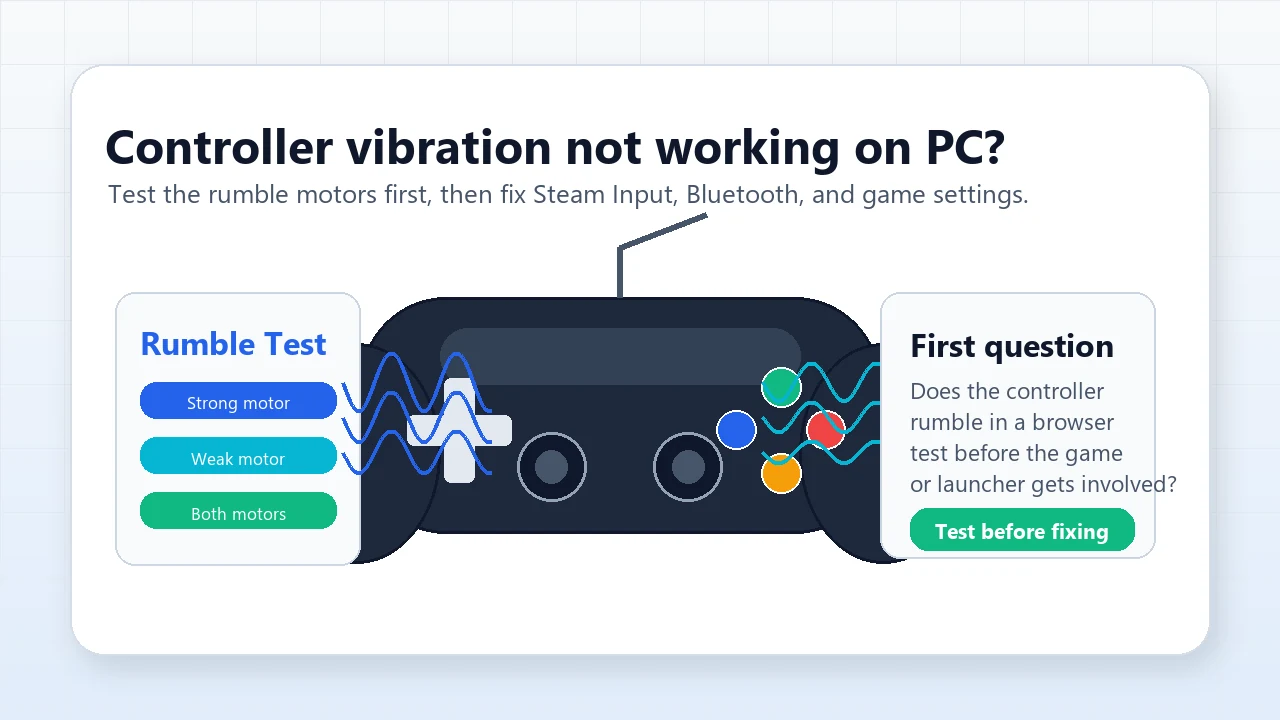
Controller Vibration Not Working on PC? Test the Motors First
Fast answer: Open the Vibration Test, connect the controller, and run Strong, Weak, then Both motors. If the browser test rumbles, the hardware is alive and the problem is usually a game, Steam Input, Xbox Accessories, DualSense audio, or Bluetooth layer. If the browser test does not rumble, retest over wired USB before assuming the controller motor is dead.
Why You Should Test Rumble Before Changing Settings
When controller vibration is not working on PC, the controller, game, launcher, browser, connection mode, and driver stack can all be blamed. The clean way to cut through that is to test the motors outside the game first. A browser test sends a simple haptic command to the controller before Steam, a specific title, or a modded profile gets involved.
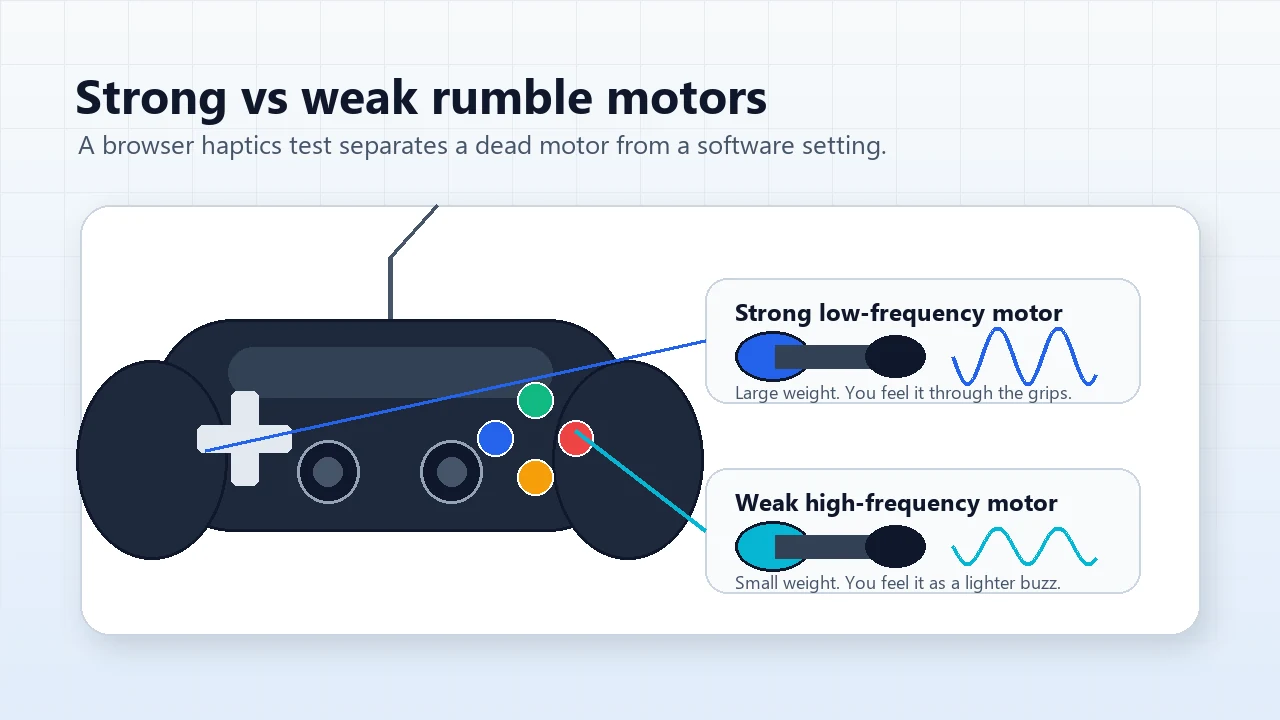
The web haptics path is not universal. MDN marks GamepadHapticActuator.playEffect() as limited availability, and it documents dual-rumble as a controller effect with separate strong and weak motor magnitudes. That is exactly why the result is useful: it tells you whether your browser can see a rumble actuator and whether each motor responds.
How to Run a Clean Controller Rumble Test
Use this order so every retest answers one question instead of mixing several changes together.
- Start wired if possible: Use USB for the first pass. This removes Bluetooth pairing, battery saving, and wireless adapter variables.
- Press a button once: Browsers usually expose a controller only after the page receives a real gamepad input.
- Run strong motor only: This checks the low-frequency grip motor that handles heavy impacts.
- Run weak motor only: This checks the lighter high-frequency buzz motor used for smaller cues.
- Run both motors: If both work in the browser, move to game, launcher, and controller-app settings.
Vibration Test: Run strong, weak, and combined rumble checks in the browser.
What the Rumble Test Results Mean
| Result | Meaning | Next move |
|---|---|---|
| Browser rumbles and game rumbles | The controller, browser, and game path are working. | No repair needed. Tune intensity only if it feels too strong or weak. |
| Browser rumbles but one game does not | Hardware is probably fine; the game or launcher is blocking rumble. | Check in-game vibration, Steam Input, Xbox Accessories, or DualSense native mode. |
| Strong works but weak does not | One internal motor or one haptic channel may be failing. | Retest wired and in a second app before calling it hardware. |
| No browser rumble over Bluetooth | The controller may expose buttons but not haptics over that path. | Try wired USB or an official wireless adapter. |
| No browser rumble over wired USB | Browser support, firmware, controller profile, or hardware can be at fault. | Try another browser, update firmware, then test another PC if available. |
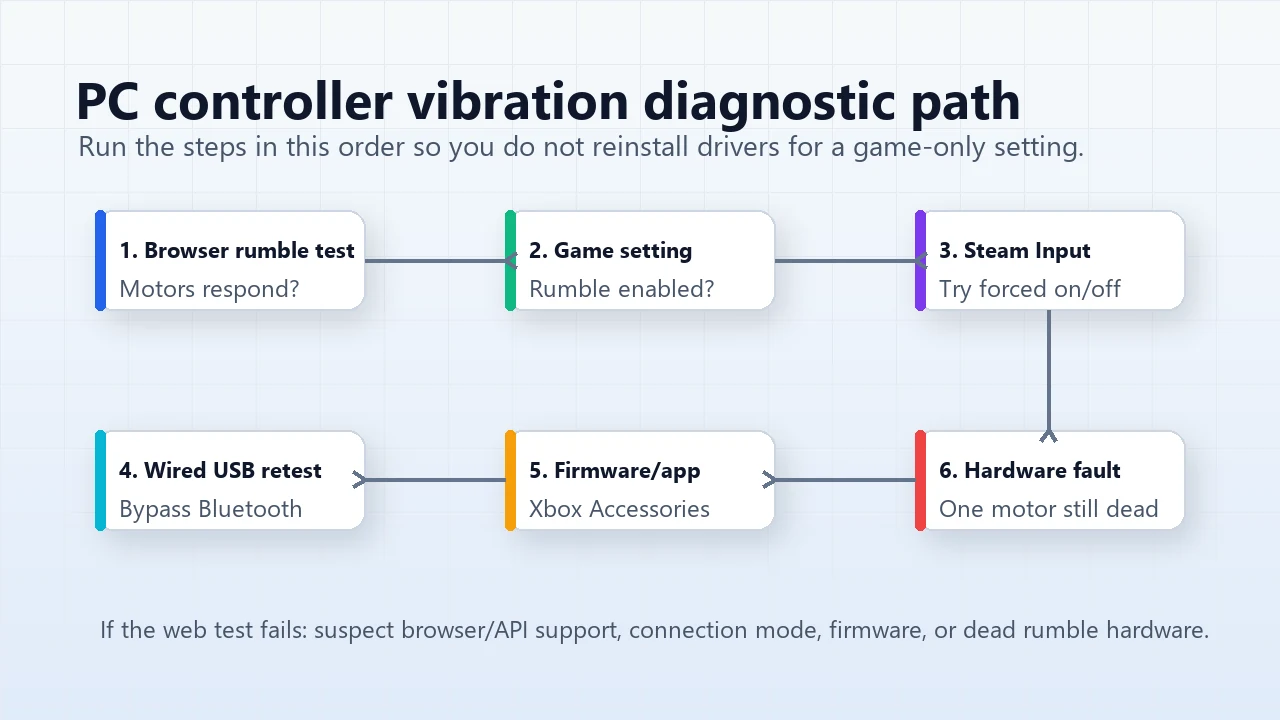
Fix the Software Layer Only After the Motors Pass
| Layer | Why it matters | What to test |
|---|---|---|
| In-game setting | The title may have vibration, haptics, trigger effect, or controller feedback set to Off. | Enable it, quit fully, and relaunch the game. |
| Steam Input | Steam can help unsupported pads, but it can also change how rumble is passed through. | In Steam game Properties > Controller, test both enabled and disabled. |
| Xbox Accessories | Firmware, profiles, or Elite vibration sliders can affect the controller. | Update firmware, reset the profile, and retest wired. |
| DualSense audio device | Some native DualSense PC haptics depend on the controller speaker/mic device being enabled. | Re-enable Wireless Controller audio devices, keep normal speakers as default, relaunch. |
| Bluetooth path | Bluetooth can expose input while limiting or changing haptic feedback. | Compare Bluetooth against wired USB before assuming hardware failure. |
| Battery or cable | Low power or charge-only cables can create misleading results. | Use a data cable and charge or replace the battery. |
Steam Input: Try Both Enabled and Disabled
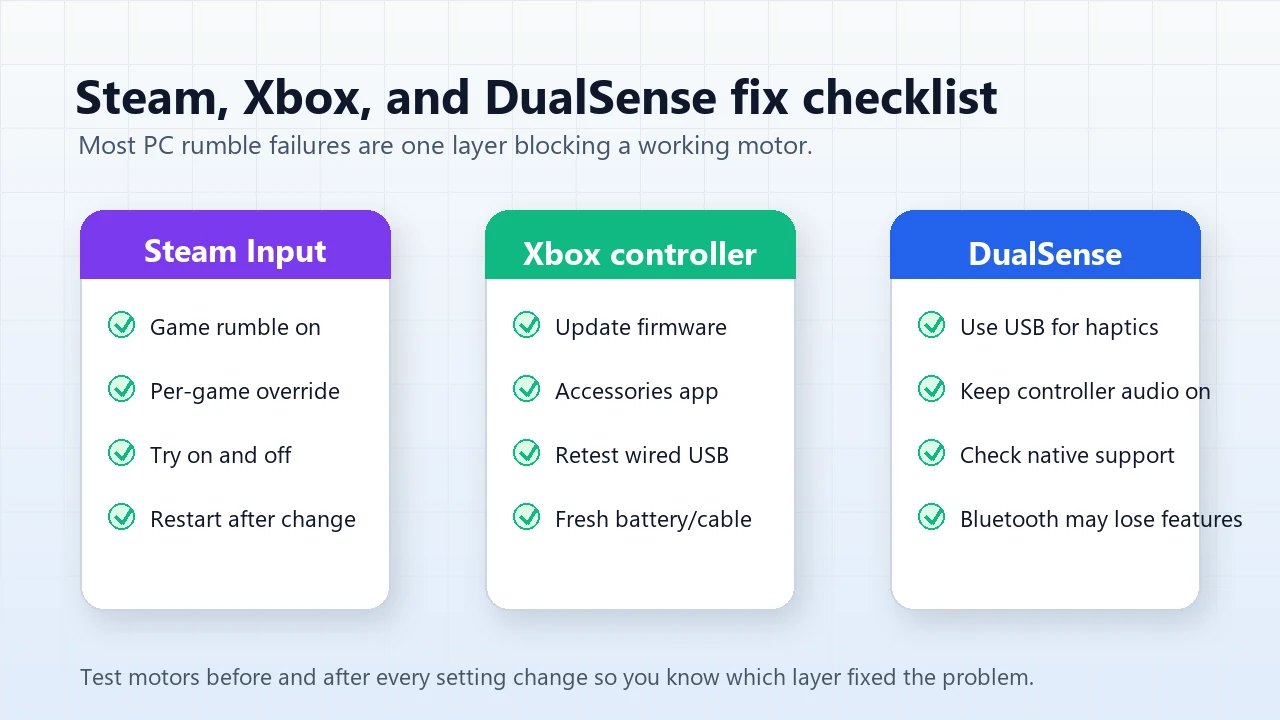
Steam Input is useful because it can translate PlayStation, Switch, and generic pads into a layout many PC games understand. It can also be the layer that changes or blocks rumble for a specific game. There is no one permanent answer. If the browser test passes but one Steam game has no vibration, open that game in Steam, check Properties > Controller, and test both Steam Input enabled and disabled.
If you want global behavior, check Steam Settings > Controller and look for the game rumble or controller support controls in your current Steam build. After each change, fully restart the game; many titles read the controller mode only when they launch.
Xbox Controllers: Check Firmware, Profile, Battery, and Cable
For official Xbox controllers, the Xbox Accessories app is the most direct place to update firmware and, on supported models such as Elite controllers, adjust vibration profile sliders. If rumble is weak or missing, plug in over USB, update the controller, then retest in the browser and in one known game with vibration enabled.
Battery level and connection mode matter. A low battery can reduce vibration strength, and some Bluetooth/controller combinations behave differently from a wired or Xbox Wireless Adapter connection. If wired USB rumbles but Bluetooth does not, do not replace the controller yet; treat it as a connection or software-path problem.
DualSense on PC: Wired Haptics, Audio Device, and Native Game Support
DualSense is the trickiest case because PC games can use it in different ways. Some games use native DualSense support and need Steam Input disabled. Other games need Steam Input enabled so the controller appears as an Xbox-style pad. Advanced haptics and adaptive triggers are also more likely to work over USB than Bluetooth.
A common DualSense failure mode is Windows audio. Several Steam and Reddit support threads report that disabling the Wireless Controller speaker or microphone can break haptics in games that route DualSense feedback through that device. If adaptive triggers work but vibration does not, re-enable the controller audio devices, restore your normal speakers as the default output, then relaunch the game.
Steam Rumble Settings Video
This video is included because it shows where Steam places the controller rumble controls in the current settings flow. Use it as a visual reference, then verify the result with the browser rumble test.
Sources and Research Notes
This guide combines KeyboardTester.click first-party tool demand, browser API documentation, official Xbox support, and current PC-gaming community fixes. Search volume is not invented; the article was selected from actual site queries and live forum demand.
- MDN GamepadHapticActuator.playEffect()Documents the browser haptic call, dual-rumble effect, strong/weak magnitude fields, and limited browser availability.
- MDN Using the Gamepad APIExplains that a page receives controller state after gamepad interaction and can query connected gamepads.
- Xbox Support: controller vibrationOfficial Xbox support page for changing controller vibration on Xbox, cloud gaming, and Windows devices.
- PC Gamer DualSense on PC guideUpdated May 1, 2026; covers USB, Bluetooth, Steam setup, and current DualSense PC support context.
- Steam DualSense vibration threadCommunity evidence for the Wireless Controller audio-device issue and wired USB limitation in native DualSense haptics.
- Reddit DualSense vibration threadCurrent user reports around Steam PlayStation Controller Support, Windows 11, and DualSense haptics fixes.
Related Tools
Run strong, weak, and combined rumble checks in the browser.
Gamepad TesterCheck buttons, triggers, sticks, and controller connection state.
Input Latency CheckerCompare wired, Bluetooth, and wireless input delay after rumble is fixed.
Related Guides
Check whether analog drift is a separate controller issue.
Input Latency Checker GuideMeasure delay after switching controller connection modes.
FAQ
- How do I make my controller vibrate on PC?First confirm that the controller motors work in a browser vibration test. Then enable vibration or haptics in the game, check Steam Input for that game, update firmware in the controller app, and retest over wired USB if Bluetooth is unreliable.
- Why does my controller vibrate in Steam but not in a game?Steam, the game, and the controller can each use a different input layer. The game may have rumble disabled, may need Steam Input enabled, or may need Steam Input disabled for native controller support. Test both modes per game.
- Why does my PS5 DualSense controller have adaptive triggers but no vibration on PC?Some PC games route DualSense haptics through the controller audio device or require a native wired USB path. Re-enable the Wireless Controller speaker and microphone devices, set your normal speakers back as default, then relaunch the game.
- Does Xbox controller vibration work over Bluetooth on Windows?It can work in some setups, but Bluetooth is less reliable than wired USB or the Xbox Wireless Adapter for troubleshooting. If vibration fails over Bluetooth, retest with a USB data cable before assuming the motor is dead.
- Can a browser vibration test prove my controller is not broken?It can strongly prove the motors and browser haptic path work. If the controller rumbles in the browser but not in one game, focus on the game, launcher, Steam Input, or profile settings instead of hardware repair.
- Why does only one side or one motor vibrate?Many controllers expose separate strong and weak motors. If one motor works and the other never responds across wired USB, browser test, and a second app, that points to a motor channel or internal hardware fault.
Run one final pass in the Vibration Test after every fix. If one motor still fails in the browser, wired USB, and a known-good game, the controller likely has a hardware rumble fault.

