Spacebar Not Working or Double-Spacing? Test It, Then Fix the Right Cause
Fast answer: Before you blame the keyboard, prove it. Open the spacebar test and press the key once, slowly. If it counts 0, the key is dead or blocked by debris. If it counts 2, that is chatter (or a stuck Full-width input mode). If it counts 1 but you still see double spaces in Word or Docs, the cause is software, not the key. Match the count to the fix below.
A failing spacebar shows up in two opposite ways: it stops registering (you type and the words run together), or it registers twice (you get a "double space" between words). Those are different faults with different fixes, and guessing wastes time. This guide pairs a live in-browser test with the right repair so you change only what is actually broken — debris, switch chatter, a Windows accessibility setting, a driver, or a worn switch.
10-second triage: hardware or software?
Answer two questions before you touch a screwdriver. They split the problem into hardware vs software almost every time.
| Question | If yes | What it means |
|---|---|---|
| Does it fail in every app (browser, Word, Notepad)? | Hardware, driver, or a system setting | A problem in one app only is that app, not the key. |
| Is it a laptop, and does an external USB keyboard work fine? | The laptop key/membrane is the fault | Swapping to a known-good keyboard isolates hardware in seconds. |
| Does pressing once add two spaces? | Chatter or a Full-width input mode | Two events from one press is the classic double-space signature. |
| Does pressing once add nothing? | Debris, a dead switch, or Filter Keys | Zero events means the press never reached the computer cleanly. |
How to run the live spacebar test
A browser test reads the keyup/keydown events your keyboard actually sends. That tells you whether one physical press becomes 0, 1, or 2 events — the single most useful clue for picking the right fix.
- Open the spacebar testUse a clean browser tab and click the page once so it has keyboard focus.
- Press the spacebar once, slowlyDeliberate single presses. Watch the counter increment.
- Read 0, 1, or 2A single clean press should move the counter by exactly 1. Note 0 (dead) or 2 (chatter).
- Test the rest of the keyboardRun the full keyboard tester to see if neighbouring keys are affected too, which points to debris or a spill rather than one worn switch.
Before you blame the keyboard, prove it. Open the spacebar test and press the key once, slowly. If it counts 0, the key is dead or blocked by debris. If it counts 2, that is chatter (or a stuck Full-width input mode). If it counts 1 but you still see double spaces in Word or Docs, the cause is software, not the key. Match the count to the fix below.

What your result means
Press the spacebar once, deliberately, and read the count. The number points straight at the cause.
| Count per press | Most likely cause | Go to |
|---|---|---|
| 0 (nothing registers) | Debris under the keycap, a dead switch, or Filter Keys ignoring the press. | Hardware fixes + check Filter Keys. |
| 1 (correct) but double spaces appear | Software: Full-width input mode, autocorrect/"two spaces", or app settings. | Software fixes. |
| 2 (registers twice) | Key chatter (contact bounce) or a stuck Full-width/IME mode. | Hardware fixes + the key chatter guide. |
| Intermittent (works sometimes) | Partial debris, a worn switch, or a loose stabilizer. | Clean and reseat first, then consider switch replacement. |
Software fixes (free, do these first)
If the test reads exactly 1 per press but you still get wrong spacing, the keyboard is fine and the cause lives in Windows or your input method. These take a minute each.
- Turn off Filter Keys and Sticky KeysPress Win + I, go to Accessibility, then Keyboard, and switch both Off. Filter Keys can silently ignore short presses; this is the most common "dead key that is not really dead" cause.
- Check your input method (CJK / IME)A Full-width space mode types a wide double-width space that looks like two spaces. In the language bar or IME tray icon, switch character width from Full-width to Half-width (often Shift + Space or Alt + = toggles it).
- Disable "two spaces" autocorrectIn Word, File then Options then Proofing then AutoCorrect, and in Google Docs Tools then Preferences, turn off any setting that converts or adds double spaces after a sentence.
- Reinstall the keyboard driverOpen Device Manager, expand Keyboards, right-click your keyboard, choose Uninstall device, then reboot. Windows reinstalls a clean driver on restart.
- Run the keyboard troubleshooter and update WindowsSettings then System then Troubleshoot then Other troubleshooters then Keyboard. Several spacebar bugs were tied to specific Windows builds and cleared after an update.
Hardware fixes (debris, chatter, worn switch)
If the test reads 0 or 2 per press, the problem is physical. The spacebar is the longest key with a metal stabilizer bar under it, so it traps debris and wears differently from normal keys.
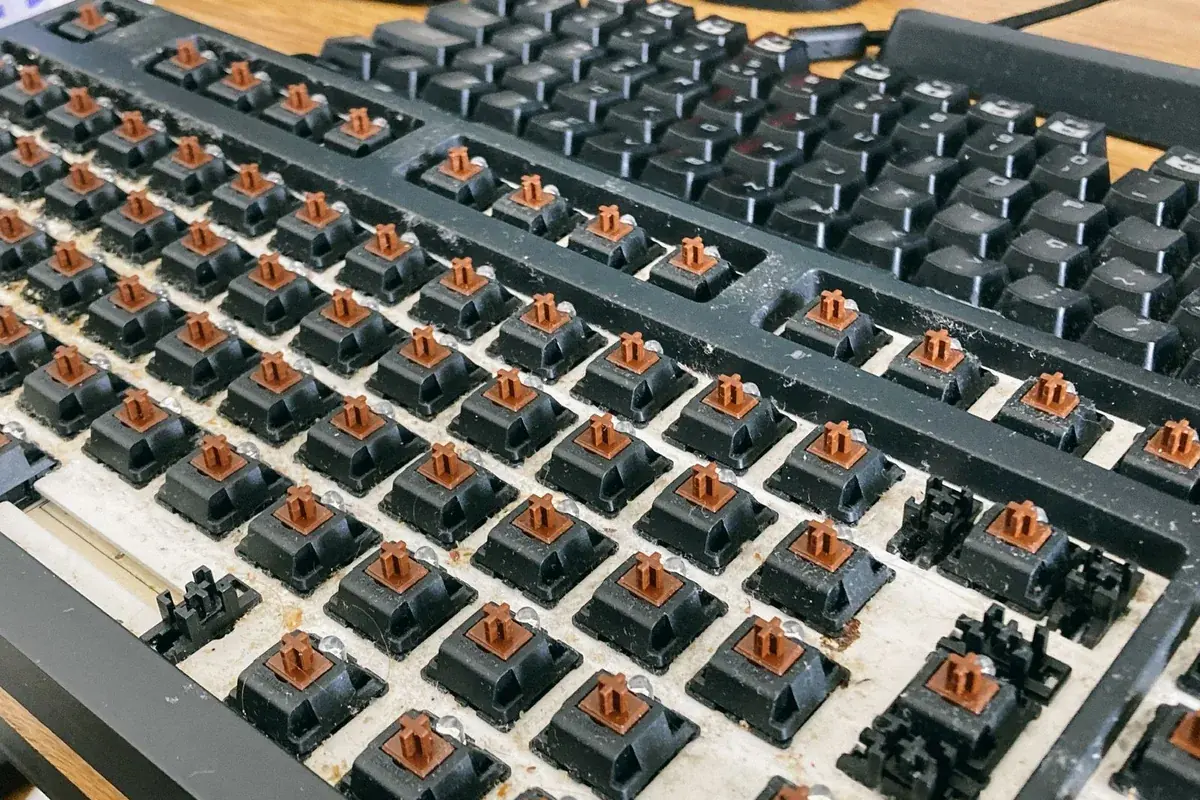
- Compressed air firstHold a laptop at about 75 degrees (nearly vertical) and blow short bursts around and under the spacebar from a few directions. This clears the debris that causes most "works sometimes" and "dead" spacebars without removing anything.
- Lift the keycap to clean underneathThe spacebar hooks onto a metal stabilizer bar. Pry gently from one corner with a plastic spudger or fingernail; do not yank straight up or you can bend the bar. Brush out crumbs and wipe contacts with a cotton swab and 90%+ isopropyl alcohol, let it dry, then press the cap back square until it clicks.
- Fix chatter (registers twice)If the test reads 2 per press, that is contact bounce. On Windows, a free software debounce tool blocks a repeat press within a few milliseconds; on QMK boards, raise the DEBOUNCE value. Full steps are in the key chatter guide.
- Reseat or replace a worn switchOn a hot-swap mechanical board, pull the spacebar switch and drop in a new one in minutes. If cleaning and debounce do not fix a dead or chattering key, the switch is worn past recovery.
- Stopgaps while you wait for partsUse the Windows On-Screen Keyboard, remap another key to Space, or plug in an external keyboard so you can keep working.
Video: cleaning and reseating a spacebar
This Perixx tutorial shows how to lift a spacebar off its stabilizer bar without snapping the clips, clean underneath, and snap it back square — the exact step most debris and stuck-key cases need.
Sources checked
The steps below are based on the live tool behavior plus vendor and community troubleshooting for dead, sticky, and double-spacing spacebars.
- Microsoft Q&A: space bar not working on laptopCommunity and Microsoft answers covering Filter Keys, drivers, and hardware checks for a non-working spacebar.
- Microsoft Q&A: space bar double spacesThread on the double-space symptom, including input-mode and autocorrect causes.
- Tom's Hardware: keyboard double space issueUser troubleshooting that separates chatter from software-driven double spacing.
- Lenovo: spacebar troubleshooting and cleaningVendor guidance on cleaning under the spacebar and reseating the keycap.
Related keyboard tools
Press once and read 0, 1, or 2 events to confirm the fault.
Keyboard TesterCheck every other key for dead or doubling behavior.
Typing TestType a paragraph and watch where the spacing actually breaks.
Key Repeat Rate TestSee how repeat delay and rate affect held or stuck keys.
Related guides
Every fix for keys that register twice, from software debounce to switch swap.
Keyboard Not Typing, Lagging, or StickyDiagnose dead, delayed, and sticky keys with a clean step-by-step flow.
Spacebar problems FAQ
- Why is my spacebar not working?Either the press is not reaching the computer or a setting is swallowing it. Run a spacebar test: if one press counts 0, the cause is usually debris under the keycap, a dead switch, or Windows Filter Keys ignoring short presses. If it counts 1 but words still run together, the problem is in the app, not the key.
- Why does my spacebar add two spaces (double-spacing)?Two events from one press is key chatter, where worn or dirty switch contacts bounce and register twice. The other common cause is a Full-width input mode (common with CJK IMEs) that types a wide space. Test the key first: if it counts 2 per press it is chatter; if it counts 1 it is a software or input-mode setting.
- How do I test if my spacebar is the real problem?Open the spacebar test, click the page to focus it, and press the spacebar once slowly. A healthy key moves the counter by exactly 1. A count of 0 means the press did not register; a count of 2 means it registered twice. Then run the full keyboard tester to see whether nearby keys are affected too.
- My laptop spacebar stopped working but an external keyboard is fine. What now?That isolates the fault to the laptop key itself. Start with compressed air at a steep angle, then gently lift the keycap off its stabilizer bar, clean underneath with isopropyl alcohol, and press it back square. If it is still dead after cleaning, the membrane or switch under that key needs replacement.
- Will cleaning under the spacebar fix it?Often, yes. Debris under the long spacebar and its stabilizer bar is the single most common cause of a spacebar that works sometimes or not at all, so compressed air and a careful keycap clean resolve a large share of cases. If the key still reads 0 or 2 after cleaning, the switch is worn and needs reseating or replacement.
- Can a spacebar problem be a Windows setting rather than the keyboard?Yes. Filter Keys can ignore short presses so a working key looks dead, a Full-width input mode types double-width spaces, and some Windows builds had spacebar bugs fixed by updates. Always test the key first: if one press cleanly counts 1, fix the software before opening the keyboard.
Start with the spacebar test to confirm whether one press is 0, 1, or 2 events, then run the full keyboard tester to check every other key while you are at it. If other keys also double up, read the key chatter fix guide; if keys feel delayed or sticky, see the keyboard lag and sticky-key fix.