Multi-Touch Test: Check How Many Fingers Your Screen Detects
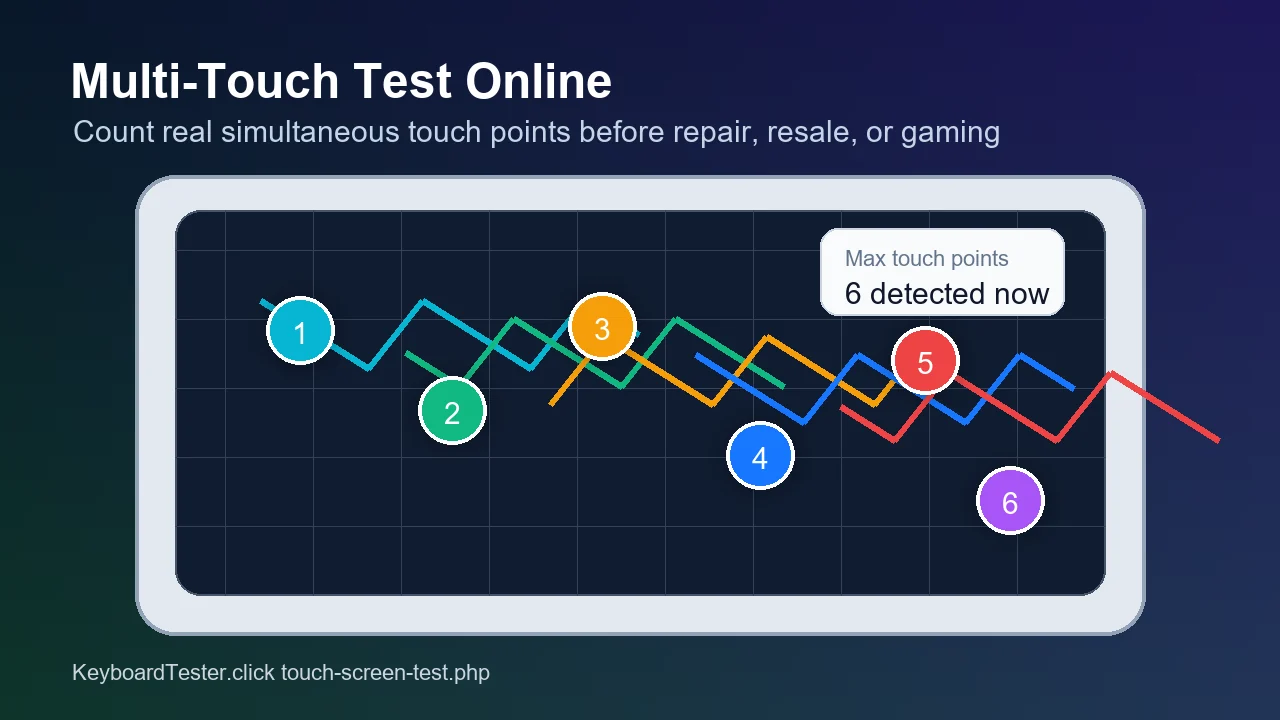
Fast answer: Open the free touch screen test, switch to Multi-touch mode, enter fullscreen, and place 2, 3, 5, then 10 fingers on the surface. The important number is the highest stable “Max” count. If your screen drops the same finger count every time, retest with the protector and charger removed before calling the digitizer faulty.
Why a Multi-Touch Count Matters
A normal tap test only proves one finger works. A multi touch test online proves how many simultaneous contacts the panel, browser, operating system, and device firmware can track at once. That matters for pinch zoom, two-finger scrolling, rhythm games, claw controls, drawing apps, keyboard shortcuts on tablets, and resale checks.
The browser-reported number is useful, but it is not enough by itself. MDN documents navigator.maxTouchPoints as a hardware-dependent value, and real behavior can still change when a screen protector, charger noise, firmware bug, or damaged edge interferes. That is why the practical test is both a reported value and a hands-on hold with several fingers.
How to Run the Test Without Fooling Yourself
Use the same clean sequence every time so the result is repeatable.
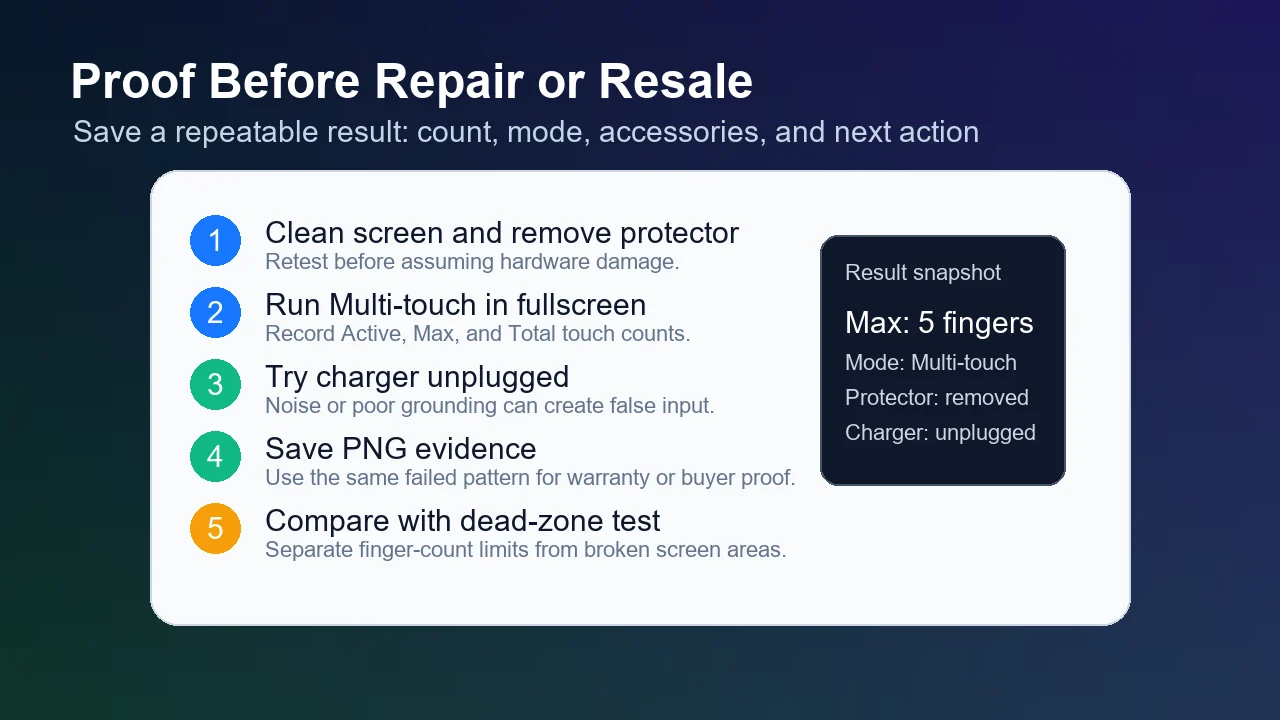
- Clean and stabilize the device: Wipe the screen, remove water or oil, put the device on a flat surface, and close apps that may steal gestures.
- Open Multi-touch mode: Open the touch screen test, choose Multi-touch, and use fullscreen so browser chrome does not intercept edge gestures.
- Add fingers in groups: Hold 2 fingers for three seconds, then 3, 5, and as many as fit naturally. Watch Active and Max, not only Total.
- Retest the same failure: If the third or fifth finger drops, repeat with the screen protector removed and the charger unplugged.
- Save evidence: Use Save PNG after a repeatable failure, then compare it with the dead-zone and ghost-touch checks.
Tool: Touch Screen Test
What the Results Mean
| Signal | Meaning | Use it for |
|---|---|---|
| Reported max touch points | What the browser says the hardware supports. | Useful baseline, but verify with real fingers. |
| Active touches | How many fingers are detected right now. | This should match the fingers currently touching the screen. |
| Max touches | Highest simultaneous count reached during this run. | Use this number for repair notes or resale proof. |
| Total touches | How many touch contacts happened over the full session. | Good for activity logging, not the main finger-count limit. |
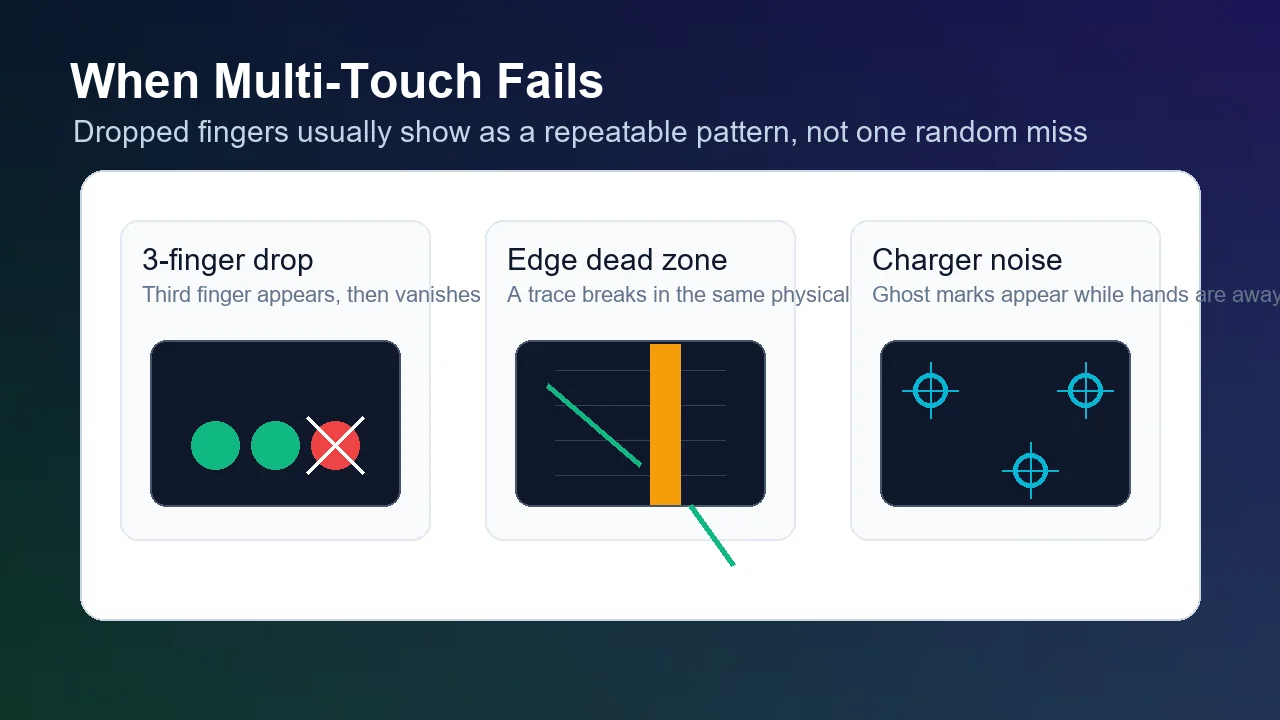
| Pattern | Likely cause | Next check |
|---|---|---|
| Third finger disappears | Gesture firmware, palm rejection, game mode, protector, or a panel limit. | Retest in fullscreen, then without the protector. |
| Five fingers never register | Normal on some panels, but suspicious if specs claim more. | Compare browser maxTouchPoints with a real 5-finger hold. |
| Same edge drops every time | Dead zone or damaged digitizer strip. | Run Dead zones mode and save a PNG. |
| Marks appear with no hands | Ghost touch from charger noise, moisture, cracked glass, or driver issue. | Use the ghost touch guide and unplug the charger. |
What to Try Before Repair
- Do not test through thick gloves unless your device is designed for glove mode.
- A desktop monitor without touch should show 0 max touch points; that is not a failure.
- If only one app fails but the browser test passes, suspect the app or its gesture settings first.
- For warranty, repeat the failed finger count twice and save the cleaner result.
Touchscreen Troubleshooting Video
The embedded ASUS Support video is a general touchscreen troubleshooting reference. It is not a multi-touch benchmark, but it covers the practical order used in this guide: confirm touch support, clean the screen, remove accessories, reinstall the HID touch driver, update the device, and reset calibration when needed.
Sources and Research Notes
The article combines first-party site demand for touchscreen test queries with browser/API documentation, mobile touch-platform documentation, app-store evidence that users search for pointer-count tools, and support guidance for repair-safe troubleshooting.
- MDN: Navigator.maxTouchPoints - Defines the browser property used to report the maximum simultaneous touch contacts supported by the current device.
- MDN: Pointer Events - Explains pointer events and the maxTouchPoints navigator extension used by browser touch tools.
- Android Developers: Handle multi-touch gestures - Explains multi-touch as multiple pointers or fingers interacting with the screen at the same time.
- ASUS Support: Touchscreen / Touch Panel problems - Provides the support order for cleaning, accessories, drivers, updates, calibration, and reset paths.
- Google Play: MultiTouch Test - Shows user demand for tools that display touch points, pointer positions, and pointer counts.
- OnlineMicTest: Multi Touch Test - A comparable online tool used to validate the search intent around counting simultaneous touch points.
Related Tools
Count touch points, map dead zones, check precision, and run ghost watch.
Separate touch-input faults from visible display pixel defects.
Check whether colored dots are pixel faults rather than touch failures.
Use full-screen color panels after you finish touch-input checks.
Related Guides
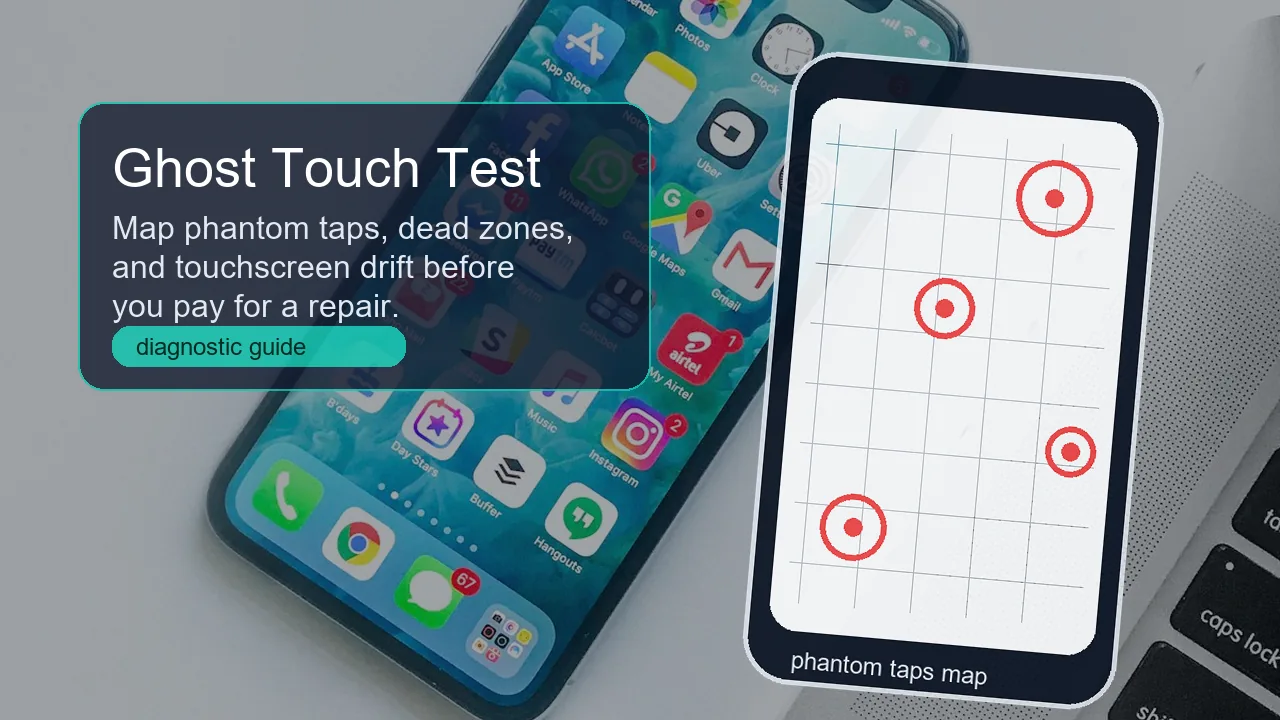
- Ghost Touch Test Online: Find Phantom Taps, Dead Zones and Touchscreen Drift
- Dead Pixel Test: Check Monitor and Screen Pixels Online
FAQ
-
What is a multi-touch test?
A multi-touch test checks how many fingers or touch contacts a screen can track at the same time. It is different from a simple tap test because it exposes dropped 3-finger, 5-finger, or gesture inputs.
-
How many fingers should my phone detect?
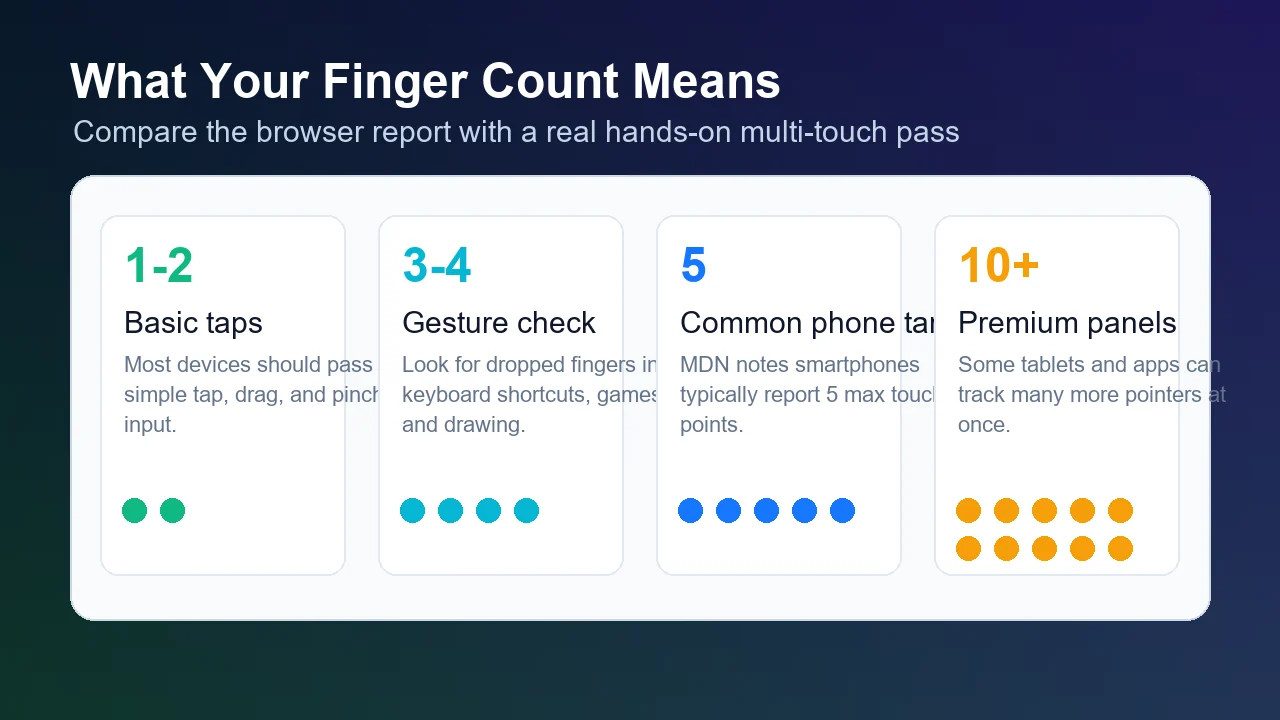
Many phones report around five simultaneous touch points, while some tablets and gaming-focused panels can track more. Treat your device specification and repeated test result together rather than assuming every screen should reach ten.
-
Why does navigator.maxTouchPoints show 0?
A desktop or laptop without a direct touchscreen normally reports 0. If a touch device reports 0 but still accepts touches, retest in another browser because the browser or operating system may not expose the value correctly.
-
Can a screen protector reduce multi-touch?
Yes. Thick, dirty, cracked, or poorly fitted protectors can reduce sensitivity or create edge failures. Retest without the protector before blaming the display.
-
Why does 3-finger touch fail in games?
Common causes include palm rejection, OS gestures, game controls, screen protector interference, or a real digitizer limit. Fullscreen browser testing helps separate hardware limits from app-specific controls.
-
Should I repair the screen if the test fails?
Not immediately. Clean the glass, remove accessories, unplug the charger, restart, update drivers or firmware, and retest. Repair is more likely when the same physical area or same finger-count limit fails repeatedly.
Run one final pass in the touch screen test after every change. If the same 3-finger, 5-finger, or edge pattern repeats after cleaning, accessory removal, charger swap, restart, and updates, save the PNG result for repair or resale proof.