Frame Skipping Test: Check if Your Monitor Is Dropping Frames
Frame skipping is one of those problems that feels obvious in motion but becomes confusing when every tool gives a different answer. A game may look choppy at 144Hz, the browser test may show a few red spikes, and a screenshot may look perfectly normal because screenshots capture the rendered frame buffer, not the actual refresh sequence reaching your eyes.
This guide keeps the workflow practical: start with the KeyboardTester frame skipping test, separate browser timing from physical monitor skipping, then confirm with a camera photo when the result matters for a monitor overclock, new cable, high-refresh setting, or used display purchase.
Fast answer: A browser frame skipping test is a good first check for dropped animation frames, browser timing spikes, or unstable high-refresh motion. It does not by itself prove the physical LCD/OLED panel is skipping refreshes. For monitor-level proof, run the pattern full screen and take a phone/camera photo with enough exposure to capture several refreshes. A continuous sequence is healthy; visible gaps suggest skipped refreshes.
Start With the Browser Frame Skipping Test
Open the frame skipping test, switch it to full screen, and let it run for at least 20 to 30 seconds without moving the window. Keep the tab in the foreground. Close heavy downloads, screen recorders, remote desktop sessions, and browser extensions that inject overlays.
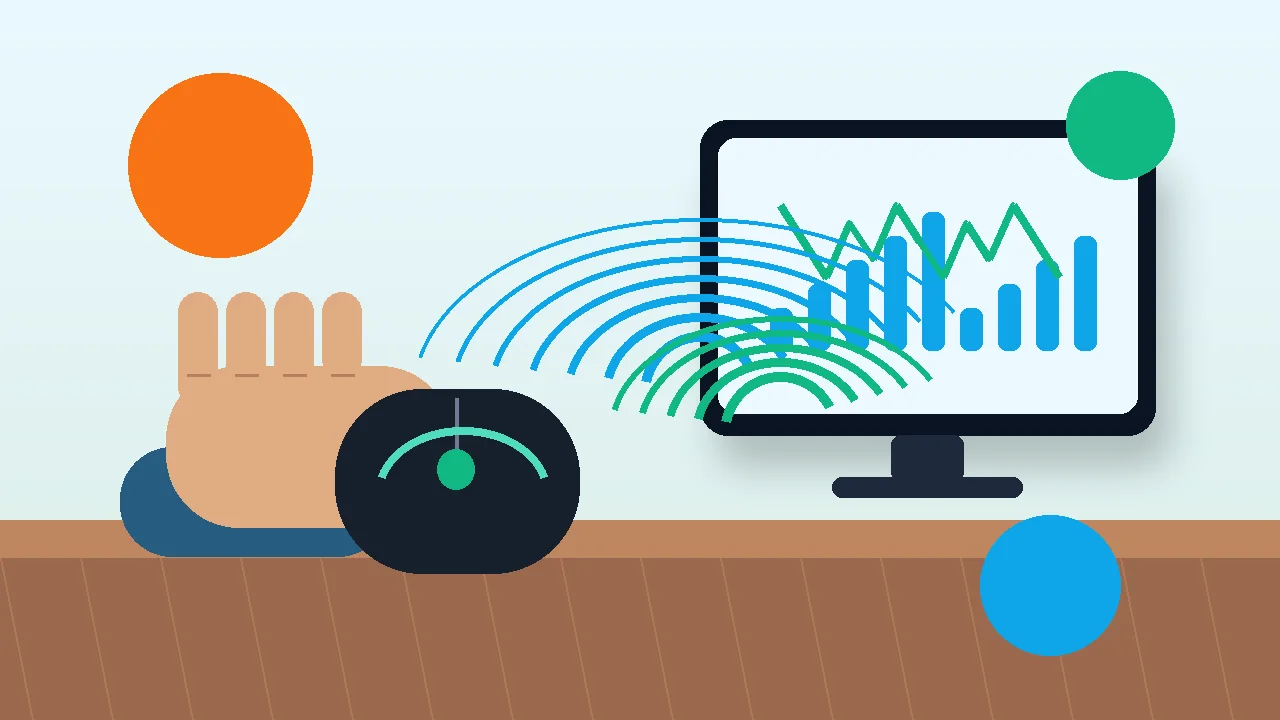
The browser test watches frame timing through requestAnimationFrame. On a stable 60Hz display, frame intervals should stay near 16.67ms. At 144Hz they should cluster near 6.94ms, and at 240Hz near 4.17ms. A large timing gap may mean the browser or GPU missed an animation frame, but that is not automatically the same thing as the monitor panel skipping a physical refresh.
- Use the monitor refresh rate you actually play on, not a fallback 60Hz mode.
- Plug laptops into power and disable battery saver before testing high refresh rates.
- Retest in a second browser if one result looks suspiciously bad.
- Use the FPS test beside this only as a browser performance reference, not as panel proof.
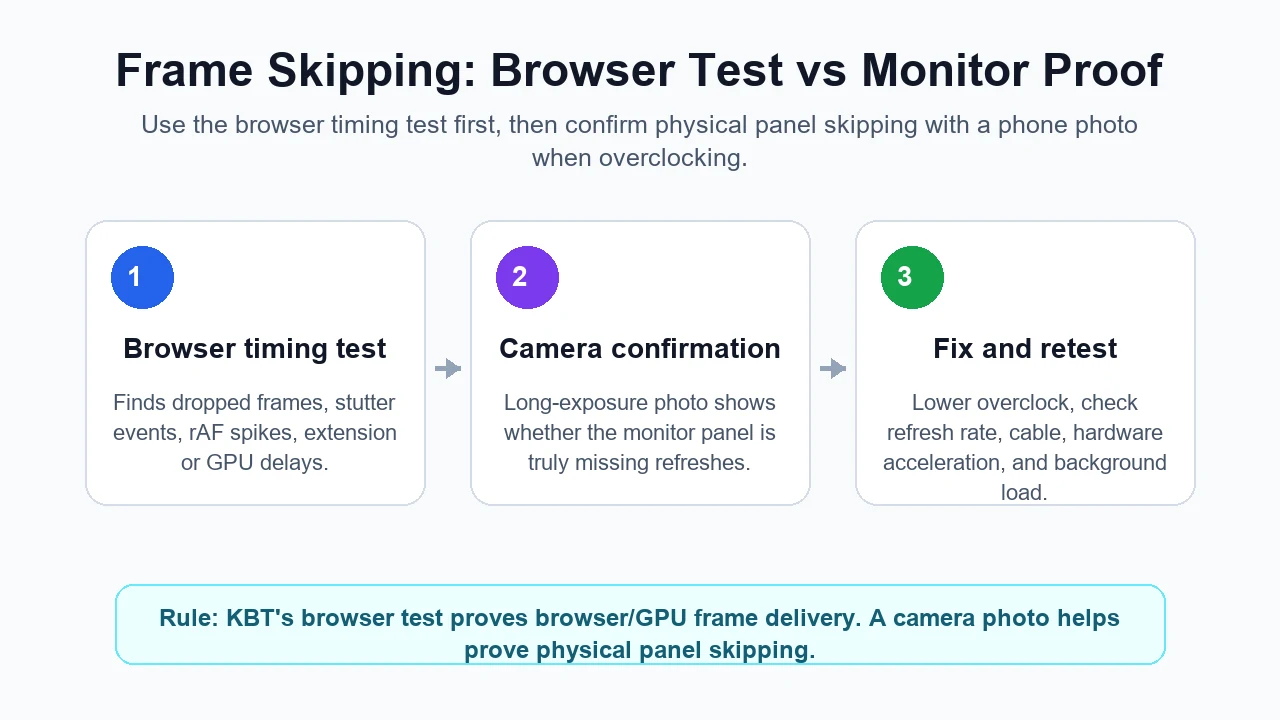
Frame Skipping vs FPS Drops vs Ghosting
These three problems can feel similar, but they point to different fixes. Frame skipping is a missing or repeated display refresh. FPS drops happen when the PC or game cannot produce frames consistently. Ghosting is pixel response blur where frames are present but the transition smears across the screen.
That difference matters. If you treat ghosting as frame skipping, you may waste time replacing cables. If you treat PC stutter as panel skipping, you may return a good monitor. Use the comparison below before changing hardware.
| Issue | What you see | Best KBT check | Likely next step |
|---|---|---|---|
| Frame skipping | Motion cadence has gaps or jumps even when FPS is stable | Frame skipping test | Confirm with camera photo; lower overclock/refresh if gaps remain |
| FPS drop | Animation speed stutters and frame-time graph spikes | FPS test | Close background load, update GPU driver, reduce game settings |
| Ghosting | Moving objects leave trails but cadence is still regular | Monitor ghosting test | Adjust overdrive, refresh rate, or display mode |
| Refresh mismatch | Monitor is set lower than expected, often 60Hz | Refresh rate test | Set the correct Hz in OS/GPU control panel |
How to Confirm Physical Monitor Frame Skipping
If the browser test looks clean, your panel is probably fine for normal use. If you need stronger proof, use the traditional camera method. Run the skipping pattern full screen, keep the camera still, and use a shutter/exposure long enough to capture multiple refresh blocks in one photo.
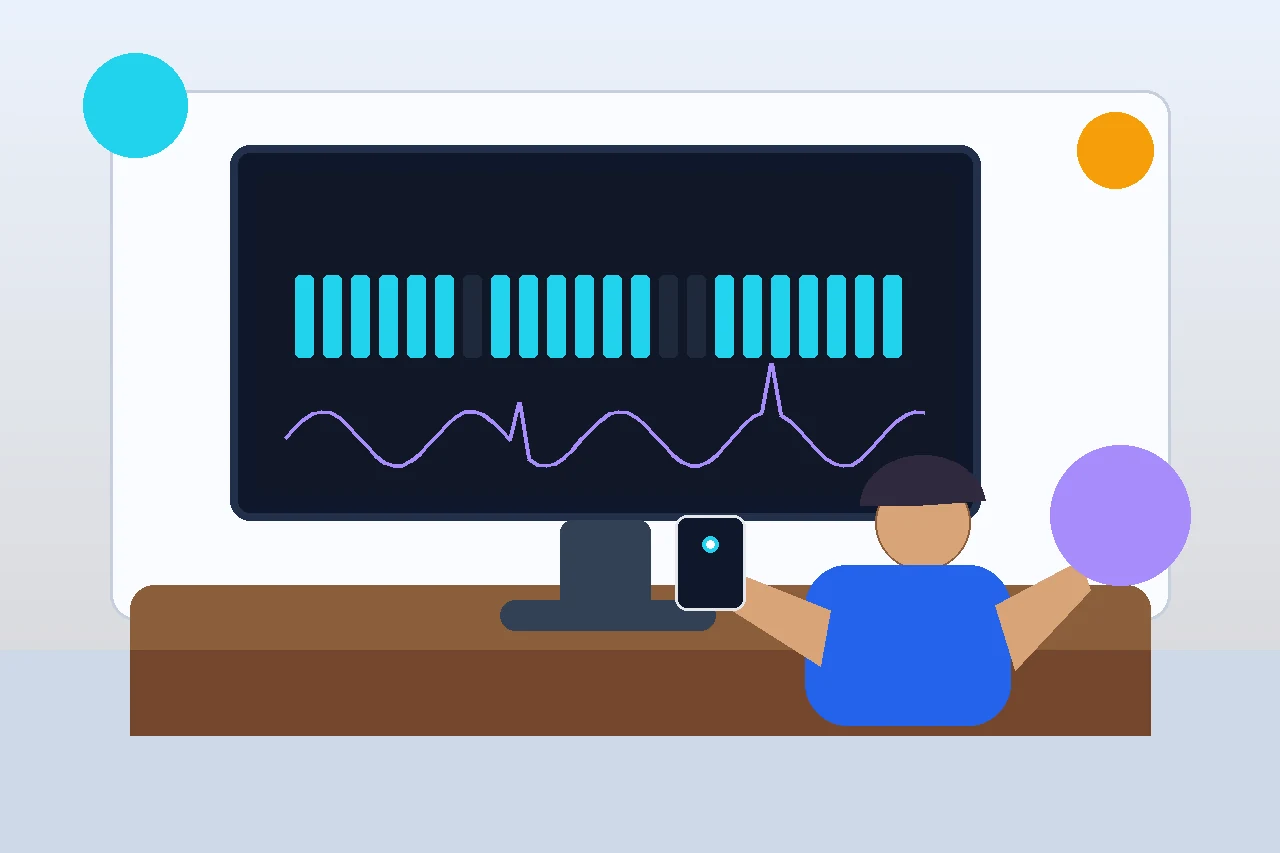
A screenshot is not valid for this job. It captures what the browser drew, not what the display physically refreshed over time. A phone photo can show the sequence of visible refreshes. When the pattern is healthy, the blocks appear as a steady row or trail. If the monitor drops refreshes, you will see blank gaps in that trail.
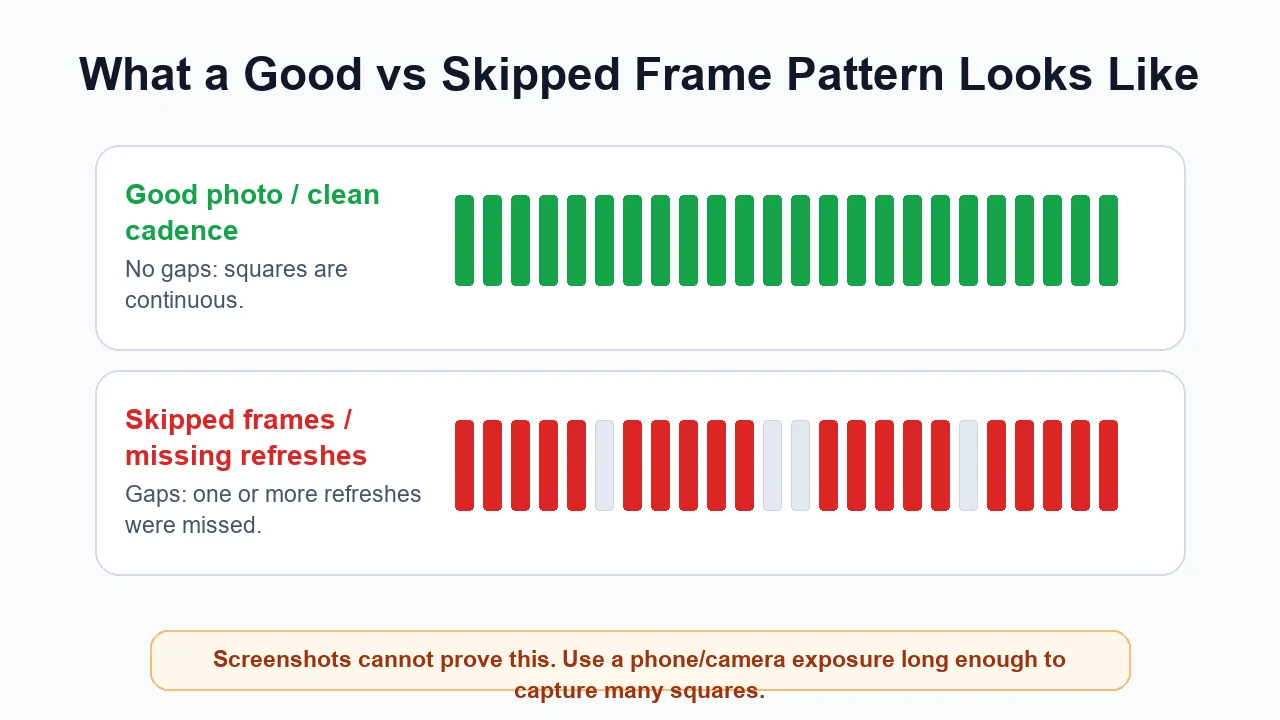
Good vs Bad Test Patterns
The pattern is easiest to read when the room is dim, the display brightness is steady, and the camera is not moving. Do not judge one photo if it is blurry, angled sharply, or taken with heavy automatic HDR processing. Take two or three photos and look for a repeating gap pattern.
At 144Hz, each refresh is only about 6.94ms. A photo that captures roughly one tenth of a second can contain around 14 or 15 refreshes. The exact count is less important than the continuity. Regular spacing means the monitor is showing each refresh. Missing slots are the warning sign.
Diagnosis Matrix: Browser, GPU, Monitor, or Game?
Use repeated results, not a single spike. Browser-based tests are sensitive to background tasks, graphics acceleration, tab throttling, and power mode. Monitor-level skipping tends to repeat under the same refresh-rate or overclock setting even when the PC is otherwise idle.
A clean browser test plus game stutter usually points to the game, GPU, driver, or settings. A bad browser test that becomes clean after closing load points to PC/browser timing. A camera photo with repeated physical gaps points more strongly to the monitor timing path.
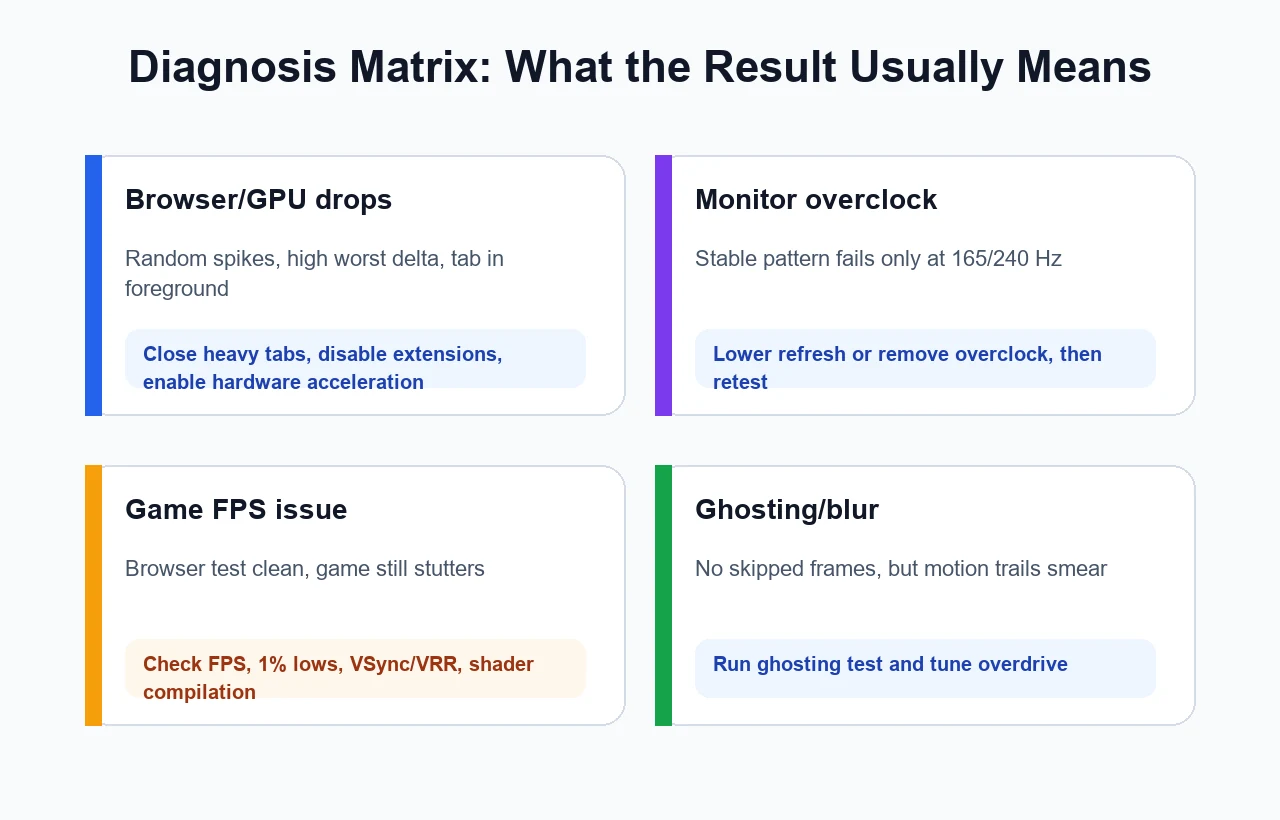
Fixes for 144Hz, 165Hz, 240Hz, and Overclocked Displays
Start with reversible changes. Set the monitor to its advertised refresh rate, disable unofficial overclock modes, and retest. If 165Hz skips but 144Hz is clean, the panel or signal path may not be stable at the higher setting even if the menu exposes it.
Then check the cable and port. Use the correct DisplayPort or HDMI generation for your resolution and refresh rate, avoid low-quality adapters, and test another port if available. Cable problems more often cause blanking, artifacts, or negotiation issues, but an unstable signal path can still confuse diagnosis.
- Confirm Windows/macOS and the GPU control panel both show the intended refresh rate.
- Turn off monitor overclocking or reduce one refresh step, then compare again.
- Temporarily disable VRR/G-Sync/FreeSync for isolation, then enable it again after testing.
- Update GPU drivers and restart before judging a persistent browser timing problem.
- Try a different certified cable if the issue appears only at high resolution plus high refresh.
- Use the refresh rate test, FPS test, and ghosting test together before buying parts.
Watch: Monitor Overclocking and Stability Checks
This video is useful background if your skipping result appears only after pushing a monitor above its standard refresh rate. Use it as context, then verify with your own test pattern and camera photo.
Sources and Research Notes
The recommendations above combine the live KBT tool workflow with established frame-skipping test guidance and browser timing caveats.
- TestUFO Frame Skipping Checker Camera photo required for physical skipping proof; screenshots are not enough.
- Blur Busters frame skipping discussion Practical explanation of interpreting photographed refresh blocks at high Hz.
- MDN requestAnimationFrame reference Browser animation callbacks usually match display refresh and can pause in background tabs.
- TestUFO Animation Time Graph Useful caveat that browser/GPU timing indicators are not always perfectly reliable.
- MonitorTests skipped/reused frames thread Nuance on separating PC-side and monitor-side frame timing behavior.
- RGT Productions monitor overclocking video Background reference for overclock stability and monitor risk context.
Related Display Tools
Related Guides
FAQ
Is a browser frame skipping test accurate?
It is accurate for browser-rendered animation timing, but it is not final proof that the physical monitor panel skipped a refresh. Use a camera photo when you need monitor-level evidence.
Why does the test show drops when my monitor is fine?
Background CPU load, GPU scheduling, browser extensions, power saving, or a hidden/throttled tab can cause browser timing spikes. Retest in a foreground tab with other load closed.
Can I use a screenshot to prove frame skipping?
No. A screenshot captures a single rendered buffer. It cannot show the sequence of physical refreshes over time. Use a phone or camera photo of the running pattern.
What does frame skipping look like in a photo?
A healthy result shows evenly spaced blocks or trails. Frame skipping shows repeated blank gaps where one or more refreshes are missing.
Can a cable cause frame skipping?
A bad or under-spec cable can cause instability, blanking, artifacts, or negotiation problems at high bandwidth. If the photo shows gaps only at a high refresh setting, test another certified cable and port as part of diagnosis.
What should I do if 165Hz skips but 144Hz does not?
Use 144Hz for reliability, disable the overclock, then test cable, port, VRR settings, and GPU driver. Some panels expose refresh modes that are not stable on every unit.
Ready to test your screen? Open the frame skipping test, let it stabilize, and confirm suspicious results with a camera photo before changing hardware.