
Mouse Polling Rate Test: Check Mouse Hz and Fix Low 1000Hz/8000Hz Readings
Fast answer: A mouse polling rate test estimates how often your browser receives mouse movement events. Use the Mouse Polling Rate Test, move the mouse in fast circles for 10-20 seconds, then judge the tier: 125Hz is office-class, 500Hz is usable gaming, 1000Hz is the common competitive target, and 4000Hz/8000Hz only matter when the whole PC, game, and monitor path can keep up.
If your 1000Hz mouse only shows 700-900Hz, or your 8000Hz mouse never gets close to 8000Hz, the mouse is not automatically broken. Browser event timing, wireless mode, battery saver profiles, USB hubs, background CPU load, game engine limits, and manufacturer software can all change what an online Hz checker sees. This guide explains how to run the test, read the result, and fix the common causes before you blame the sensor.
How to Run a Mouse Polling Rate Test Correctly
Online tests work best when the browser receives many movement events quickly. The goal is not to twitch once and chase a peak. The useful result is a repeated average and peak that stay near the same tier across multiple runs.
- Use a Chromium browser if possible: Chrome or Edge usually exposes high-frequency pointer events more consistently than older browsers. Close heavy tabs first.
- Set the mouse profile first: Open Logitech G Hub, Razer Synapse, Corsair iCUE, SteelSeries GG, or your mouse app and select the intended report rate before testing.
- Click the test area and move in circles: Use fast, smooth circles or figure-eight movement for 10-20 seconds. Tiny movements can under-sample even a good mouse.
- Repeat the run: Run two or three passes. A real setting change should repeat; one isolated spike is not proof that the mouse is stable at that Hz.
Mouse Polling Rate Test: Check the live Hz tier and compare peak, average, and stability.
What Mouse Hz Numbers Mean
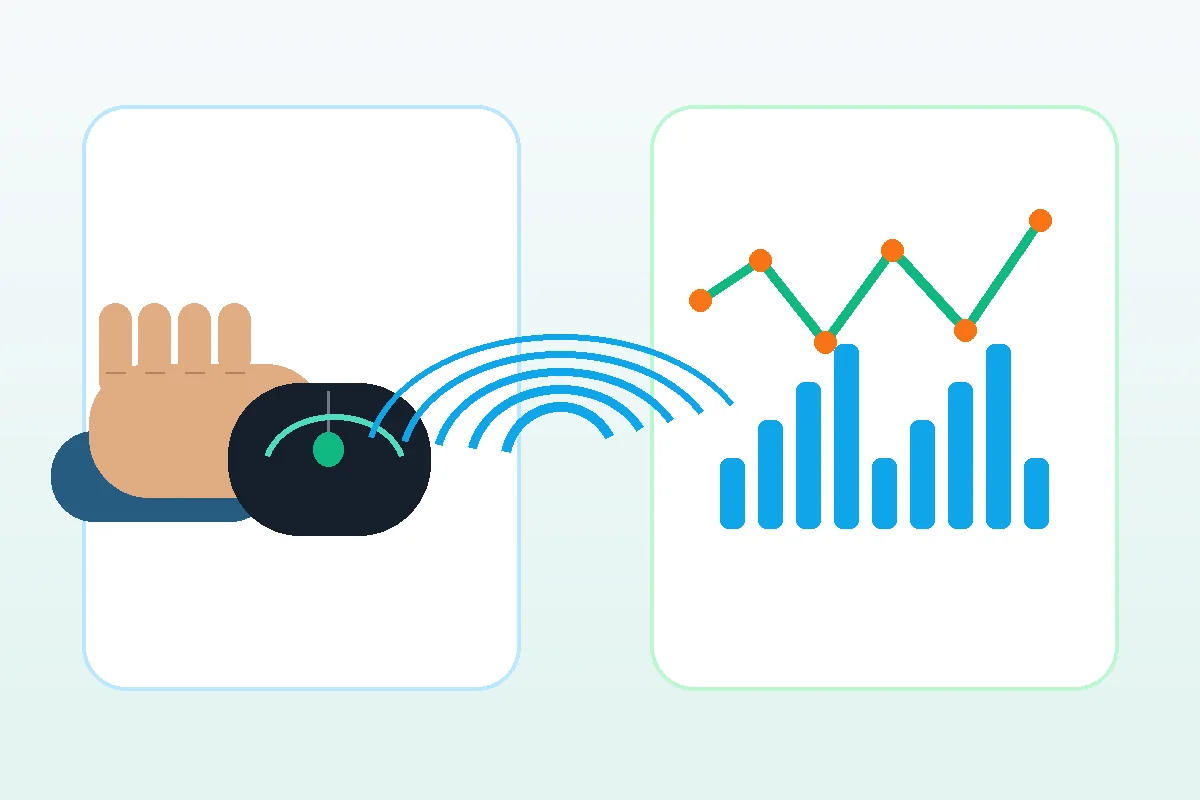
Polling rate is usually expressed as reports per second. The simple conversion is 1000 divided by Hz, so 1000Hz is roughly one report every 1ms and 8000Hz is roughly one report every 0.125ms.
| Polling rate | Report interval | Practical meaning |
|---|---|---|
| 125Hz | 8ms | Common office and Bluetooth tier. Fine for basic work, not ideal for fast aim. |
| 250Hz | 4ms | Better than office mice, but still below modern gaming defaults. |
| 500Hz | 2ms | Playable and usually stable. Many users will find it hard to separate from 1000Hz in casual use. |
| 1000Hz | 1ms | The standard gaming target and the best default for most competitive players. |
| 2000Hz | 0.5ms | A mild step above 1000Hz when the game and PC remain stable. |
| 4000Hz | 0.25ms | High-end tier. More useful with high refresh monitors and high frame rates. |
| 8000Hz | 0.125ms | Ultra-high polling. It can be valid, but it is more sensitive to CPU load, wireless mode, and software support. |
Why a 1000Hz or 8000Hz Mouse Shows a Lower Reading
A browser Hz checker reports the movement events that reached the browser. It is excellent for proving the general tier, but it is not the same as a lab USB analyzer. Treat a low number as a diagnostic clue, then test the causes below.
| What you see | Likely meaning | What to try next |
|---|---|---|
| 1000Hz mouse peaks around 850-1000Hz | Usually normal for a browser test. The peak and average are close enough to prove the 1000Hz tier. | Repeat in the same browser and compare with the mouse app. |
| 1000Hz mouse stays near 125Hz or 250Hz | The profile may be wrong, the mouse is in Bluetooth/low-power mode, or a hub is limiting reports. | Switch to 2.4GHz or cable, select 1000Hz in the app, and avoid hubs. |
| 8000Hz mouse only reaches 1000Hz | The mouse, dongle, cable, firmware, or app profile is probably capped at 1000Hz. | Update firmware, use the required high-polling dongle or cable, and check game/profile settings. |
| Numbers jump wildly from low to high | The browser, CPU, display refresh, or background load may be interrupting event delivery. | Close overlays, recorders, RGB apps, and heavy tabs, then test again. |
Fix Checklist for Low Mouse Polling Rate Results
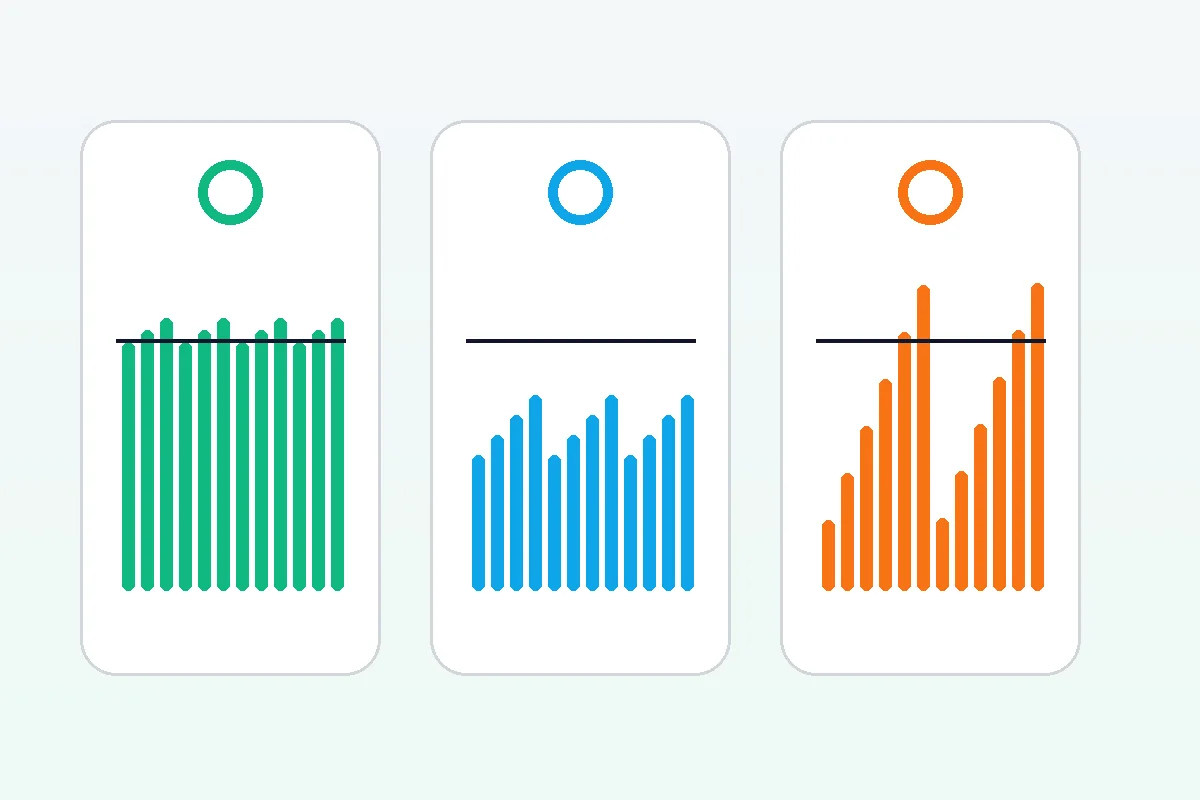
Change one variable at a time and retest. If the result improves, you found the bottleneck. If every browser result remains low, confirm inside the manufacturer software or a native diagnostic before assuming hardware failure.
Use the dedicated 2.4GHz receiver or USB cable. Bluetooth commonly runs lower and is not the right mode for high-polling tests.
Plug directly into the motherboard or laptop port. Remove front-panel hubs, docks, KVMs, and passive extension cables while diagnosing.
Set the polling rate in the mouse app and save it to the active profile. Some mice have per-game profiles that silently override desktop settings.
Update both the mouse and receiver. Several 4K/8K mice require a specific receiver or firmware before high polling appears.
Disable low-power mode and test with a charged battery. Wireless mice often reduce rate when power saving is enabled.
Close screen recorders, browser overlays, RGB control apps, and game launchers. High polling creates more input events for the CPU to process.
1000Hz vs 4000Hz vs 8000Hz: Which Should You Use?
Higher polling reduces the report interval, but the practical difference gets smaller as Hz rises. A stable 1000Hz setting is often better than an unstable 8000Hz setting that drains battery, adds CPU load, or causes game stutter.
| Use this setting | Best fit | Avoid it when |
|---|---|---|
| 500Hz | Office work, older laptops, and casual gaming where battery life matters. | You play fast FPS games and your mouse supports stable 1000Hz. |
| 1000Hz | Default recommendation for most gaming mice, FPS players, and general competitive use. | The PC or game stutters only at 1000Hz and lower rates feel more stable. |
| 4000Hz | High refresh monitors, strong CPU, and players who can keep frame rate high. | You are on battery, low-end CPU, or the game has input stutter. |
| 8000Hz | Niche competitive setups with a compatible mouse, receiver, firmware, and very high frame rate. | You cannot hold high FPS, use Bluetooth, need long battery life, or only see unstable browser readings. |
Video: Before You Upgrade to Higher Polling Rates
This video is useful because it focuses on whether higher polling rates are worth the upgrade, not just the marketing number.
Sources and Technical References
The article uses browser input behavior, mouse-maker explainers, and competing test patterns to separate what online tests can prove from what hardware software can prove.
- MDN pointermove eventBrowser pointer events explain why web-based tools measure event delivery through the browser, not the USB bus directly.
- Logitech polling-rate explainerLogitech summarizes the 125Hz to 1000Hz timing relationship and notes the battery and CPU tradeoff of faster rates.
- Corsair polling-rate guideCorsair defines polling rate as how often mouse data is sent to the device and describes 1000Hz as a common gaming baseline.
- Razer HyperPolling Wireless DongleRazer documents 8000Hz wireless polling support for compatible high-end devices and the required dongle ecosystem.
- TestUFO mouse poll rate testTestUFO is a useful independent reference for the browser-test pattern: click, move fast in circles, then read peak Hz.
Related Tools
Check the live Hz tier and compare peak, average, and stability.
Mouse DPI TesterMeasure real movement distance when Hz is fine but sensitivity feels wrong.
Input Latency CheckerSeparate polling rate from display or system delay.
Mouse Acceleration TestFind acceleration when cursor movement still feels inconsistent.
Related Mouse Guides
Use this when Hz is correct but the mouse still feels faster or slower.
Mouse DPI Tester GuideLearn how measured DPI and sensitivity settings interact.
Best Gaming Mouse GuideSee when 4000Hz and 8000Hz should influence a buying decision.
Mouse Polling Rate Test FAQ
- How do I check my mouse polling rate online?Open a mouse polling rate test, click the test area, and move the mouse in fast circles for 10-20 seconds. Use the repeated peak and average to identify the tier: 125Hz, 250Hz, 500Hz, 1000Hz, 4000Hz, or 8000Hz.
- Why does my 1000Hz mouse show 800Hz or 900Hz?That can be normal in a browser test. JavaScript event timing, display refresh, OS scheduling, and movement pattern can make the measured browser event rate lower than the hardware setting. Repeat the test and confirm in your mouse software.
- Why does my 8000Hz mouse only show 1000Hz?The most common reasons are the wrong profile, missing firmware, using Bluetooth, using the wrong wireless dongle, or a game/desktop profile capped at 1000Hz. High-polling mice often need the correct receiver and software setting.
- Is 8000Hz better than 1000Hz?8000Hz has a lower theoretical report interval, but it only helps when your mouse, receiver, CPU, game, and monitor can stay stable. For most users, a stable 1000Hz setting is the better default.
- Can polling rate change DPI or sensitivity?Polling rate does not change DPI directly. It can change the feel of motion timing, but if sensitivity changes a lot, check real DPI, Windows pointer speed, raw input, acceleration, mousepad friction, and game sensitivity.
- Should I test polling rate wired or wireless?Test both if your mouse supports both. Wired or a dedicated 2.4GHz receiver is usually best for high polling. Bluetooth is commonly lower and should not be used to judge a 1000Hz or 8000Hz gaming profile.
Start with the live Mouse Polling Rate Test. If the Hz result looks right but the mouse still feels delayed, compare it with the input latency checker and the DPI tester before changing your sensitivity.

