Ghost Touch Test: Detect Phantom Taps and Map Touchscreen Dead Zones
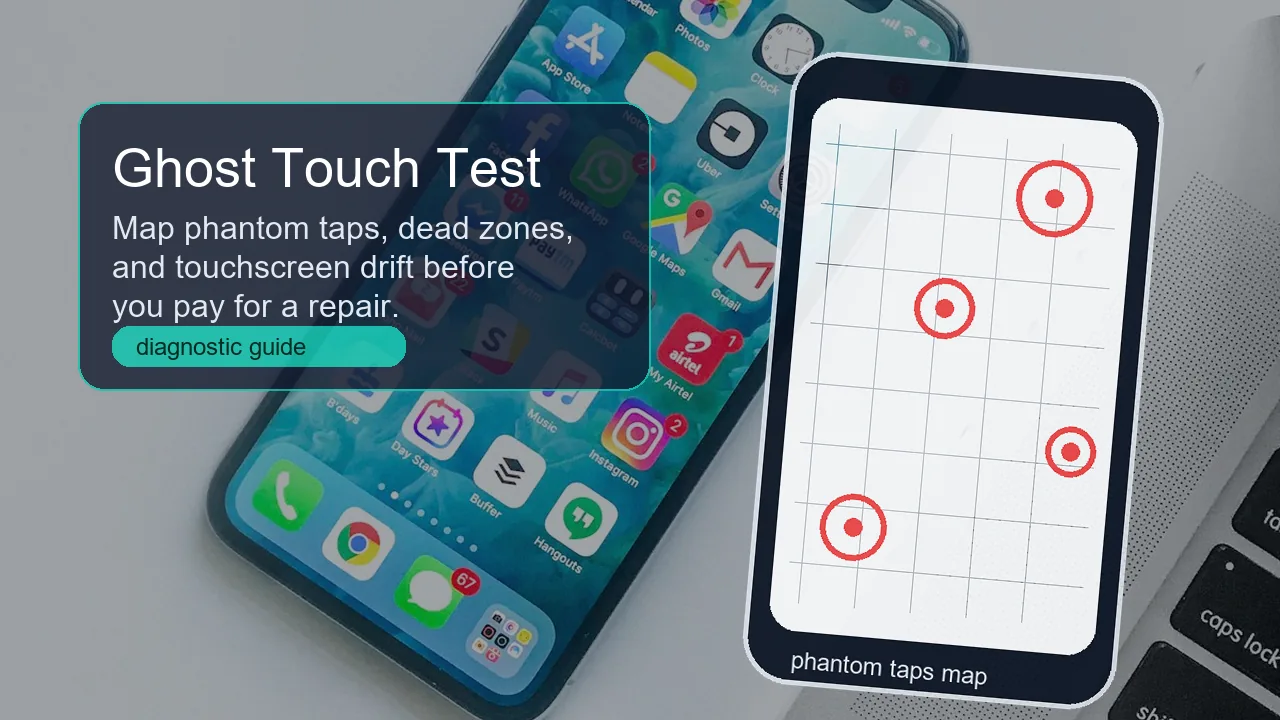
Fast answer: open the free touch screen test, clear the canvas, keep your hands away from the display, and run the 10-second ghost touch check. If marks appear while nobody touches the screen, your device is registering phantom input. Then draw slow diagonal lines across the full screen to map dead zones and drift before you blame an app or pay for a repair.
Ghost touch feels random, but the fault usually follows a pattern. A phone may open apps by itself only while charging. A tablet may stop drawing through one vertical strip. A Windows touch laptop may move the cursor because the touchscreen digitizer fires invisible taps. The goal is to capture that pattern before you reset software, replace glass, or buy a used device.
This guide uses the search opportunity around ghost touch test, ghost touch detector, touch screen test online, and touchscreen dead zone test. It also reflects what users keep asking in support communities: Surface owners checking whether ghost taps still happen in UEFI, Android owners testing whether the same screen strip drops a drag path, and phone users comparing chargers, protectors, cases, and moisture.
How to Run a Ghost Touch Test Online
Use a browser test first because it does not install another app, does not need an account, and gives you a quick visual record. It cannot repair the digitizer, but it can show whether the screen registers touch points you did not create.
- Open Touch Screen Test on the device you want to check.
- Clean and dry the glass. Remove gloves, heavy cases, magnetic covers, and the screen protector if you suspect it.
- Tap Clear Canvas, then tap Ghost Touch Test (10s).
- Keep all fingers, sleeves, cables, and styluses away from the display until the timer ends.
- If the page reports ghost touches or shows marks, repeat the same test while unplugged from the charger.
- Draw slow diagonal lines from corner to corner. A repeated break in the same place usually means a dead zone.
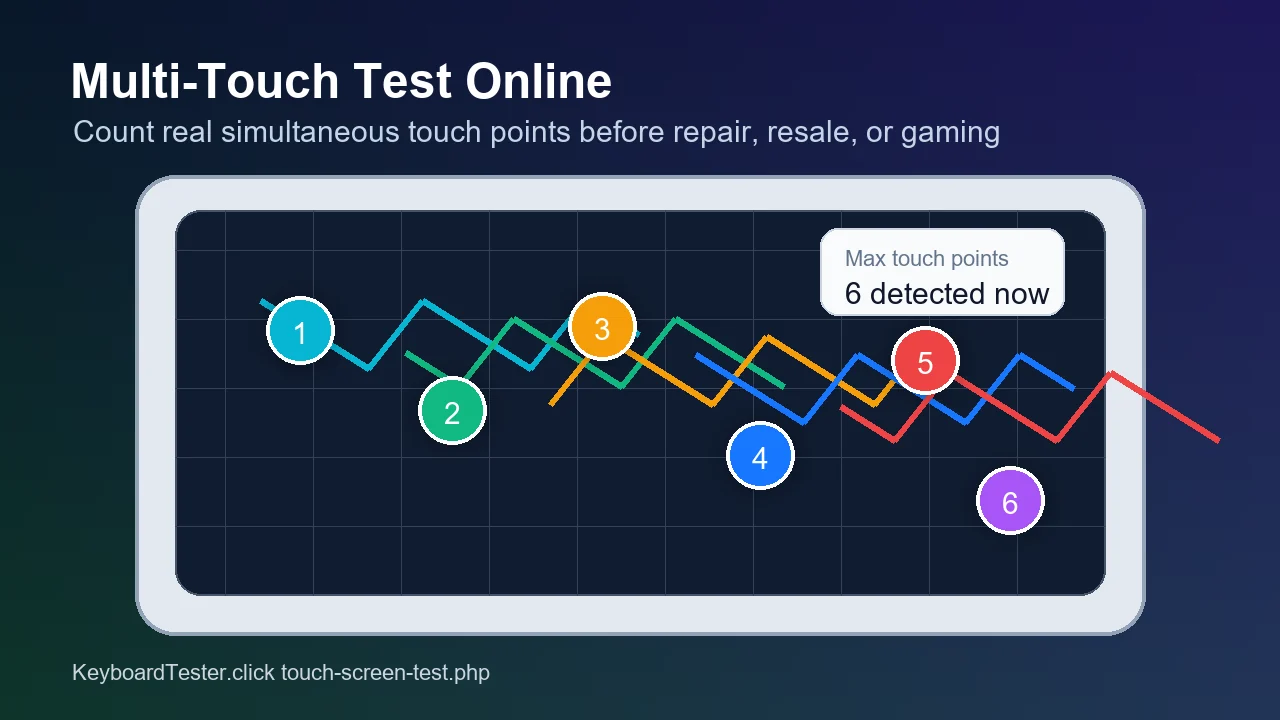
- Place two, three, four, and five fingers on the canvas to test multi-touch behavior.

Practical rule: run every test twice. Once with your normal case, protector, charger, and browser. Once with accessories removed and the device unplugged. A result that changes after removing one item points to an accessory or interference problem. A result that repeats in the same physical area points toward hardware.
How to Read the Results
A touch test gives you signals, not a final repair quote. Read the result by matching the pattern to the most likely cause.
| What you see | Likely meaning | Next move |
|---|---|---|
| Touch marks appear during the 10-second ghost test | The digitizer, protector, charger, moisture, or driver is creating phantom input | Retest unplugged, clean the glass, remove accessories, then compare safe mode or firmware screens |
| The diagonal line breaks at the same strip every time | That area may be a dead zone in the touch layer | Photograph the pattern and prepare for repair if cleaning and accessory removal do not change it |
| Touch lands beside your finger instead of under it | The panel may have calibration, scaling, driver, or digitizer drift | Reset touch calibration on Windows, update drivers, or test after reboot on phones and tablets |
| Ghost touch happens only while charging | The charger, cable, socket, grounding, or battery condition may be involved | Switch to a trusted charger and cable, avoid cheap adapters, and stop using the device if swelling or heat appears |
| Multi-touch stops at two or three fingers | The device may support fewer points, or the driver may expose fewer contacts | Compare against the device specification and retest after updates |
Quick Fixes Before You Pay for Repair
Start with reversible fixes. Official support pages from Apple, Google Android, ASUS, and Microsoft all put simple checks before service: restart, clean the screen, remove cases and protectors, disconnect accessories, check updates, and only then escalate.
Moisture, skin oil, dust, and cleaner residue can trigger bad input. Power the device off, wipe with a soft cloth, let the surface dry, then retest.
Thick glass, bubbles, edge lift, and dirt under the protector can create missed touches or false touches. Test once without it.
If ghost taps appear only while charging, unplug first. Then test with an original or certified charger, another cable, and another wall outlet.
A restart clears temporary driver and app state. A factory reset removes data, so keep it near the end of the workflow, not the beginning.
Windows Touch Laptop Checks
On Windows laptops and Surface devices, ghost touch can look like mouse movement, random clicks, or a cursor jumping to one side of the screen. Do not assume the touchpad is the problem until you test the touchscreen layer.

1. Test outside Windows when your device supports it
Microsoft's Surface guidance recommends testing touch in UEFI because UEFI runs outside Windows. If touch fails or ghost taps appear there, the issue is much more likely to be hardware. If touch works normally there, Windows, drivers, firmware, or apps become stronger suspects.
2. Reinstall the HID touch driver
Open Device Manager, expand Human Interface Devices, and look for HID-compliant touch screen or OEM touch entries. On supported systems, uninstall the touchscreen device, then use Action > Scan for hardware changes or restart so Windows reloads it. Do not remove unknown drivers blindly on work machines.
3. Update Windows, OEM firmware, and BIOS
Touch issues can ship with firmware fixes. ASUS lists BIOS, Windows packages, and driver updates as part of its touchscreen troubleshooting flow. Dell has also documented a ghost-touch style issue on specific Latitude and Precision models where BIOS updates fixed erratic touchpad activation. The exact device matters, but the lesson is useful: check OEM updates before replacing parts.
4. Disable touch only when you need a workaround
If ghost taps make the laptop unusable, disabling the touchscreen can restore normal mouse and keyboard control. Treat that as a workaround, not a root fix. Document where the ghost taps happen, save photos of the touch test, and keep repair or warranty evidence ready.
Phone and Tablet Checks
Phones and tablets add two extra variables: accessories and charging. A device can pass while unplugged, then fail with a bad cable. It can also fail only with a screen protector that lifts at the edge.
Android
Google's Android support flow starts by checking damage, removing cases and screen protectors, removing gloves, peeling off stickers over sensors, and cleaning the screen. It also recommends a slow drag from the top-left corner to the bottom-right corner to see whether the drag releases in the same screen area. That is exactly the pattern you should record in an online dead-zone test.
iPhone and iPad
Apple tells users to restart, make sure the screen is clean and free from debris or water, disconnect Lightning or USB-C accessories, try a different socket, cable, or charger, and remove cases or screen protectors when the display feels too sensitive or responds intermittently. If the screen still fails, Apple points users toward service.
Used-device buying check
Before buying a used phone, tablet, or touch laptop, open the touch test in the browser while you inspect it. Run the ghost test, draw a full-screen grid, test multi-touch, then plug in the charger and repeat. A seller who refuses a two-minute screen test gives you useful information.
When Ghost Touch Means Repair
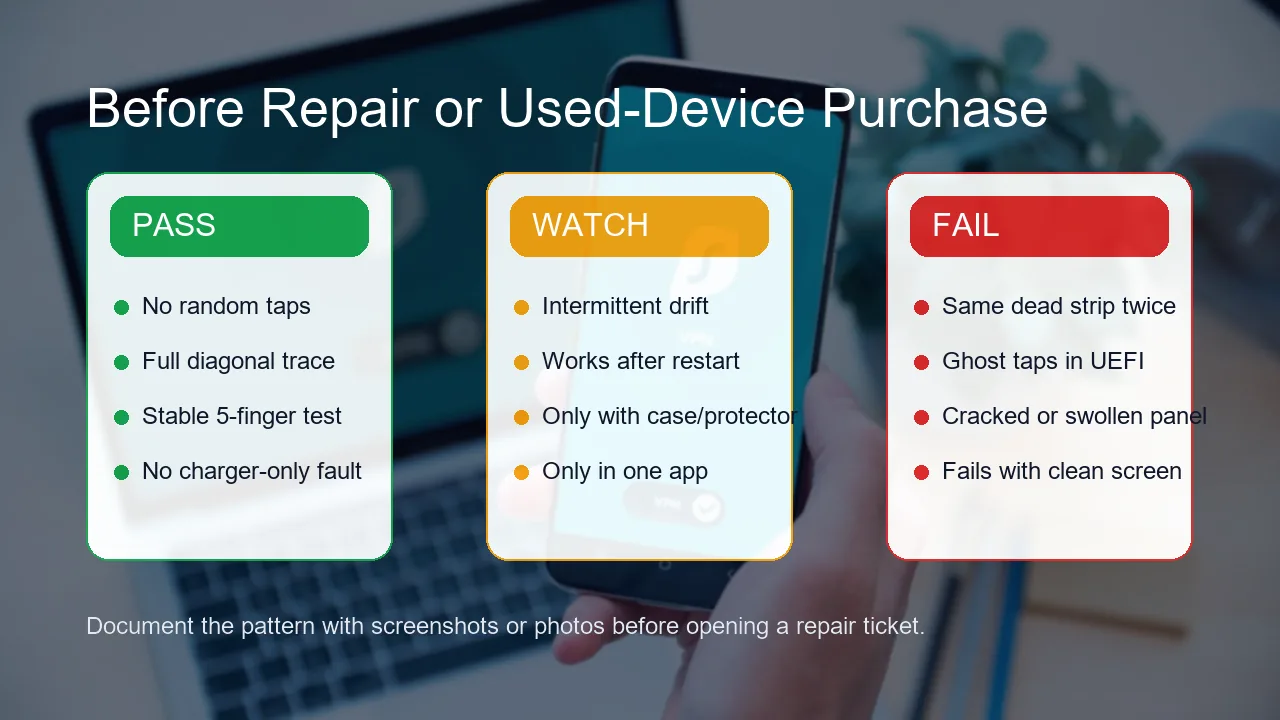
Repair becomes more likely when the fault repeats in the same physical area after cleaning, accessory removal, restart, charger swap, and software checks. Treat these as stronger repair signals:
- The screen taps by itself during a no-touch test in the same area twice.
- A diagonal drag breaks through the same strip from different directions.
- Ghost taps appear in UEFI, recovery, safe mode, or another clean environment.
- The problem started after a drop, water exposure, battery swelling, or screen replacement.
- The device becomes unusable unless you disable the touch driver.
For phones and tablets, the repair shop should replace the digitizer layer or full display assembly depending on the model, not only polish or re-seat glass. For Windows laptops, ask whether the panel, cable, hinge routing, firmware, and touch controller were checked. After repair, run the same online ghost touch, dead-zone, and multi-touch checks before leaving the shop.
Helpful Video Walkthrough
This official ASUS Support video is a useful visual companion for Windows touchscreen troubleshooting. Use it with the online test above so you can compare each setting change against a visible touch result.
Sources and Research Notes
The article uses official support sources for fix order and community sources for demand signals. Reddit threads around Surface ghost touch were useful because users often report the same practical pattern: test in UEFI, disable touch as a temporary workaround, and treat repeated physical zones as hardware evidence. Quora search results were weaker and less specific, so I did not use them as a source.
- Microsoft Support: How to fix touch issues on your Surface touchscreen covers phantom or ghost touches, UEFI testing, driver reinstall, updates, reset paths, and service escalation.
- ASUS Support: Windows touchscreen / touch panel problems covers cleaning the LCD, removing accessories, enabling or reinstalling the HID touch driver, BIOS and Windows updates, calibration, restore, and reset.
- Google Android Help: Fix a screen that is not working right covers checking screen damage, removing cases and protectors, cleaning the display, safe mode, and slow drag testing for affected areas.
- Apple Support: If the screen is not working on your iPhone or iPad covers restart, cleaning, disconnecting accessories, changing charger/socket/cable, removing cases or protectors, and service.
- Dell Support: Latitude or Precision laptop ghost touch with the touchpad shows why OEM firmware and BIOS notes matter for erratic input symptoms on specific models.
- Reddit Surface thread: Ghost touches Surface Pro 11 is a recent community signal for the UEFI-versus-driver troubleshooting pattern, not an official repair source.
Related Tools for Screen Diagnosis
Use these tools after you finish the ghost touch test so you can separate touch input issues from display panel issues.
Related Guides
- Dead Pixel Test: Check Monitor and Screen Pixels Online
- Ghost Click Detector: Fix Random Mouse Clicks and Double Clicking
- Input Latency Checker: Keyboard and Mouse Delay Guide
FAQ
-
What is a ghost touch test?
A ghost touch test checks whether a touchscreen registers taps or swipes when you are not touching it. A good test also maps dead zones, drift, and multi-touch behavior so you can separate dirt, accessories, drivers, and hardware failure.
-
Can I test ghost touch online without installing an app?
Yes. Open a browser-based touch screen test, clear the canvas, keep your hands away from the display, and watch whether any touch marks appear during the ghost touch check. Use full-screen mode if your browser supports it.
-
What usually causes ghost touch?
Common causes include moisture, dirt, a poor screen protector, a failing digitizer, cracked glass, charger interference, a swollen battery, bad grounding, touch driver problems, or firmware issues on touch laptops.
-
How do I know if a dead zone is real?
Drag slowly across the same area twice in different directions. If the trace breaks at the same physical location after cleaning the screen and removing accessories, treat that zone as a likely digitizer or panel fault.
-
Should I disable the touchscreen on a Windows laptop with ghost taps?
Disable touch only as a workaround when ghost taps make the device unusable. First test in UEFI when possible, reinstall the HID touch driver, check Windows and OEM updates, and document the fault pattern for repair.
-
Does ghost touch mean I need a screen replacement?
Not always. Clean the glass, remove the case or screen protector, test with a trusted charger, restart, and check software first. If ghost taps continue in firmware screens, safe mode, or the same physical area, hardware repair becomes much more likely.
Final check: run the touch screen test after every fix. If the same ghost tap or dead strip appears after cleaning, accessory removal, charger swap, restart, and driver or update checks, save the result and move to repair or warranty support with evidence.