Mouse Cursor Moving by Itself? Test Drift, Jitter, and Sensor Problems
Fast answer: a mouse cursor moving by itself is usually caused by sensor noise, dust near the lens, a glossy or uneven surface, a laptop touchpad, a pointing stick, a connected controller, or a wireless/USB problem. Start by running the Mouse Drift Test with your hand off the mouse for 30 seconds, then fix the simplest physical causes before assuming malware or replacing the mouse.
Cursor drift feels unsettling because it looks like the computer is acting without you. In most cases, the pointer is not being "controlled" by anyone. The mouse sensor is reading tiny surface changes, a laptop touchpad is firing, a controller stick is sending input, or Windows is applying a behavior that makes movement feel strange. The right approach is to separate idle drift from normal movement problems.
This guide turns the KeyboardTester.click mouse drift test into a practical troubleshooting workflow. You will test the cursor while the mouse sits untouched, read the drift result, clean and isolate the hardware, then decide whether the problem is the mouse, the surface, another input device, or something that needs a security check.
Run a Mouse Drift Test Before Changing Settings
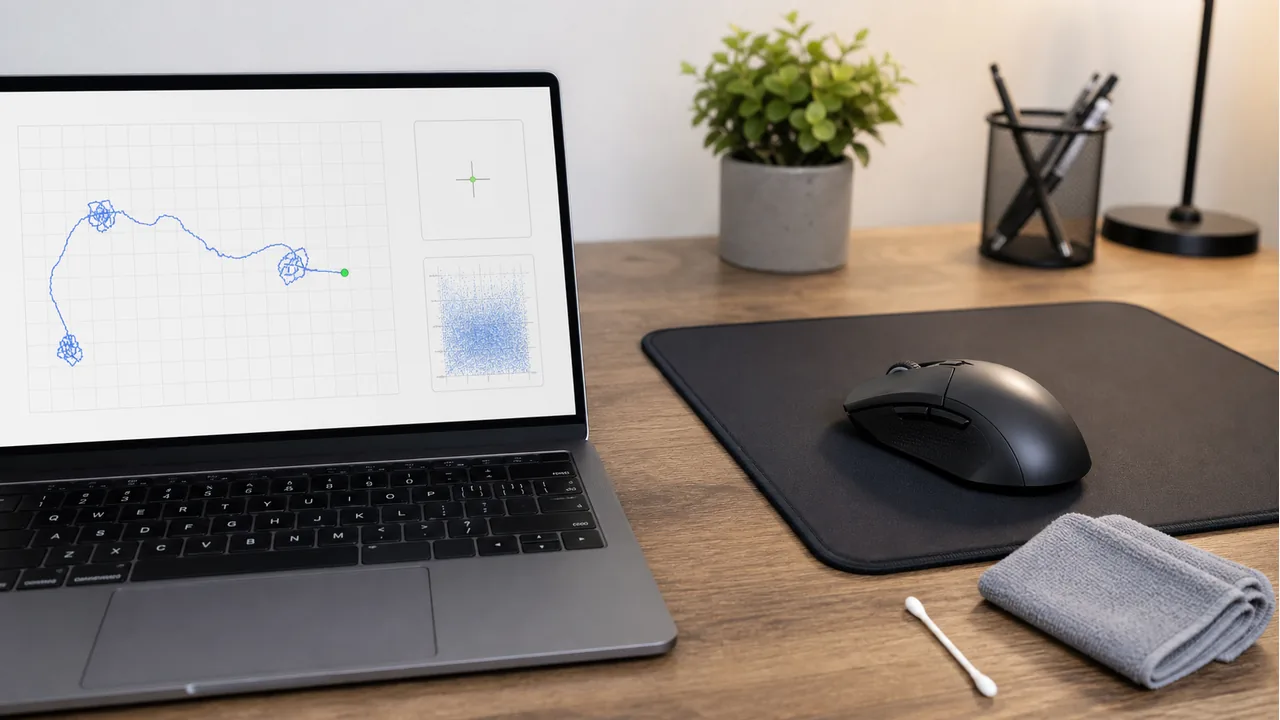
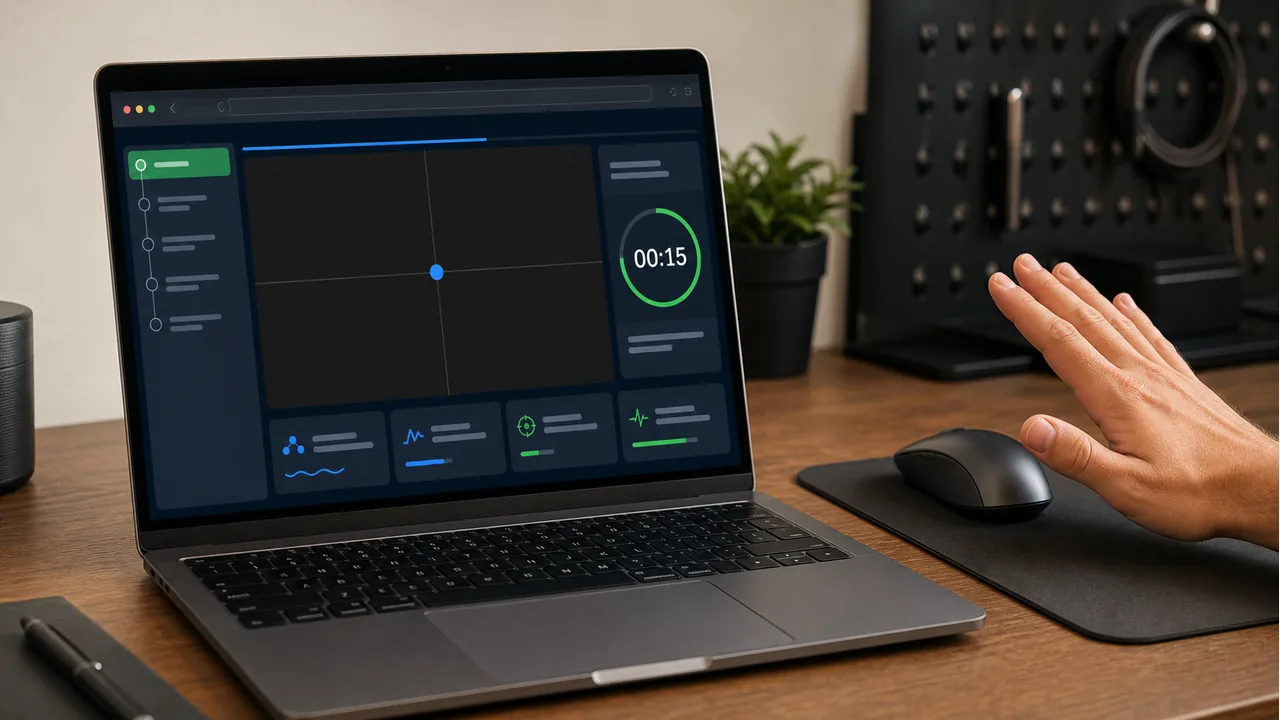
The live test is simple: move your cursor into the test pad once, press Start, remove your hand from the mouse, and wait. The tool records every browser pointermove event during the selected time window, then reports the total drift, the largest single jump, and how many movement events the browser saw.
- Start with 30 seconds. Use the default 30-second run first. Use 60 seconds only after you have a baseline.
- Keep the mouse untouched. Lift your hand away from the mouse, mousepad, desk edge, and cable.
- Use a clean matte pad. A cloth mousepad is the cleanest baseline. Avoid glass, glossy paint, reflective desks, and transparent mats for the first run.
- Retest after each change. Change one variable at a time: surface, USB port, receiver distance, cable, controller, or laptop touchpad.
- Compare another device if possible. If a second mouse shows zero drift on the same pad, the first mouse or its software path is the likely problem.
Field rule: if the cursor moves only while you are touching the mouse, it is not idle drift. Check DPI, acceleration, grip, polling, surface friction, or game sensitivity instead. Use the idle drift test only for movement when the mouse should be still.
How to Read the Mouse Drift Test Result
Browser tests report movement in CSS pixels, not raw sensor counts. That still gives you a useful comparison because you are testing the same mouse, browser, surface, and time window before and after each fix.
| Result | Practical meaning | What to do next |
|---|---|---|
| 0 px total drift | The browser saw no idle pointer movement during the run. | Your sensor is probably stable. If the cursor still moves elsewhere, check touchpad, controller, app, or security causes. |
| Under 5 px total drift | Minor noise. This is usually harmless unless it repeats constantly. | Clean the sensor and retest on a matte pad, but do not replace hardware based on one tiny result. |
| 5-25 px total drift | Notable jitter. The surface, lens, USB path, receiver, or firmware may be unstable. | Run the fix ladder below and compare results after each step. |
| 25+ px total drift | The sensor path is clearly unstable if the mouse was truly untouched. | Test a clean pad, direct USB, another computer, and another mouse. If drift follows the mouse, replacement is reasonable. |
| Few events but one large jump | Possible cable tug, desk bump, receiver glitch, or sudden sensor misread. | Repeat the run with the cable relaxed and the receiver closer to the mouse. |
The Most Common Causes of a Cursor Moving by Itself
The phrase "mouse moving by itself" covers several different problems. The table below keeps the causes separate so you do not waste time changing Windows settings for a dirty sensor, or replacing a mouse when a controller is the real input source.
| Symptom | Likely cause | Best confirmation test |
|---|---|---|
| Cursor creeps while the mouse is untouched | Sensor dust, reflective surface, damaged lens, unstable firmware, or cable/receiver noise | Run the drift test on a clean matte mousepad, then on a second surface. |
| Cursor jumps on a laptop but not with an external monitor/keyboard setup | Touchpad, palm contact, moisture, or pointing stick input | Disable the touchpad temporarily and retest with the external mouse only. |
| Cursor moves in games or menus only | Controller stick drift, Steam Input, gamepad mapping, or joystick emulation | Disconnect controllers and run the Gamepad Tester to check stick drift. |
| Pointer feels slippery only while moving | Pointer acceleration, high DPI, uneven sensitivity, or game raw-input settings | Use the Mouse Acceleration Test and compare settings. |
| Cursor opens apps, clicks buttons, or types without you | Remote control, accessibility automation, bad macro software, or possible compromise | Disconnect input devices, close remote apps, check active sessions, and run a security scan. |
Fix the Drift: Start With the Physical Layer
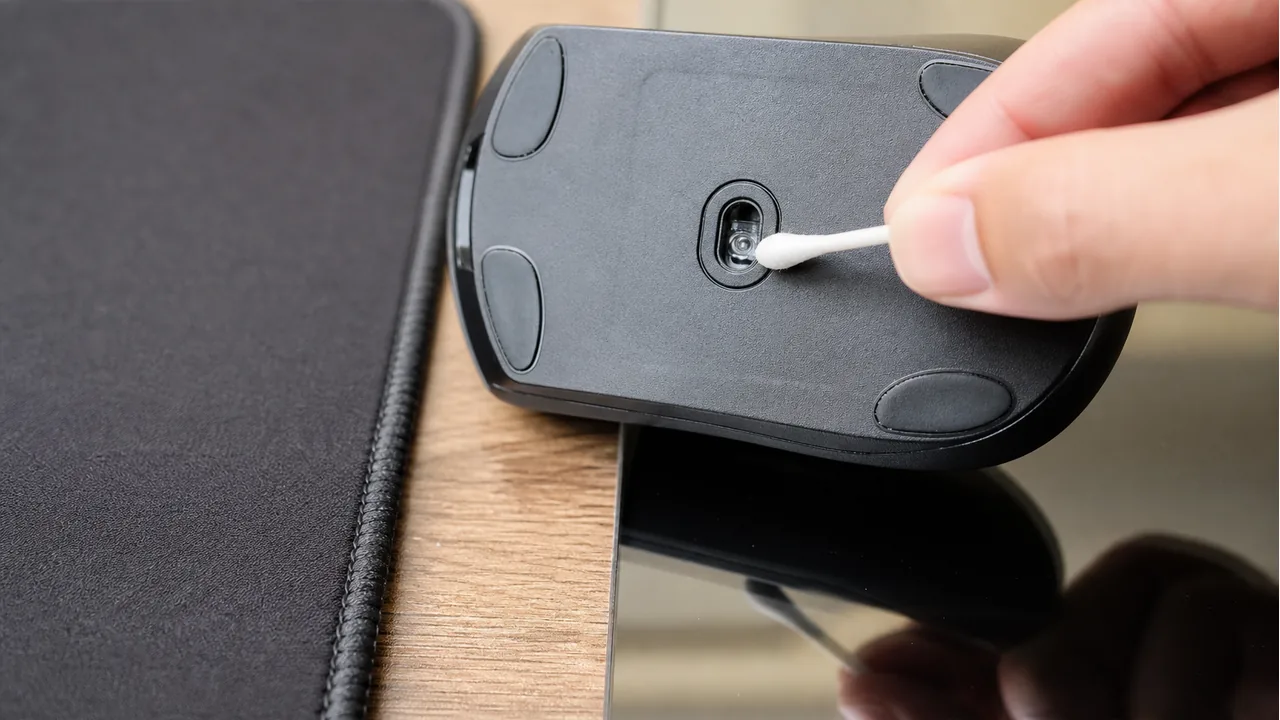
The fastest fixes are not exotic. Microsoft recommends checking hardware, ports, batteries, cables, dirt around sensors, wireless receivers, and drivers before assuming a deeper Windows problem. That sequence also matches real mouse-drift troubleshooting: prove the physical path first.
Do not overfix: Windows pointer speed and Enhance Pointer Precision can change how movement feels, but they do not normally create idle movement when the mouse is completely still. If the drift test shows movement at rest, focus on sensor, surface, USB/wireless, or another input source first.
When to Treat It as Security, Not Mouse Drift
A drifting sensor usually creates small, random movement. A security or remote-control problem looks different: the cursor moves with purpose, clicks buttons, opens menus, switches windows, types, or keeps acting after you disconnect the mouse and other normal input devices.
If you see deliberate behavior, take a calm containment approach:
- Disconnect from the internet briefly if the movement is active and deliberate.
- Unplug the mouse, keyboard receiver, controller, drawing tablet, and any unknown USB device.
- Close remote-access apps you recognize, such as support tools, game streaming apps, or remote desktop sessions.
- Open Windows Security and run a scan. If you are seriously concerned, use Microsoft Defender Offline after saving your work.
- Change important passwords from a different trusted device if you saw unauthorized clicks, logins, or account activity.
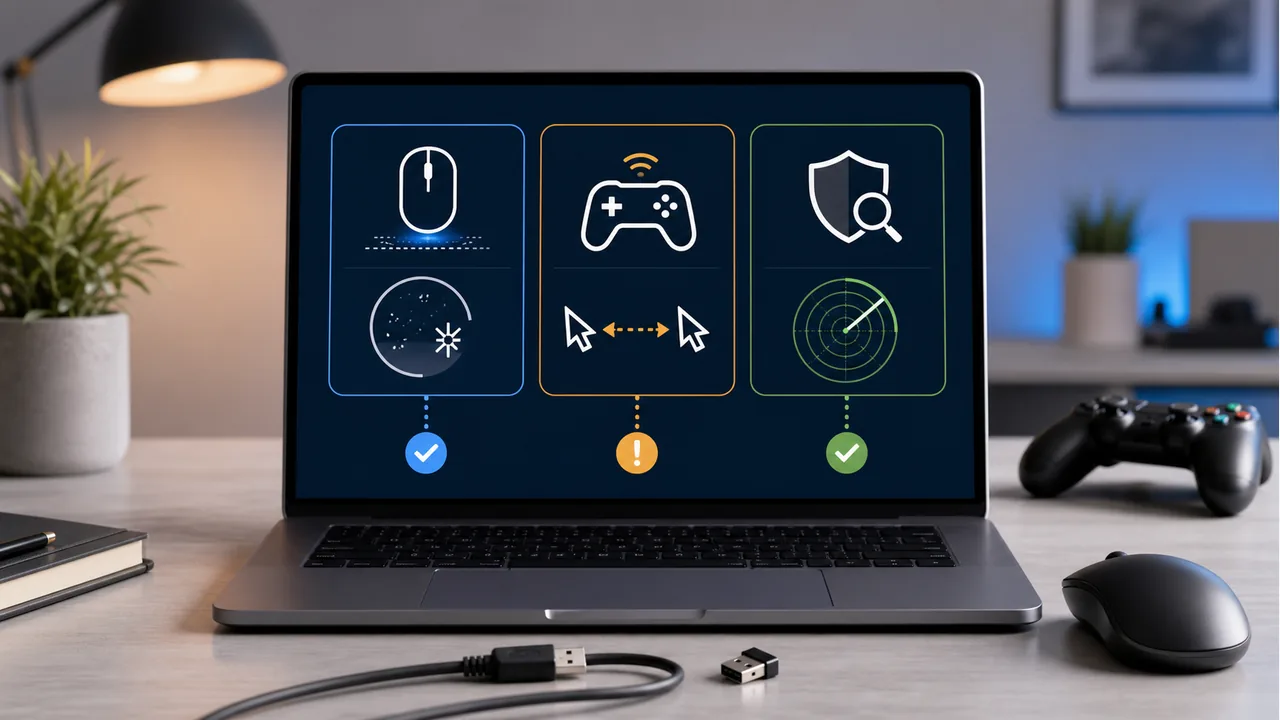
A 10-Minute Cursor Drift Diagnostic Workflow
Use this workflow when you need a quick answer before buying a new mouse or reinstalling drivers.
- Baseline: run the Mouse Drift Test for 30 seconds on your normal surface.
- Surface check: clean the lens, move to a matte cloth mousepad, and run the same 30-second test again.
- Connection check: plug directly into another USB port, or move the wireless receiver closer with an extender.
- Input isolation: disconnect controllers, tablets, second mice, KVMs, and laptop touchpads if possible.
- Second-device check: test another mouse on the same PC and the suspect mouse on another PC.
- Settings check: if drift disappears but movement still feels wrong, test DPI and acceleration instead of idle drift.
- Security check: only escalate to malware or remote-access investigation when the cursor acts deliberately or continues after hardware isolation.
Related Tests for the Same Problem
Cursor drift often overlaps with DPI, acceleration, controller input, and switch problems. These tools cover the neighboring checks.
Related Guides
- Mouse Acceleration on Windows 11: How to Disable It and Use Raw Input
- How to Check Your Mouse DPI: Measure It Live, No Software Needed
- Ghost Click Detector: How to Fix Mouse Double Clicking
- Input Latency Checker: Keyboard and Mouse Delay Guide for Gamers
Sources and Technical References
The workflow above is based on the way browser pointer events work, Windows hardware troubleshooting guidance, and practical support patterns from users reporting cursor movement by itself.
- MDN pointermove event documentation explains the browser event the drift test listens for when pointer movement is reported.
- Microsoft mouse and keyboard problems in Windows covers checking hardware, USB ports, batteries, dirt around sensors, wireless receivers, and drivers.
- Microsoft change mouse settings explains pointer speed, pointer behavior, and Enhance Pointer Precision settings.
- Microsoft Windows Security virus and threat protection documents scan options, including Microsoft Defender Offline.
- Microsoft Answers: mouse moving by itself discussion shows the common support-style wording users use for this symptom.
- Tom's Hardware forum discussion is an example of hardware-focused cursor shaking reports that overlap with sensor and surface troubleshooting.
Start with the live test: open the Mouse Drift Test, run a 30-second baseline, clean the sensor, switch to a matte pad, and run it again. If the number drops, you found the cause without replacing hardware.
FAQ
Is a mouse cursor moving by itself always malware?
No. Most cases are caused by sensor dust, a glossy or uneven surface, a laptop touchpad, a pointing stick, a controller, a wireless receiver issue, or driver behavior. Malware or remote access is worth checking only when the cursor makes deliberate choices, opens apps, types, or the movement continues after you disconnect normal input devices.
What does the KeyboardTester.click mouse drift test measure?
The test listens for browser pointer movement while the mouse is supposed to sit still. It reports total drift in pixels, the largest single-event jump, and the number of pointer events recorded during the selected test window.
How much mouse drift is normal?
Zero pixels is ideal. A few pixels over a longer run can be harmless sensor noise. Repeated movement above about 25 pixels on a clean matte mousepad is a stronger signal that the sensor, surface, firmware, cable, or wireless path needs attention.
Can a bad mousepad make the cursor drift?
Yes. Glossy desks, glass, transparent mats, reflective paint, uneven fabric, dust, and very dark low-contrast surfaces can confuse optical or laser sensors. Retest on a clean matte cloth mousepad before replacing the mouse.
Why does the cursor move by itself only on a laptop?
Laptop-only cursor movement is often caused by touchpad palm contact, moisture, a dirty touchpad, a TrackPoint or pointing stick, or a touchpad driver setting. Disable the touchpad temporarily and test with an external mouse to separate the two.
Should I replace the mouse if the drift test fails?
Not immediately. Clean the sensor, change the surface, remove hubs and receivers, test another USB port, disconnect controllers, and try the mouse on another computer. Replace it only if the same drift follows the mouse across clean surfaces and devices.
Helpful Video
This related video supports the checks and decisions covered in this guide.