Mouse and Keyboard Tester Tools
The complete online testing suite for diagnosing keyboards, mice, and peripherals. Free, instant, and works on any device.
Whether you're a gamer optimizing your setup, a professional troubleshooting hardware issues, or someone who just bought a new keyboard or mouse, having reliable testing tools is essential. KeyboardTester.click provides a comprehensive suite of free online tools that work instantly in your browser without any downloads or installations.
Our mouse and keyboard testing tools help you diagnose problems, verify functionality, and optimize your peripheral settings. From detecting stuck keys and ghost clicks to measuring typing speed and mouse DPI, we've built everything you need to ensure your input devices are performing at their best.
Keyboard Testing Tools
Your keyboard is your primary input device, and even a single malfunctioning key can significantly impact your productivity. Our keyboard testing tools help you identify issues quickly and accurately.
Keyboard Tester
Test every key on your keyboard instantly. Visual feedback shows which keys are working and which need attention.
Typing Speed Test
Measure your typing speed in WPM with accuracy tracking. Identify weak keys and improve your skills.
Keyboard Latency Checker
Check your keyboard's response time. Essential for gamers and anyone needing fast input registration.
Advanced Keyboard Tester
Full-featured keyboard testing with layout detection, key counter, and exportable results.
Language-Specific Keyboard Testers
We support keyboard testing for multiple languages and layouts. Each tester displays the correct key positions for that language:
Arabic Keyboard Tester
Test Arabic keyboard layout with proper RTL display and Arabic character mapping.
Spanish Keyboard Tester
Verify Spanish layout including , accented characters, and special punctuation.
French Keyboard Tester
Test AZERTY layout with French accents and special characters.
German Keyboard Tester
QWERTZ layout testing with umlauts (ae, oe, ue) and eszett (ss).
Russian Keyboard Tester
Test Cyrillic keyboard layout and character input.
Japanese Keyboard Tester
Verify Japanese input including IME and special function keys.
Korean Keyboard Tester
Test Korean Hangul keyboard layout and character composition.
Portuguese Keyboard Tester
Brazilian and European Portuguese layout testing.
Mouse Testing Tools
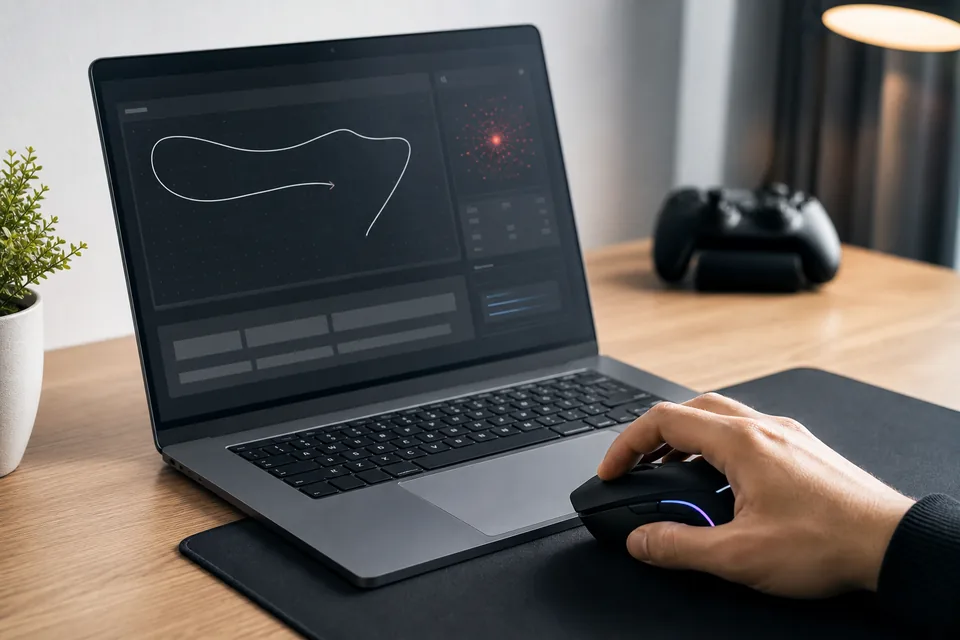
A malfunctioning mouse can be incredibly frustrating, especially during important work or competitive gaming. Our mouse testing suite helps you identify issues ranging from button problems to sensitivity settings.
Mouse Tester
Test all mouse buttons (left, right, middle, side buttons) and scroll wheel functionality.
Click Speed Test (CPS)
Measure your clicks per second. Challenge yourself and track improvements.
Ghost Click Detector
Detect phantom double-clicks caused by worn mouse switches.
Mouse DPI Tester
Measure your mouse sensitivity without installing software.
Why Test Your Keyboard and Mouse?
Regular testing of your input devices helps you catch problems early and ensures optimal performance. Here's why periodic testing matters:
For Gamers
- Competitive advantage: A single missed key press or delayed click can cost you a match. Testing ensures every input registers correctly.
- Latency matters: Even a few milliseconds of input lag can affect reaction times in fast-paced games.
- Mouse precision: Verify your DPI settings match your in-game sensitivity for consistent aim.
For Professionals
- Productivity: Stuck or unresponsive keys slow down typing and can cause errors in important documents.
- Ergonomics: Double-clicking issues can cause repetitive strain by forcing extra effort.
- Equipment validation: Test new peripherals before deploying them in your workflow.
For Troubleshooting
- Diagnose hardware vs. software issues: Our tools help determine if problems are with your device or system settings.
- Document problems: Use test results when filing warranty claims or seeking support.
- Verify repairs: Confirm that cleaned or repaired keyboards and mice work correctly.
How to Use Our Testing Tools
All our tools work directly in your browser with no downloads required. Here's a quick guide to get started:
Testing Your Keyboard
- Open the Keyboard Tester in your browser
- Click anywhere on the page to ensure it has focus
- Press each key on your keyboard one at a time
- Watch the on-screen keyboard - working keys will highlight
- Note any keys that don't respond or register incorrectly
Testing Your Mouse
- Open the Mouse Tester
- Click each button on your mouse (left, right, middle, side buttons)
- Test the scroll wheel by scrolling up, down, and clicking
- For ghost click detection, use our dedicated detector
Measuring Performance
- For typing speed, use the Typing Test and type the displayed text
- For click speed, use the CPS Test and click as fast as possible
- For latency, use the Latency Checker and follow on-screen instructions
Complete Keyboard Testing Guide
A thorough keyboard test involves checking multiple aspects of your keyboard's functionality. Here's what to look for:
Key Registration
The most basic test is ensuring every key registers when pressed. Open our keyboard tester and systematically press every key. Pay special attention to:
- Modifier keys: Shift, Ctrl, Alt, and Windows/Command keys
- Function keys: F1-F12 and any Fn key combinations
- Special characters: Brackets, slashes, and punctuation
- Numpad: If your keyboard has one, test all numpad keys
Key Rollover (N-Key Rollover)
Key rollover refers to how many simultaneous key presses your keyboard can register. Gaming keyboards often support "N-key rollover" (unlimited simultaneous keys), while budget keyboards may only support 2-6 keys at once. Test by pressing multiple keys simultaneously.
Keyboard Latency
Input latency is the delay between pressing a key and the computer registering it. Our Latency Checker measures this delay. Typical latency ranges:
- Gaming keyboards: 1-5ms (excellent)
- Standard wired keyboards: 5-10ms (good)
- Wireless keyboards: 10-20ms (acceptable)
- Bluetooth keyboards: 20-40ms (may cause noticeable lag)
Typing Speed and Accuracy
Use our Typing Speed Test to measure your words per minute (WPM) and accuracy. This can help identify specific keys that slow you down or cause frequent errors.
Complete Mouse Testing Guide
Mouse problems can range from obvious (broken buttons) to subtle (ghost clicks, tracking issues). Here's a comprehensive testing approach:
Button Testing
The Mouse Tester detects all standard mouse buttons:
- Left click (Button 0): Primary click - should register cleanly without double-clicking
- Right click (Button 2): Context menu - verify consistent registration
- Middle click (Button 1): Scroll wheel click - often used for opening links in new tabs
- Side buttons (Button 3, 4): Back/forward buttons - test both directions
Ghost Click Detection
Ghost clicks occur when your mouse registers multiple clicks from a single press. This is usually caused by worn-out Omron switches in older mice. Our Ghost Click Detector specifically tests for this issue. Signs of ghost clicking:
- Double-clicking icons when you single-click
- Drag operations ending prematurely
- Text getting deselected unexpectedly
- Files opening twice
DPI and Sensitivity
DPI (dots per inch) determines how far your cursor moves relative to physical mouse movement. Use our DPI Tester to measure your current setting. Common DPI ranges:
- 400-800 DPI: Low sensitivity, preferred by many FPS gamers
- 800-1600 DPI: Medium sensitivity, good for general use
- 1600-3200 DPI: High sensitivity, useful for large monitors
- 3200+ DPI: Very high sensitivity, typically for multi-monitor setups
Click Speed (CPS)
The Click Speed Test measures how fast you can click. This is popular among gamers, especially for games requiring rapid clicking. Average CPS rates:
- 4-6 CPS: Average casual clicking
- 7-9 CPS: Above average, good for most games
- 10-12 CPS: Fast clicking, competitive level
- 13+ CPS: Expert level, often using special techniques
Troubleshooting Common Issues
Keyboard Not Responding
If keys aren't registering in our test:
- Ensure the browser window has focus (click on it)
- Try a different USB port
- Check for debris under the keys
- Test with a different computer to isolate hardware vs. software issues
- For wireless keyboards, check battery levels and receiver connection
Mouse Buttons Not Clicking
If clicks aren't registering:
- Clean the mouse buttons with compressed air
- Try a different USB port or surface
- Update mouse drivers
- Test on another computer
Ghost Clicking Issues
If you detect ghost clicks:
- The mouse switch is likely worn - consider replacement or repair
- As a temporary fix, some software can debounce clicks
- Budget gaming mice are often repairable by soldering new switches
High Latency
If your keyboard or mouse shows high latency:
- Use wired connection instead of wireless
- Disable power-saving USB settings
- Update drivers and firmware
- Check for background processes using high CPU
Start Testing Your Devices Now
All our tools are free, instant, and require no downloads. Test your keyboard and mouse in seconds.
Frequently Asked Questions
Other Testing Tools
Beyond keyboard and mouse testing, we offer a comprehensive suite of peripheral and utility testing tools:
Screen Tester
Test your monitor for dead pixels, color accuracy, and display uniformity.
Microphone Tester
Test mic quality, adjust levels, and record samples before calls or streams.
Headphone & Speaker Tester
Test audio channels, frequency response, and stereo balance.
Webcam Tester
Check camera quality and settings before video calls or recordings.
QR Code Generator
Create custom QR codes for URLs, text, WiFi, or contact info.
Password Generator
Create strong, secure passwords with customizable options.
Explore our complete collection of free online tools to test and optimize all your devices.
Ready to Test Your Setup?
Join thousands of users who trust KeyboardTester.click for accurate, instant peripheral testing.