Start below, switch to full screen, and inspect the entire panel on a clean black background.
Display diagnostic
Screen Pixel Test
Check dead, stuck, hot, and uniformity issues with solid colors, then optionally run a targeted pixel repair attempt.
BlackFind hot pixels, bright stuck pixels, bleed, and glow.
Black
Clean the screen first, open fullscreen, then scan the panel in slow rows. Use click, Space, or arrow keys to move between colors.
Photosensitivity warning: repair mode uses rapidly changing colors. Do not stare at the flashing area, stop immediately if you feel discomfort, and do not use it if flashing lights may trigger symptoms for you.
Target area
Duration
96 px
Drag the target box over the stuck pixel, choose a duration, then start.
Screen Test ActiveClick, Space, or ArrowRight for next color. ArrowLeft goes back. Esc exits.
Was this tool helpful?Rate Black Screen Test Tool:5.0(3 ratings)Thanks for rating!
Screen Tester is a free, browser-based screen testing tool that lets you inspect monitors for backlight bleed, glow, and bright display defects.
Cost: Free, no signup
Install: None — runs in the browser
Privacy: Runs locally, no uploads
Platforms: Windows, macOS, Linux, Android, iOS
Time: Under a minute
What a Black Screen Test Is Good For
A black screen test gives you a clean dark background for checking monitor defects that are easier to see when the panel should be almost completely dark. It is commonly used for backlight bleed, IPS glow, bright spots, and hot pixels.
If you need the opposite type of check, the full screen tester includes a white background for stuck pixels, tint, and uniformity inspection on bright screens.
How to Check a Monitor With a Black Screen
Dim the room so glow and bright defects are easier to notice.
Open full-screen mode and let your eyes adjust for a few seconds.
Inspect the center, then the edges and corners for uneven brightness.
Compare with the dead pixel test if you need to confirm the defect type.
Black Screen Test FAQ
Can a black screen show backlight bleed?
Yes. Backlight bleed usually becomes much easier to notice on a dark screen in a dim room, especially around the corners and edges.
Is black or white better for dead pixels?
They help with different things. Black is useful for bright defects and bleed, while white and RGB screens are often better for confirming dead or stuck pixels.
Does this page run full screen?
Yes. Start the display test and switch into full-screen mode for a cleaner inspection surface.
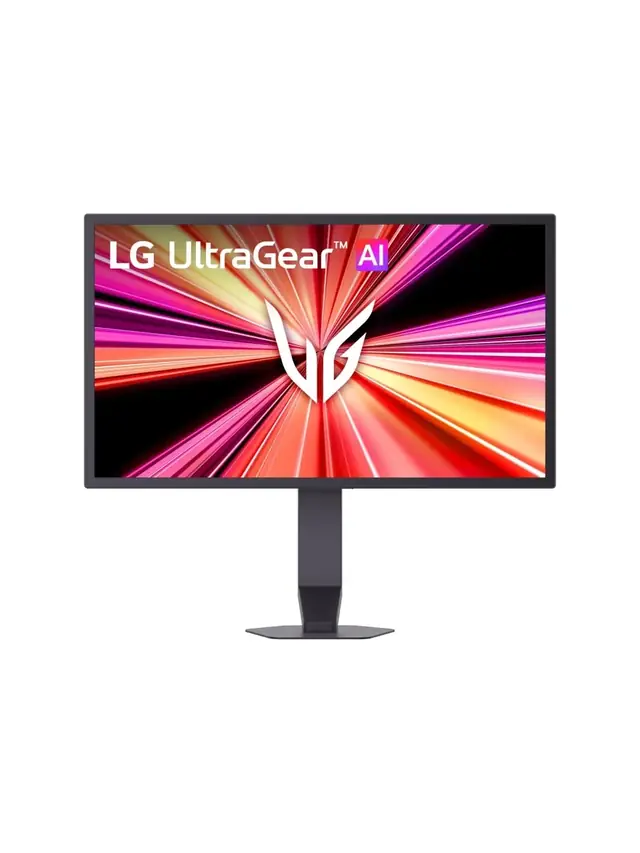
01 / 10Monitor reality check1000Hz Is Real. Worth $999?LG's UltraGear 25G590B is the first native 1000Hz 1080p monitor. Check the fine print first.02 / 10The price$999.99 for 1080pThat is the LG.com launch price, confirmed Sept 10. A 24.5-inch IPS esports panel.03 / 10The 1 ms mathOne Frame Lasts 1 msAt 1000 Hz a frame is on screen for 1 ms—the same figure as LG's own 1 ms GtG response spec.04 / 10LG's own footnoteMBR Pro Turns Off VRRFreeSync Premium and G-SYNC Compatible are disabled while MBR Pro runs. The 1100Hz overclock drops FreeSync.05 / 10Feeding itCan Your PC Push 1000 fps?LG lists Windows 11, RTX 50 / RX 9070-class GPUs and DisplayPort 2.1. 1000 Hz does not promise 1000 fps.06 / 10Reality check1080p Is Still the Majority50.52% of Steam players ran 1080p in August 2026. LG is selling speed to the biggest resolution group.07 / 10Same moneyWhat $999 Buys InsteadA 480Hz QHD OLED tracked at $547.54 on Jul 30. LG's own 480Hz dual-mode 27G850A: about $699.99.08 / 10Verdict splitBuilt for One Kind of PlayerSerious FPS competitors with GPUs to match may justify it. Everyone else buys sharper pixels for less.09 / 10Delivery dayTest Before You TrustVerify the refresh rate your system actually reports, frame skipping, dead pixels and motion clarity.10 / 10Your turnCheck Your Refresh RateSee what your browser reports right now. A browser check reads reported rate, not certified panel speed.
01 / 10Phone buying guidePWM-sensitive? Test the phone, not the promiseDisplay specs narrow the shortlist, but no OLED is comfortable for everyone.02 / 10Build the shortlistStart with the display strategyCompare LCD, DC-dimming and high-frequency PWM options. Each still needs a real-use check.03 / 10Read the evidenceSpecifications are only a filterFrequency, modulation, brightness and firmware can all change how a screen behaves.04 / 10Before testingEnable the documented display settingToggle names and effects vary by model. Confirm the current manual before testing.05 / 10First passTest at your normal brightness firstUse the reading, video and scrolling tasks you actually do each day.06 / 10Low-light passRepeat at a lower brightnessOLED dimming behavior may change as brightness falls. Keep the same room and screen content.07 / 10Store checkCompare camera bands, not just one photoUse the same camera, exposure and distance on each phone for a fair comparison.08 / 10Read cautiouslyBanding is a clue, not a lab resultCamera bands can reveal pulsing, but not exact PWM, modulation or medical conclusions.09 / 10Final decisionLet the return window settle the choiceTry normal use briefly. Stop if discomfort occurs; return it before the seller's deadline.10 / 10One last checkRun one controlled flicker comparisonUse the same brightness and camera setup, then save the result with your buying notes.
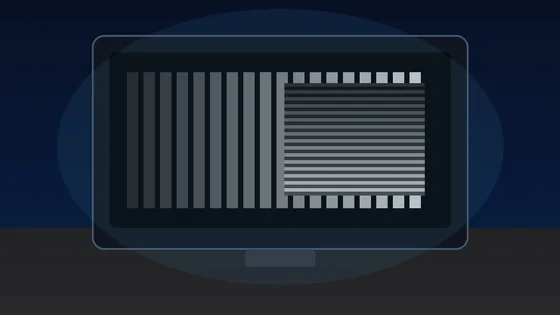
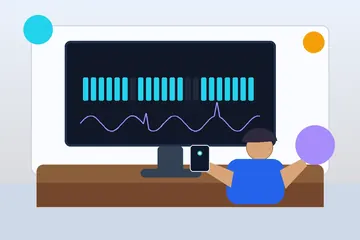
01 / 10Screen flicker testYour screen may be flickeringMany displays dim by switching the backlight on and off hundreds of times a second.02 / 10The symptomSore eyes and evening headachesStrain that gets worse at night, on one device but not another, is the clue.03 / 10What PWM meansDimming by blinking, not fadingInstead of lowering brightness, the backlight pulses. Faster pulsing is easier to tolerate.04 / 10Why night is worseLower brightness, deeper flickerThe dimmer you set the screen, the longer the backlight stays off between pulses.05 / 10Run the testWatch the moving patternA flickering backlight breaks the motion into separate copies instead of a smooth trail.06 / 10What to look forBands mean pulsingClear repeated edges suggest PWM. A smooth blur suggests steady, flicker-free dimming.07 / 10Not everyoneSome people never noticeSensitivity varies widely. Migraine and dry eyes can make the same screen unbearable.08 / 10What helpsRaise brightness, lower contrastHigher brightness usually shortens the off phase. Warm light and screen breaks help too.09 / 10One honest limitA browser cannot measure hertzThis shows whether flicker is visible to you, not the exact PWM frequency.10 / 10Your turnSee how your screen dimsRun the pattern at full and low brightness, then compare your devices.
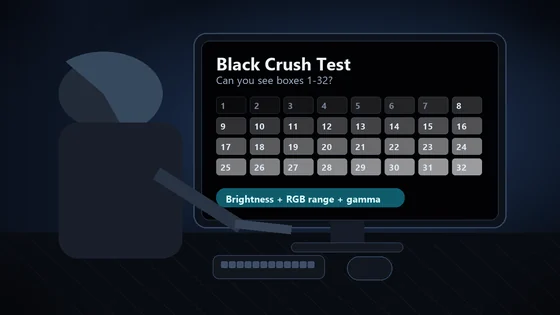
01 / 10Monitor checkDark scenes losing detail?Your monitor may be turning several near-black shades into one flat black.02 / 10The symptomShadow texture disappearsHair, clothing, caves and night scenes merge into featureless black. That is black crush.03 / 10Before you testUse normal SDR settingsDim the room, avoid glare and let your eyes adapt for 30 to 60 seconds.04 / 10The testLook for 32 near-black stepsPatch 1 is darkest. Patch 32 is easiest. Use fullscreen and do not expect the low steps to glow.05 / 10Read the resultFind the first visible patchIt should be barely separate from the black background. Note its number.06 / 10ExcellentYou can see 1 through 32Your display is preserving very dark shadow steps. Subtle is correct.07 / 10Mild crushingVisibility starts near 4Brightness may be too low, or gamma may be hiding the first few steps.08 / 10Moderate to severeVisibility starts at 8 or 16Check the monitor black-level setting and whether the GPU is sending Full or Limited RGB.09 / 10Fix one variable at a timeBrightness. Range. Gamma.Retest after each change. Establish a clean SDR result before troubleshooting HDR.10 / 10See what your display keepsRun all 32 shadow stepsThe live tool is the proper diagnostic surface; compressed story images are only a guide.