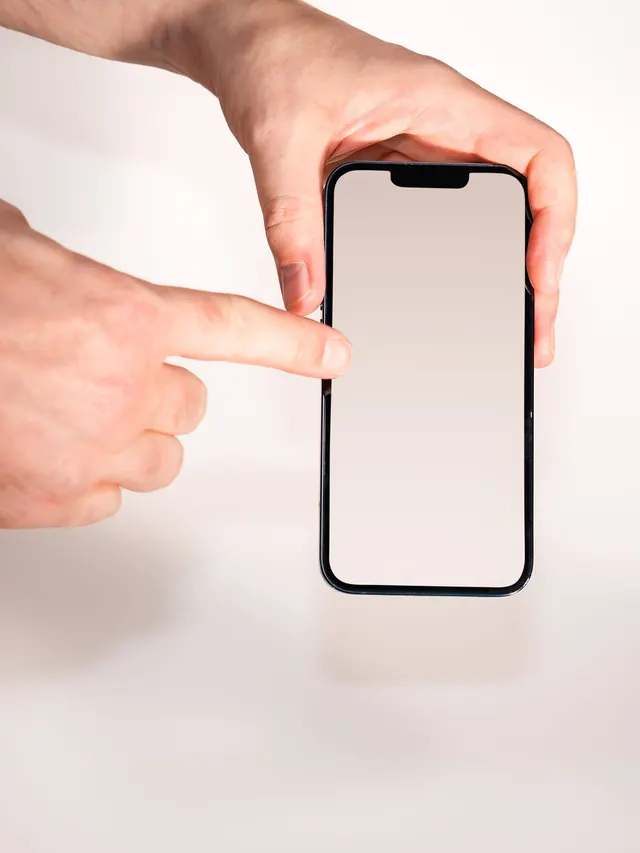
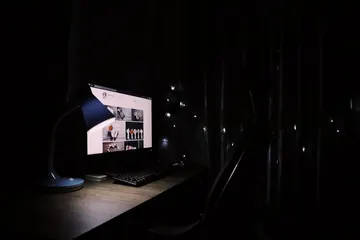
Person using an online screen tester to inspect a display for dead pixels and panel defects

Free Dead Pixel Test & Screen Tester

Run a free online screen test with full-screen colors to find dead pixels, stuck pixels, hot pixels, tint, backlight bleed, and uniformity issues. No download.

Download from Microsoft Store Download from Microsoft Store

Dead Pixel Test & Screen Tester

Use the live tool below to complete your test.

Display diagnostic

Screen Pixel Test

Check dead, stuck, hot, and uniformity issues with solid colors, then optionally run a targeted pixel repair attempt.

Black Find hot pixels, bright stuck pixels, bleed, and glow.
Black

Clean the screen first, open fullscreen, then scan the panel in slow rows. Use click, Space, or arrow keys to move between colors.

Screen Test Active Click, Space, or ArrowRight for next color. ArrowLeft goes back. Esc exits.
Rate Screen Tester: 5.0 (2 ratings)
KeyboardTester.click assistant

Free for your site

Embed this Screen Tester on your website

Add this free, no-signup tool to your own page or blog post in one click — just keep the small credit link.

Screen Tester is a free, browser-based screen test with full-screen solid colors for dead pixels, stuck pixels, hot pixels, tint, backlight bleed, and basic panel uniformity.

  • Cost: Free, no signup
  • Install: None — runs in the browser
  • Privacy: Runs locally, no uploads
  • Platforms: Windows, macOS, Linux, Android, iOS
  • Time: Under a minute

Screen Test Online: What This Tool Checks

A screen test displays clean full-screen colors so you can inspect a monitor, laptop, phone, tablet, Chromebook, or TV for pixels and panel defects that are hard to see on a normal wallpaper. Use it to find dead pixels, stuck pixels, hot pixels, dust marks, tint, backlight bleed, and basic uniformity issues before a return window closes or before you trust a display for work.

This page is the general display check. If you already know the exact symptom, use the focused dead pixel test, black screen test, backlight bleed test, or screen uniformity test.

How to Run a Reliable Screen Test

  1. Clean the screen first. A dust speck or dried mark can look exactly like a dead pixel until you wipe the panel with a microfiber cloth.
  2. Let the display warm up. Give a new monitor or laptop screen about 20 to 30 minutes before judging tint, glow, or uniformity.
  3. Open full-screen mode. Browser chrome, taskbars, and wallpapers hide edge defects. Use the tool's full-screen button, then press click, Space, or arrow keys to move through colors.
  4. Scan in slow rows. Check the center, corners, and edges on every solid color. On a large TV or ultrawide monitor, step back for uniformity, then move closer for individual pixels.
  5. Retest suspicious spots. A real panel defect stays in the same physical position when the background color changes. A screenshot will not capture a hardware pixel defect, so use a phone photo or note the location for warranty evidence.

Which Color Finds Which Screen Problem?

Test color Best for finding What to look for
White Dead pixels, dust, dark specks, tint A black dot that never lights up is usually a dead pixel. A smudge that moves or wipes away is dust.
Black Hot pixels, bright stuck pixels, backlight bleed, IPS glow A tiny fixed bright dot is a hot or stuck pixel. Larger edge patches are usually bleed, glow, or pressure marks.
Red, green, blue Sub-pixel faults A black dot on only one primary color can indicate a failed red, green, or blue sub-pixel.
Cyan, magenta, yellow Color-locked pixels and channel balance A dot that keeps the wrong color while backgrounds change is more likely stuck than dead.
Gray Uniformity, tint, cloudy patches Look for zones that are warmer, cooler, brighter, darker, or cloudy compared with the rest of the panel.

Dead Pixel, Stuck Pixel, Hot Pixel, or Backlight Issue?

A true dead pixel is normally black on white, red, green, blue, and gray screens because it no longer lights up. A stuck pixel stays lit in one color or white. A hot pixel is a tiny bright point that stands out on black. Backlight bleed, IPS glow, pressure spots, and clouding are usually larger patches rather than a single sharp pixel.

Use the repair mode only for stuck or hot pixels. Start with the targeted repair box, choose 5 or 10 minutes, avoid staring at the flashing area, and retest with solid colors afterward. Full-display repair is a last resort because rapid flashing can be uncomfortable. A truly black dead pixel is usually a hardware fault and should be documented for return, exchange, or manufacturer warranty review.


Screen Test FAQ

How do I test my screen for dead pixels online?

Open the screen tester, enter full-screen mode, and cycle through white, black, red, green, blue, cyan, magenta, yellow, and gray. Scan the same physical area on every color. A dot that stays wrong in the same position is a panel issue, not a website artifact.

What is the best color for finding dead pixels?

White is usually the fastest way to spot a dead pixel because a dead pixel appears as a small black dot. Black is better for hot pixels, bright stuck pixels, backlight bleed, and glow. Red, green, and blue help confirm sub-pixel faults.


Can this screen test fix dead pixels?

The repair mode can try to exercise stuck or hot pixels with rapid color changes, but it cannot reliably repair a true black dead pixel. If the dot stays black on every color, treat it as a hardware defect and check your return or warranty policy.

Should I use the target repair zone or full-display repair?

Use the target repair zone first because it limits flashing to the suspicious pixel area. Full-display repair should only be used if the target zone is not practical. Do not stare at the flashing area, and stop immediately if you feel discomfort.

Does this work on laptops, phones, tablets, Chromebooks, and TVs?

Yes, the test is browser based and works on most modern screens. On phones and tablets, rotate the device and use browser full-screen where available. On TVs, open the page in the TV browser or cast/mirror it, then inspect from a normal viewing distance and up close.

Why do I see a spot on one color but not another?

A spot that appears only on red, green, or blue may be a sub-pixel fault. A spot that appears only on black may be a hot pixel, glow, bleed, or pressure mark. A spot that disappears after cleaning was dust or a surface mark, not a dead pixel.

Can I use a screenshot as proof of a dead pixel?

No. A screenshot captures the image sent by the computer, not the physical pixel behavior of your panel. Use a phone photo or video showing the same spot across multiple solid colors if you need return or warranty evidence.

Is the screen test private?

Yes. The color test, local finding log, and repair controls run in your browser. The page does not need camera access, does not upload photos, and does not send your display inspection results to a server.

Windows app

KeyboardTester.click is available from Microsoft Store

Install the official Windows app shortcut, or keep using the same free testing tools in your browser.

Download from Microsoft Store Download from Microsoft Store